
Author: sandeeppote

SQL error- No process is on the other end of the pipe

A connection was successfully established with the server, but then an error occurred during the login process. (provider: Shared Memory Provider, error: 0 – No process is on the other end of the pipe.) (Microsoft SQL Server, Error: 233)

To resolve this issue: Switch from Windows to SQL Authentication:

  1. Right click on the server name and select properties
  2. Select security tab
  3. Enable the SQL Server and Windows Authentication mode
  4. Restart the SQL Server service

Sitecore- Synchronise existing item after setting as bucketable

Existing Items set as bucketable aren’t hidden and still shows in item bucket, then you might have forgotten to sync the item bucket.

To sync item bucket do the following-

  1. Select the folder or a item bucket that is a bucket. Link here in how its done
  2. In the Content Editor, on the Configure tab in the Buckets group click Sync.
  3. It should show the progress bar on the items been synced.

Depending on number of items in item bucket the items should have synced and hidden.

Items those are marked bucketable should be hidden and those not should still show as a child of item bucket.

bucket9

How to delete mutiple database from sql management studio

At times you might have come across deleting multiple databases. One of the scenarios may be Sitecore creating many DB’s and if it is sitting stale doing nothing you might want to delete those DB’s. You might first try to run the uninstall script to get the site and all related db’s deleted, but if you are deleting this manually you might wonder how to delete mutiple or all db’s in sql server on dev machine in one go.

  1. Open the SQL server management studio
  2. Press F7 or select View in menu and open Object Explorer Details.
  3. Click on Database folder in Object Explorer all db’s will be listed
  4. Select DB’s of your choice to delete. Right click on selected DB’s
  5. Choose option Close existing connections and Click OK
  6. Selected DB’s will be deleted


sc902error4

sc902error5


How to know which container’s are item bucket in Sitecore

Items buckets are used in Sitecore to store millions of content items in one container but also to not load all those items in a content tree instead can be searched within the container. The items in bucket container are hidden and the parent-child relationship is lost once bucketed.

There is a lost to tell and discuss about bucket in Sitecore but to enable the content editor to know which container are item bucket can and Item bucket icon can be enabled in the Quick Action Bar to the left of the content tree in Content Editor.

To do this –

Right click on Quick Action Bar and select option Item Buckets

bucket1

This should show a icon on Quick Action Bar for a bucketed item, in this case Airlines item is a buckatable item.

bucket2


Hope this helps.

Visual Studio 2019 preview

Visual Studio 2019 preview been out, changes that comes are-

  1. Start window
  2. UI refresh
  3. Search improvements
  4. Code cleanup
  5. Debugger Search

Start Window

A refreshed start window allows quickly to clone or checkout code or open a project or solution. Open a local folder and create a new project. Are able to open a most recent projects. Microsoft call this as “Start Window Experience” which allows developers to start quickly.

vs1

UI refresh – Create New project dialog

Devs are now able to search the project templates quickly and filter as per language, platform and project type.

vs2

Search improvements

Search bar is right at the top after the menus. Allows to search items very instantly provides suggestions if anything can be searched online.vs3

Code clean up

Now have a code clean up option can be configured to include fixers and clean up code if for any warnings or errors.

vs4

vs5

You may change the direction of rule- Tools > Options > Text Editor >  Code Style.


Sitecore- How to make an item bucket

When a item sites under a item Bucket the item should be made bucketable.

To make an item bucket see this link

Item can be made bucketable by two ways-

  1. Make the individual item bucketable
  2. Make the template of the item standard value that is based on bucketable.

Make the individual item bucketable

  1. Select the content item that needs to be made bucketable
  2. In the right hand side click the Content tab and see the Item Buckets Section.
  3. Select the Bucketable checkbox.
  4. Save changes.

bucket8

If the Item Buckets section is not visible, on the View tab, in the View group, select the Standard Fields checkbox.

Make the template of the item standard value that is based on bucketable

  1. Select the item template that needs to be made bucketable
  2. Expand the template and select _Standard Values item.
  3. In the right hand pane, click the content tab
  4. See the Item Buckets section
  5. Select the Bucketable checkbox.
  6. Save changes.

bucket7

Items of the selected template should be now bucketable.

Wondering why the existing items are still visible even after making the item bucketable and not hidden. See this post.

Sitecore – How to create item bucket

Item bucket it useful to store and manage large amount of content items without loading in Content tree. Item bucket can be created for a new content item or convert an existing item structure into an item bucket.

To create an item bucket-

  1. In Content Editor, in the content tree create a folder and give a suitable name
  2. Select the content item and then on Home tab, click Edit to lock the item
  3. Click the Configure tab and then in the Buckets group, click Bucket to convert the new item into an item bucket.

bucket4

When a content item is an item bucket, a new search tab appears in the right-hand pane. Use this to search the item(hidden) in the item bucket. Also an icon in the Quick Action Bar is displayed for the item bucketed.

How to enable item bucket in quick action bar

bucket6

Also the item bucketed in the Item Buckets section Is Bucket field is checked

bucket5


Sitecore Bucket- How to View hidden items

Sitecore buckets are useful to store and manage millions of items with in Content tree, retrieving them and working with them in a speedy and efficient manner.

Items within the bucketed item are hidden and searched to view or edit using Sitecore search engine.

bucket2

Even when the bucketable items are hidden in the item bucket you have option to view the items by selecting the Bucket checkbox in Content Editor, on the View tab, in the View Group

All items hidden in bucketed item-

bucket3

However it is recommended to clear the Buckets checkbox when working with buckets. This will prevent the system from loading unnecessarily all items in the content tree. Search tab can be used to find and work with the hidden content items.


Potential errors whilst installing Sitecore 9x

Error 1-

Install-SitecoreConfiguration : Cannot validate argument on parameter ‘Signer’. The “$_.HasPrivateKey -eq $true”

sc9xerror1

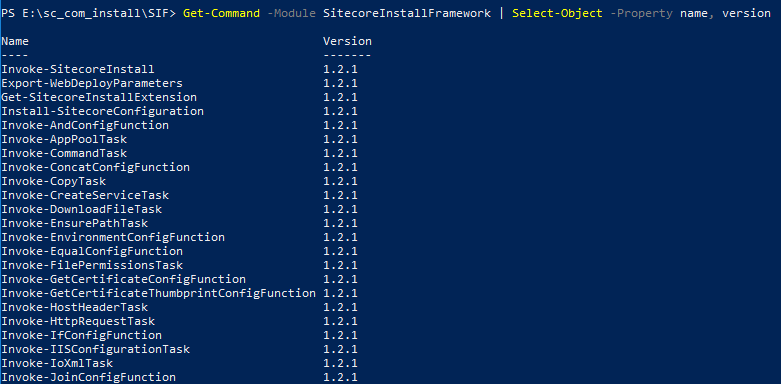
In this case check the modules installed and remove SIF 2.0.0

Get-Module SitecoreInstallFramework -ListAvailable

sc9xerror2

Get-InstalledModule -Name “SitecoreInstallFramework” -RequiredVersion 2.0.0 | Uninstall-Module

C:\Program Files\WindowsPowerShell\Modules\SitecoreInstallFramework

In case if this command throws errors not having access or is used by any other process, its worth giving to try to close the existing PowerShell window and open a new one.

Error 2 –

Install-SitecoreConfiguration : Cannot process argument transformation on parameter ‘Signer’. Cannot convert the “System.Object[]” value of type “System.Object[]” to type “System.Security.Cryptography.X509Certificates.X509Certificate2”.

sc9xerror3

Error details-

VERBOSE: CertStorePath: cert:\LocalMachine\Root

VERBOSE: Found Cert with thumbprint: FB7F471ACE74834D9D60A64F0577EC7F089AF5F2 46E7B414E415AC99F4039B16F19EEEFA5A7ADF55 0657459CB264A881D8C49A5804B3CE5C62340719 05C4F9B989E2C55370BF36EA34EE062A4BC1044B

Install-SitecoreConfiguration : Cannot process argument transformation on parameter ‘Signer’. Cannot convert the “System.Object[]” value of type “System.Object[]” to type “System.Security.Cryptography.X509Certificates.X509Certificate2”.

At C:\SitecoreInstall\Sitecore\SIFLess\sc902commerce.ps1:18 char:1

+ Install-SitecoreConfiguration @certParams -Verbose

+ ~~~~~~~~~~~~~~~~~~~~~~~~~~~~~~~~~~~~~~~~~~~~~~~~~~

    + CategoryInfo          : NotSpecified: (:) [Write-Error], WriteErrorException

    + FullyQualifiedErrorId : Microsoft.PowerShell.Commands.WriteErrorException,Install-SitecoreConfiguration


In this case check the certificates that are already installed, note the certificate location in error itself and set this location  and remove item(s)

Set-Location Cert:\LocalMachine\Root

Get-ChildItem

Get-ChildItem Cert:\LocalMachine\Root\FB7F471ACE74834D9D60A64F0577EC7F089AF5F2 | Remove-Item

Error-

sc902error1

Check if SOLR instance is running, also check if IIS is running.


Error- The time period is invalid. 0x80630705

sc902error2

Remove any duplicate certificates from C:\certificates

I will keep updating this post if I see and fix more issues whilst installing Sitecore 9x 🙂