

Whilst installing XC 9.2 I faced following issues, these are basic issues but as a newbie was a good learning and a in depth understanding of the configurations and tasks required to get the commerce installed.
Configuration contains no tasks
This was the trickiest issue. XC9.2 required SIF 2.1.0, you might have installed this version but if you have multiple versions of SIF you might have to switch to SIF 2.1.0 whilst installing the XC9.2
Following is the coupe of lines, end of the scripts ends during installation-
VERBOSE: Registering Task extension ‘TestWebFeatureSSL’ => ‘Test-WebFeatureSSL’
VERBOSE: Registering task parameter map
VERBOSE: WarningAction => Continue
VERBOSE: Verbose => Continue
VERBOSE: InformationAction => Continue
VERBOSE: WhatIf => False
VERBOSE: Debug => SilentlyContinue
VERBOSE: ErrorAction => Stop
WARNING: Configuration contains no tasks
[TIME] 00:00:00
Solution to issue-
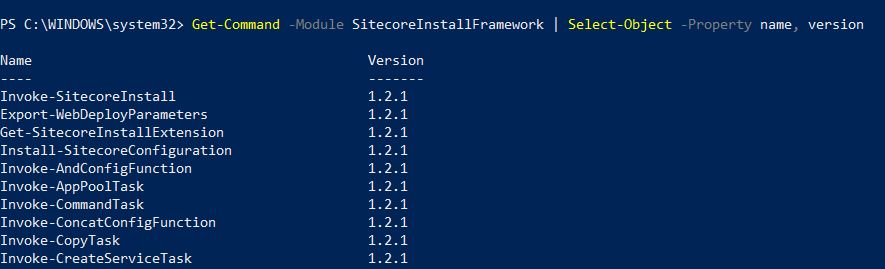
Check the version of SIF active in the powershell or currently used with following command-
Get-Command -Module SitecoreInstallFramework | Select-Object -Property name, version
Resolution-
If it shows V1.2.1 switch to version 2.1.0 but ensure the this version is installed. To switch to the new version-
Remove-Module -Name SitecoreInstallFramework
Import-Module -Name SitecoreInstallFramework -RequiredVersion 2.1.0
This should allow you to proceed with the instllation.
How I found this might be the issue-
Firstly its a pre-requisite to XC9.2, SIF 2.1. is required.
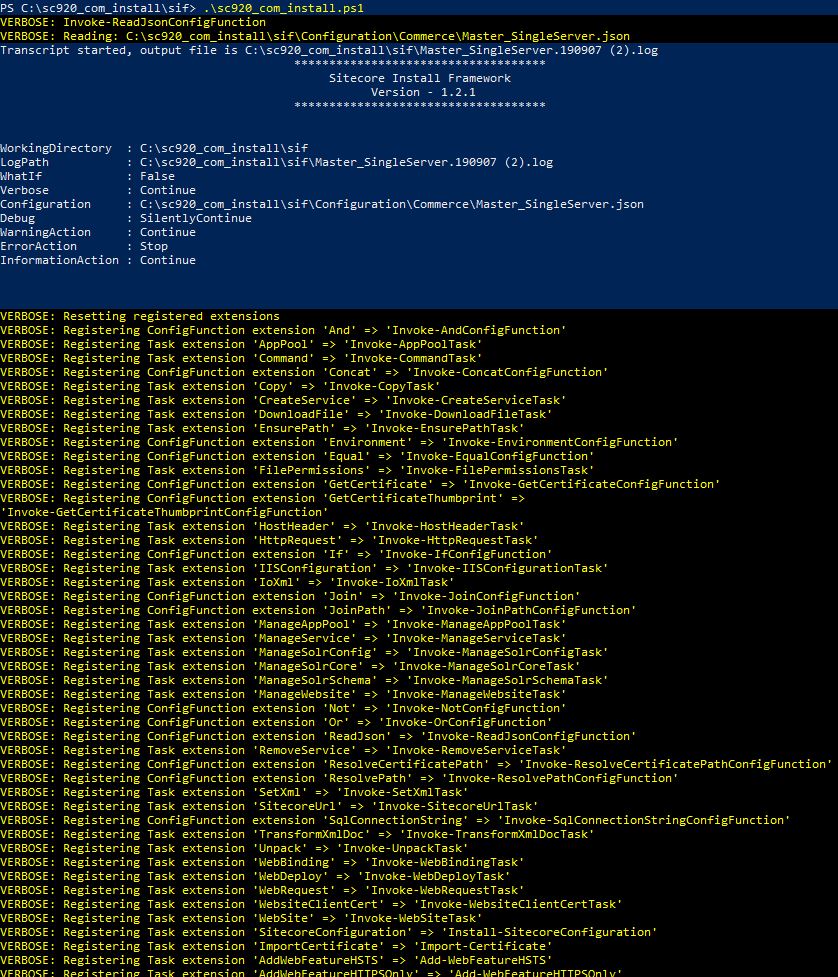
When I ran the installation script it showed this screen. It shows SIF version as 1.2.1, this were I guessed version might be wrong.
Logs didn’t mention the same.
https://sitecore.stackexchange.com/questions/20791/xc-9-2-installation-error-configuration-contains-no-tasks
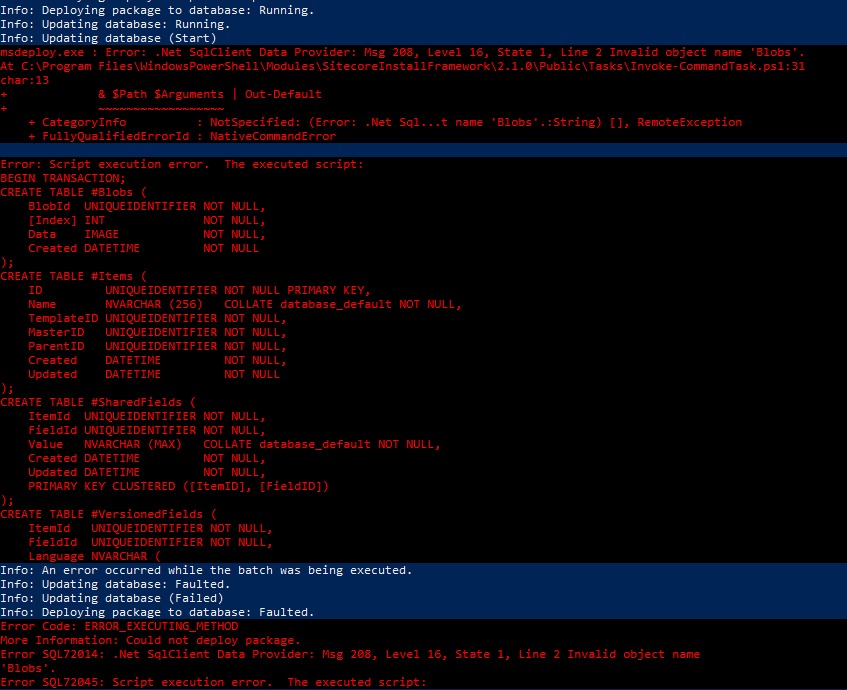
.Net SqlClient Data Provider: Invalid object name ‘Blobs’
This happens to be another silly mistake I made in the script file where I mentioned wrong site name prefix.
Found that it tries to update the Blobs and other tables in XP instance i.e. YourSitecoreXP_Master DB
So if the Sitecore prefix in the deploy script is wrong it tries to create a new database and update the Blobs table which is not available and hence fails.
Resolution-
So please check $SiteNamePrefix in deploy script, should match to the XP prefix. e.g.- if your Sitecore XP site name is storefront920.local so the database will be created as storefront920_Master. So in this case $SiteNamePrefix will have to be storefront920
Invoke-RestMethod : The remote server returned an error: (500) Internal Server Error
If you see this error-
VERBOSE: Result: https://commerceshops.sc920.local/commerceops/Bootstrap()
BootStrapping Commerce Services: https://commerceshops.sc920.local/commerceops/Bootstrap()
VERBOSE: PUT https://commerceshops.sc920.local/commerceops/Bootstrap() with 0-byte payload
Install-SitecoreConfiguration : The remote server returned an error: (500) Internal Server Error.
At E:\sc_com_install\SIF\sc_com_install.ps1:100 char:1
+ Install-SitecoreConfiguration @params -Verbose *>&1 | Tee-Object “$PS …
+ ~~~~~~~~~~~~~~~~~
+ CategoryInfo : NotSpecified: (:) [Write-Error], WriteErrorException
+ FullyQualifiedErrorId : Microsoft.PowerShell.Commands.WriteErrorException,Install-SitecoreConfiguration
Resolution-
Managed to resolve this issue by updating the Sql database name to have double slash “\\” between the machine name and sql instance.
This is applies to following paramsters in script-
CommerceServicesDbServer and SitecoreDbServer
e.g.:- machinename\\sql-instance
Could not load file or assembly (Microsoft.Web.XmlTransform.dll)
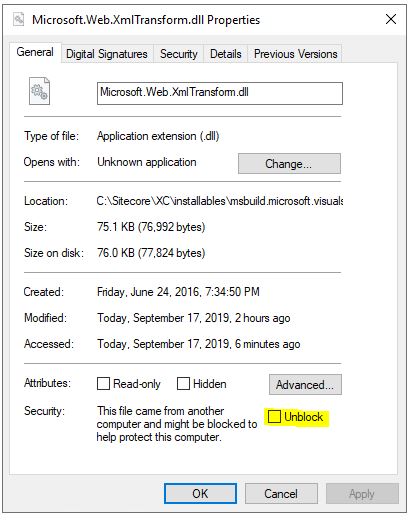
If you see below error even if the file is present in the desired location, Unblock the file to continue the installation.
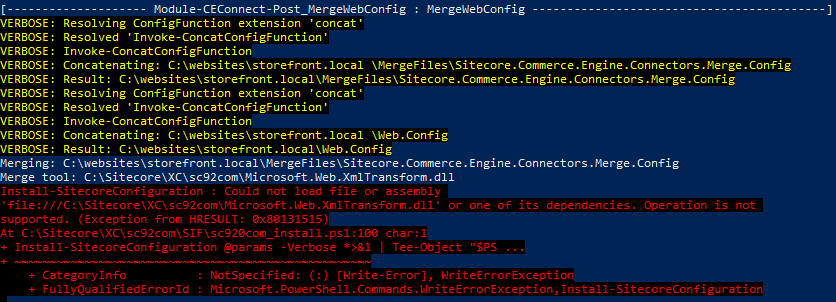
Go to directory having files Microsoft.Web.XmlTransform.dll. Right click the dll and Unblock the dll
If you still see this issue, provide the relative path to the dll in script file for parameter – MergeToolFullPath