Month: August 2026

Python – Decorator Class

Similar to Decorator functions we can define a decorator to be a class.

A decorator class has a special class method __call__(). This method is responsible for supporting a case when an object is called. The advantage of decorator class over function is they bring the OOP feature such as inherirtance etc.

In the below code snippet the the decorated function is assigned to the self.func i.e. to the decorator. The decorator class itself calls the decorated function.

Passing a message to the decorator class. Here the message is passed from the LogDecorator and initailised in the class constructor.

The calling method is accessible in the __call__() method.

Sitecore AI Content Migration – Retrieve the transfer details

Last Updated on August 6, 2026 by sandeeppote

Once the transfer is complete you should be able to see the transferred items and their details. Along with this you can run a clean up process.

See the blog post on how to create a transfer in source environment – Link

See the blog post on how to consume chunks in destination environment – Link

To generate the Automation client and token see this blog post – Link

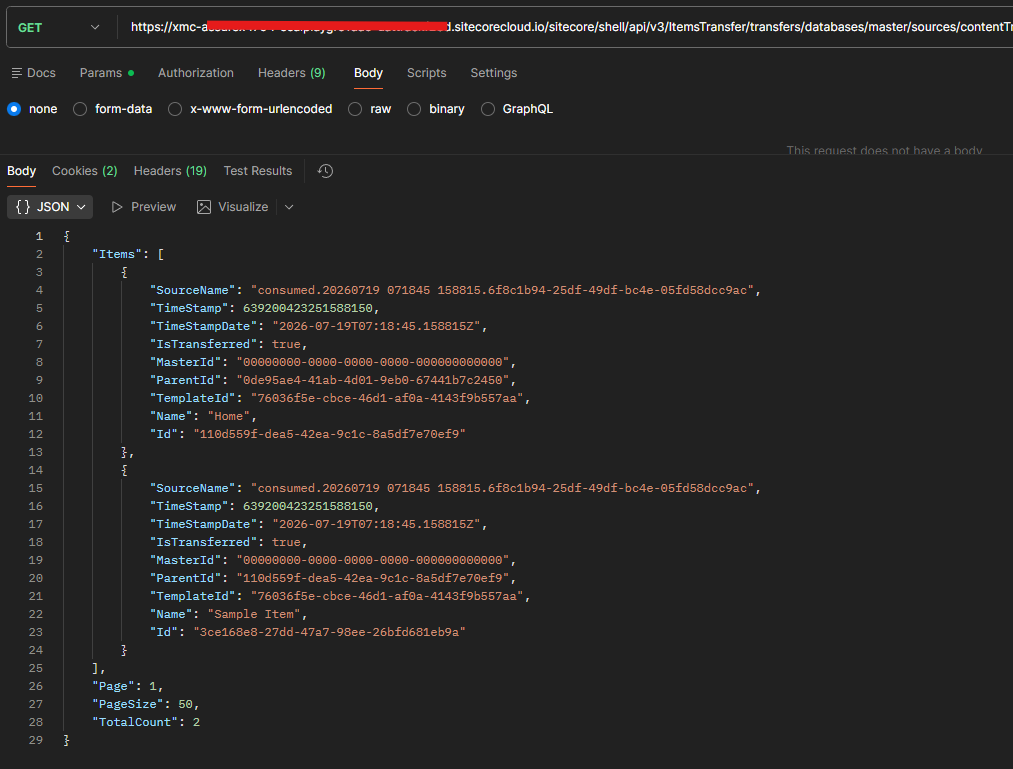
Retrieve Transferred Items

Http Method – GET

Url – https://your-xmc-instance.sitecorecloud.io/sitecore/shell/api/v3/ItemsTransfer/transfers/databases/master/sources/{sourceName}/items?page=1&pageSize=50

Example- https://your-xmc-instance.sitecorecloud.io/sitecore/shell/api/v3/ItemsTransfer/transfers/databases/master/sources/contentTransfer-1ec8122c-a25e-49b0-a0fb-bd47dfccdf8b-30fca7fa-0775-436f-957e-71b74b1ef6ef.raif/items?page=1&pageSize=50

Response –

{
    "Items": [
        {
            "SourceName": "consumed.20260719 071845 158815.6f8c1b94-25df-49df-bc4e-05fd58dcc9ac",
            "TimeStamp": 639200423251588150,
            "TimeStampDate": "2026-07-19T07:18:45.158815Z",
            "IsTransferred": true,
            "MasterId": "00000000-0000-0000-0000-000000000000",
            "ParentId": "0de95ae4-41ab-4d01-9eb0-67441b7c2450",
            "TemplateId": "76036f5e-cbce-46d1-af0a-4143f9b557aa",
            "Name": "Home",
            "Id": "110d559f-dea5-42ea-9c1c-8a5df7e70ef9"
        },
        {
            "SourceName": "consumed.20260719 071845 158815.6f8c1b94-25df-49df-bc4e-05fd58dcc9ac",
            "TimeStamp": 639200423251588150,
            "TimeStampDate": "2026-07-19T07:18:45.158815Z",
            "IsTransferred": true,
            "MasterId": "00000000-0000-0000-0000-000000000000",
            "ParentId": "110d559f-dea5-42ea-9c1c-8a5df7e70ef9",
            "TemplateId": "76036f5e-cbce-46d1-af0a-4143f9b557aa",
            "Name": "Sample Item",
            "Id": "3ce168e8-27dd-47a7-98ee-26bfd681eb9a"
        }
    ],
    "Page": 1,
    "PageSize": 50,
    "TotalCount": 2
}

Retrieve Transferred Item Details

Http Method- GET

Url- https://your-xmc-instance.sitecorecloud.io/sitecore/shell/api/v3/ItemsTransfer/transfers/databases/master/sources/{sourceName}/items/{itemID}

Example- https://your-xmc-instance.sitecorecloud.io/sitecore/shell/api/v3/ItemsTransfer/transfers/databases/master/sources/contentTransfer-1ec8122c-a25e-49b0-a0fb-bd47dfccdf8b-30fca7fa-0775-436f-957e-71b74b1ef6ef.raif/items/3ce168e8-27dd-47a7-98ee-26bfd681eb9a

Response –

{
    "Fields": [
        {
            "Version": 1,
            "Language": "en",
            "Value": "Sample Item for Content Transfer",
            "Id": "75577384-3c97-45da-a847-81b00500e250"
        },
        ...
    ],
    "SourceName": "consumed.20260719 071845 158815.6f8c1b94-25df-49df-bc4e-05fd58dcc9ac",
    "TimeStamp": 639200423251588150,
    "TimeStampDate": "2026-07-19T07:18:45.158815Z",
    "IsTransferred": true,
    "MasterId": "00000000-0000-0000-0000-000000000000",
    "ParentId": "110d559f-dea5-42ea-9c1c-8a5df7e70ef9",
    "TemplateId": "76036f5e-cbce-46d1-af0a-4143f9b557aa",
    "Name": "Sample Item",
    "Id": "3ce168e8-27dd-47a7-98ee-26bfd681eb9a"
}

OperationHTTP Method & EndpointDescriptionUse Case
List Transferred ItemsGET /transfers/databases/{databaseName}/sources/{sourceName}/itemsReturns a paginated list of items that have been transferred for an ongoing or completed transfer in the specified database and source.Use this endpoint to view all items included in a specific transfer and navigate through them using pagination.
Get Transferred Item DetailsGET /transfers/databases/{databaseName}/sources/{sourceName}/items/{itemId}Returns detailed information for a specific transferred item, including all captured metadata and localized/versioned field information for the given itemId, database, and source.Use this endpoint to inspect the complete details of an individual transferred item, including its field values, versions, and metadata.

Sitecore AI Content Migration – Consume the chunks in destination environment

Last Updated on August 3, 2026 by sandeeppote

See the blog post on how to create a transfer in source environment – Link

To generate the Automation client and token see this blog post – Link

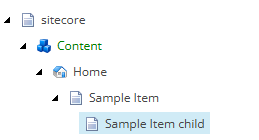
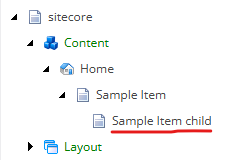
State of content tree in source environment

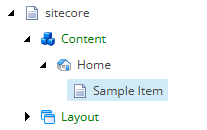
State of content tree in destination environment before migration

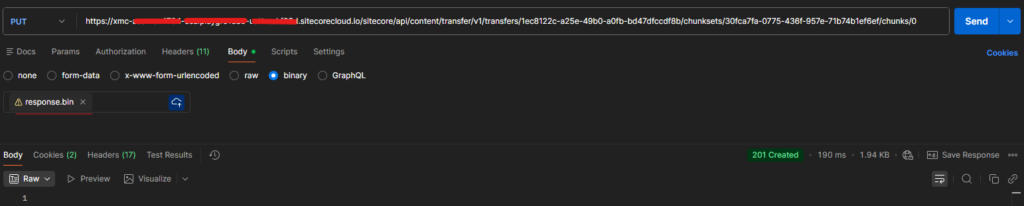
Step 1 – Save Data Chunk

Destination environment

Http Method – PUT

Url – https://your-xmc-instance.sitecorecloud.io/sitecore/api/content/transfer/v1/transfers/{transferID}/chunksets/{chunksetID}/chunks/{chunkID}

Example- https://your-xmc-instance.sitecorecloud.io/sitecore/api/content/transfer/v1/transfers/004d321e-1100-4e41-ad25-465fb304ee5a/chunksets/95e3b762-a002-4333-b141-13cdc513b1ee/chunks/0

Headers-

Content-Type: application/octet-stream

Authorization – token

Payload– Attach the file (response.bin)

Response-

201 – Created

This saves the chunck to the Azure Blob

Step 2 – Complete the chunk set 

Http Method- Post

Url- https://your-xmc-instance.sitecorecloud.io/sitecore/api/content/transfer/v1/transfers/{transferID}/chunksets/{chunksetID}/complete

Example – https://your-xmc-instance.sitecorecloud.io/sitecore/api/content/transfer/v1/transfers/1ec8122c-a25e-49b0-a0fb-bd47dfccdf8b/chunksets/30fca7fa-0775-436f-957e-71b74b1ef6ef/complete

Headers-

Authorization – token

Payload– Not Applicable

Response-

{
    "ContentTransferFileName": "contentTransfer-1ec8122c-a25e-49b0-a0fb-bd47dfccdf8b-30fca7fa-0775-436f-957e-71b74b1ef6ef.raif"
}

Note down the file name with extension raif

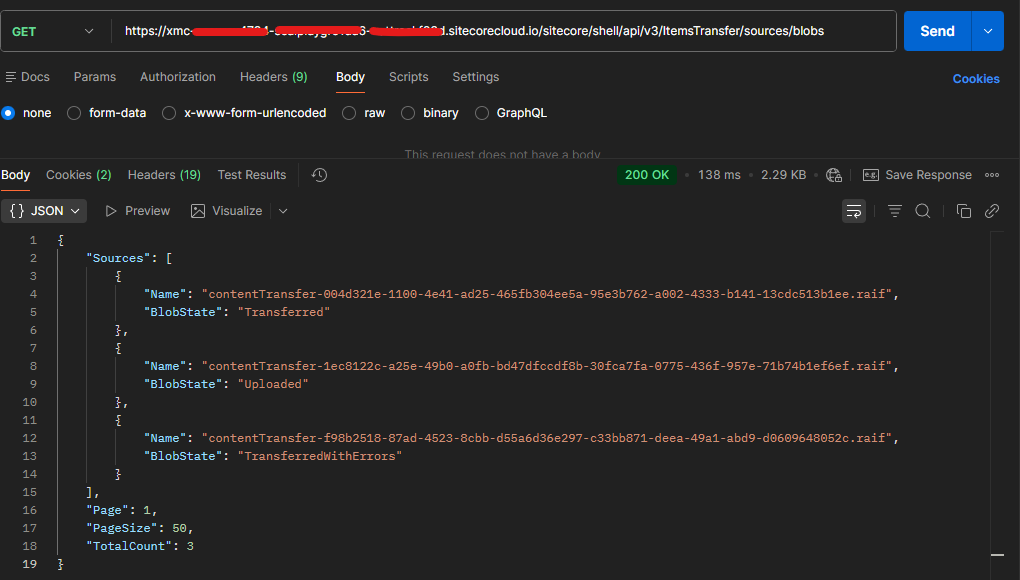
Step 3 – Verify the blob

Http Method- Get

Url- https://your-xmc-instance.sitecorecloud.io/sitecore/shell/api/v3/ItemsTransfer/sources/blobs

Headers-

Authorization – token

Response-

{
    "Sources": [      
        {
            "Name": "contentTransfer-1ec8122c-a25e-49b0-a0fb-bd47dfccdf8b-30fca7fa-0775-436f-957e-71b74b1ef6ef.raif",
            "BlobState": "Uploaded"
        }        
    ],
    "Page": 1,
    "PageSize": 50,
    "TotalCount": 3
}

Check the BlobState- Uploaded

Step 4 – Consume Blob (Transfer chunk)

Http Method- POST

Url- https://your-xmc-instance.sitecorecloud.io/sitecore/shell/api/v3/ItemsTransfer/transfers/databases/master/sources?blobName=contentTransfer-{transferID}{chunksetID}.raif

Example – https://your-xmc-instance.sitecorecloud.io/sitecore/shell/api/v3/ItemsTransfer/transfers/databases/master/sources?blobName=contentTransfer-1ec8122c-a25e-49b0-a0fb-bd47dfccdf8b-30fca7fa-0775-436f-957e-71b74b1ef6ef.raif

Headers-

Authorization – token

Response

202 – Accepted

Verify the blob and you should see the BlobState changed to – Transferred. The earlier state was Uploaded

If transfer has issues ths state will be – TransferredWithErrors

  {
            "Name": "contentTransfer-1ec8122c-a25e-49b0-a0fb-bd47dfccdf8b-30fca7fa-0775-436f-957e-71b74b1ef6ef.raif",
            "BlobState": "Transferred"
        },

Monitor Transfer Status

Http Method – GET

Url – https://your-xmc-instance.sitecorecloud.io/sitecore/shell/api/v3/ItemsTransfer/transfers

Response –

{
    "Transfers": [        
        {
            "Id": "consumed.20260719 073111 3698598.6d40ff72-58e9-4940-a0bc-a88909f8f3a7",
            "SourceName": "contentTransfer-1ec8122c-a25e-49b0-a0fb-bd47dfccdf8b-30fca7fa-0775-436f-957e-71b74b1ef6ef.raif",
            "DatabaseName": "master",
            "ConsumedDate": "2026-07-19T07:31:11.3698598Z",
            "TransferState": "Finished",
            "Strategy": "OverrideExistingItem",
            "Description": null
        }        
    ],
    "Page": 1,
    "PageSize": 50,
    "TotalCount": 9
}

Post transfer-

You can also check the items that are transfered. In the next blog we will see how to check the items been transfered with the item details.