Welcome! This is my personal blog about Web technologies, software development, open source and other related topics
The ideas and opinions expressed here are solely mine and don't represent those of others, either individuals or companies.The code snippets or references to software products or analogous are to be used without any warranty of any kind. If you enjoy the content, feel free to share it and re-use it as long as you provide a link to the original post.
Sitecore SXA module contains templates, Renderings, Layouts, Placeholder Settings, branch etc. It helps structure the SXA site by scaffolding items required to setup the component.
In this blog post I will walkthrough the steps to create a module manually to have a better understanding and helps specially to debug when there are issues with the existing modules.
Create Module(Part 1)
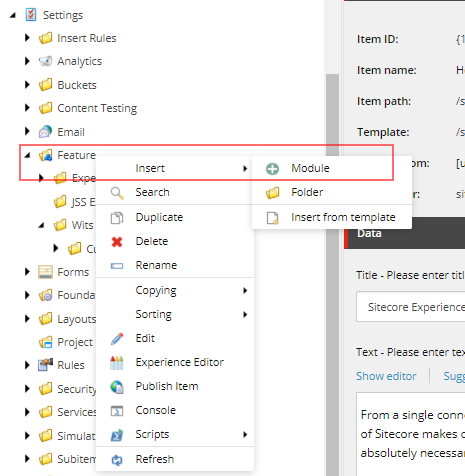
Navigate to – /sitecore/system/Settings/Feature
Right click Featur folder to create module
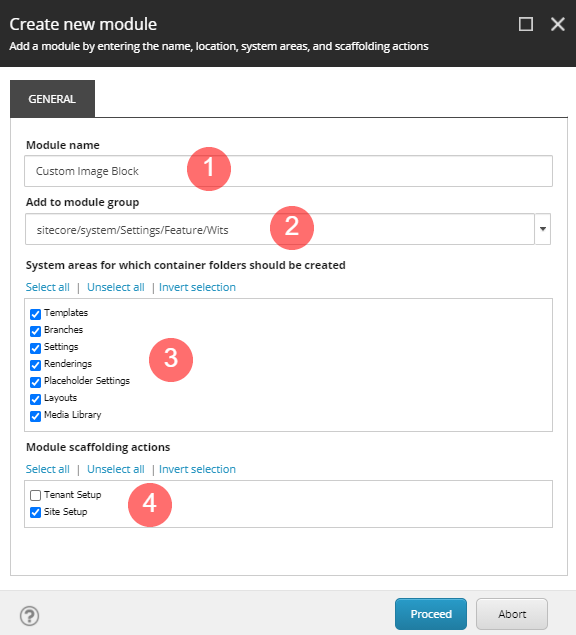
Create new module overlay will open.
Provide a Module name – i.e. Custom Image Block
Choose the location where this module to be created.
Select the system areas the module folders to be created
Choose the module should be applied to tenant or site
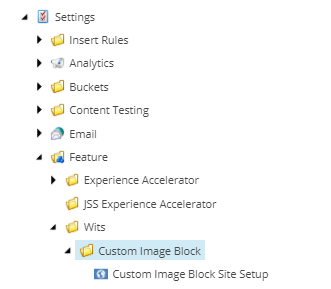
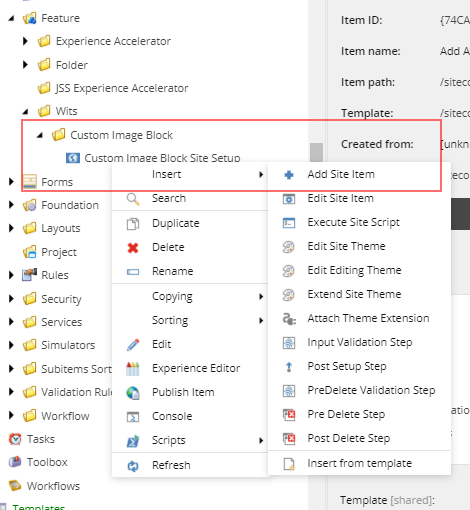
When module is created should be able to see the folder with the Site Setup Root item
Once the Site Setup Root is created you should be able to see folders with name “Custom Image Block” will be created in Branch, Template, Renderings, Placeholder Settings, Layouts and Media Library or the system areas selected.
Create template required for creating Branch
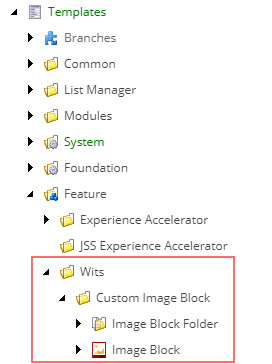
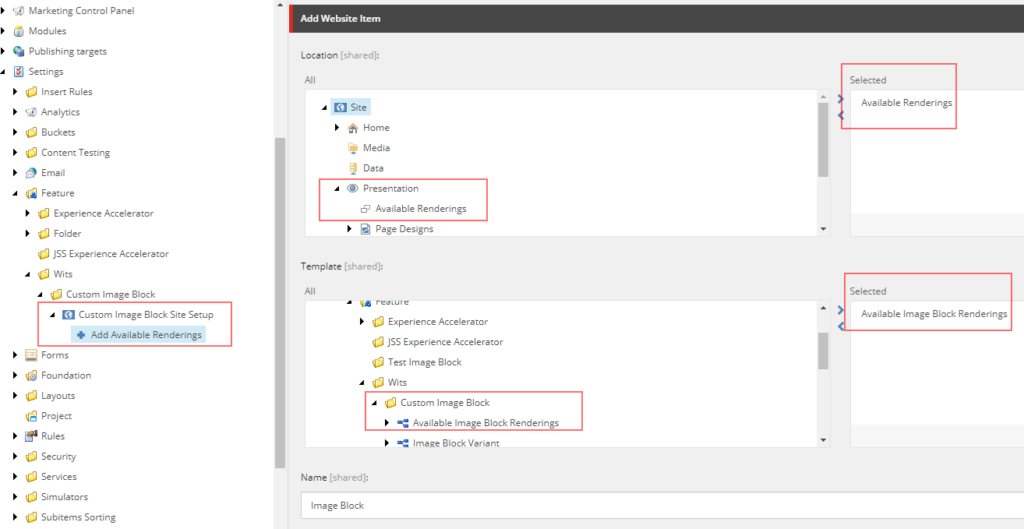
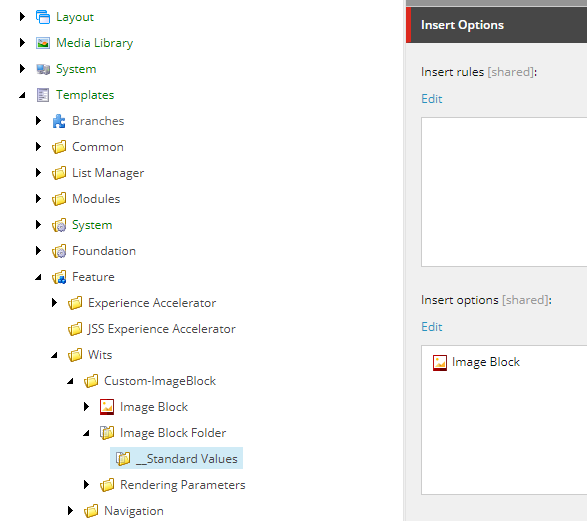
For creating a branch you will need a template and rendering. Create a template in “Custom Image Block” folder. For now you don’t have to add fields. See blog the fields that were created for component.
Create “Image Block Folder” Template
Create rendering required for creating Branch
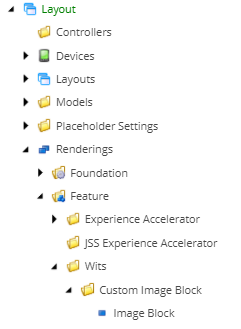
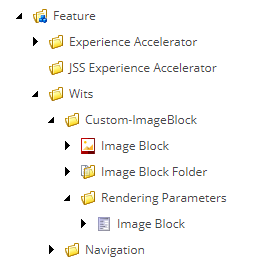
Create controller rendering with name “Image Block” in – /sitecore/layout/Renderings/Feature/Wits/Custom Image Block.
For now don’t setup anything in rendering. See blog for the configuration required in rendering-
Create Branch
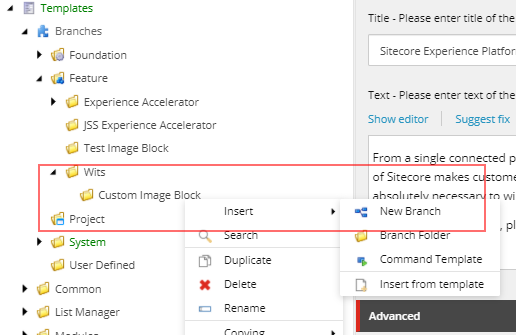
Navigate to /sitecore/templates/Branches/Feature
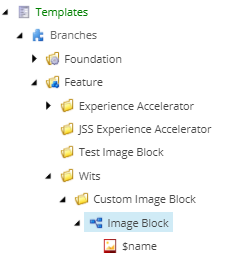
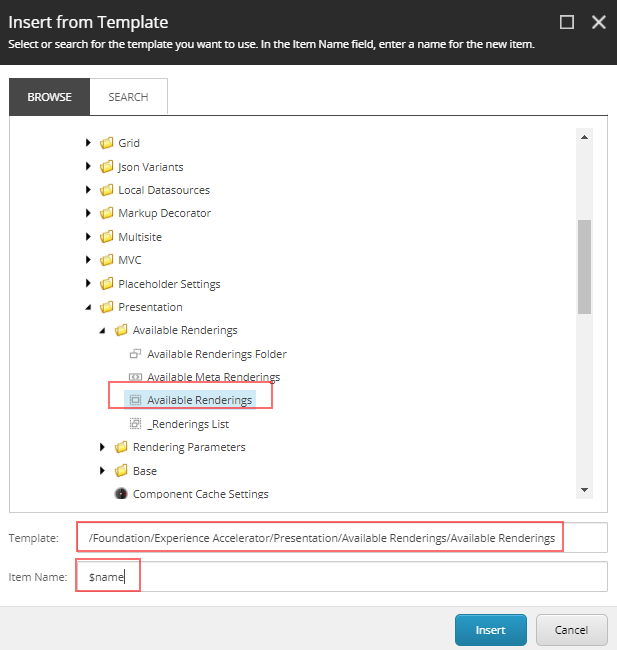
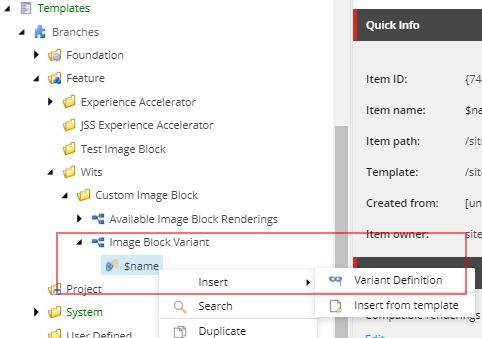
Create a new branch. Right click on the folder “Custom Image Block” and insert new branch option
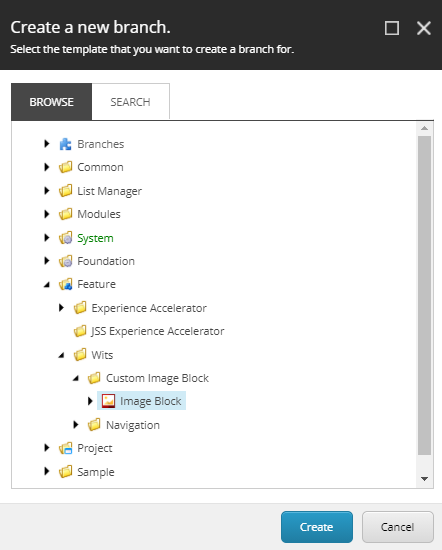
Select the template earlier created-
Branch with name “Image Block” will be created.
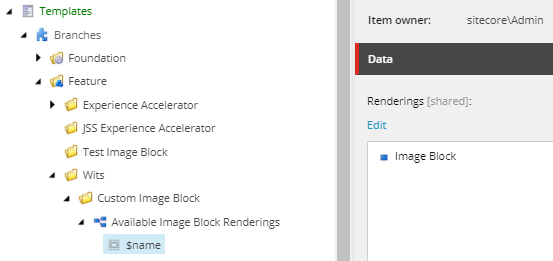
Delete $name item in the branch
Rename the Image Block to “Available Image Block Renderings”.
Often you see examples for creating a new Sitecore SXA component is suggested to be cloned from the Promo component which helps developers to quick start the development.
But its always good to know the process and supporting items that are created to support he component.
In this blog post I will walk through the steps required to create a SXA component using Scriban from scratch. This post is not about how to use Scriban, will cover that in another post.
This post assumes the SXA Site is configured with the custom theme. See links to create Tenants/Sites/Themes –
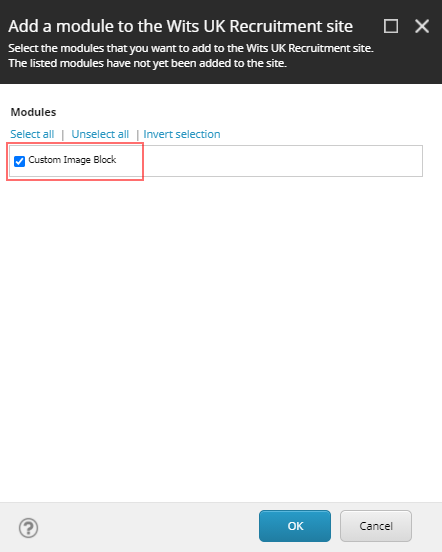
Add rendering to the page. Ideally this can be done by creating a Branch and create a module which should allow to drag and drop the SXA component to the page using experience editor.
Select Home page and select option Presentation ==> Details
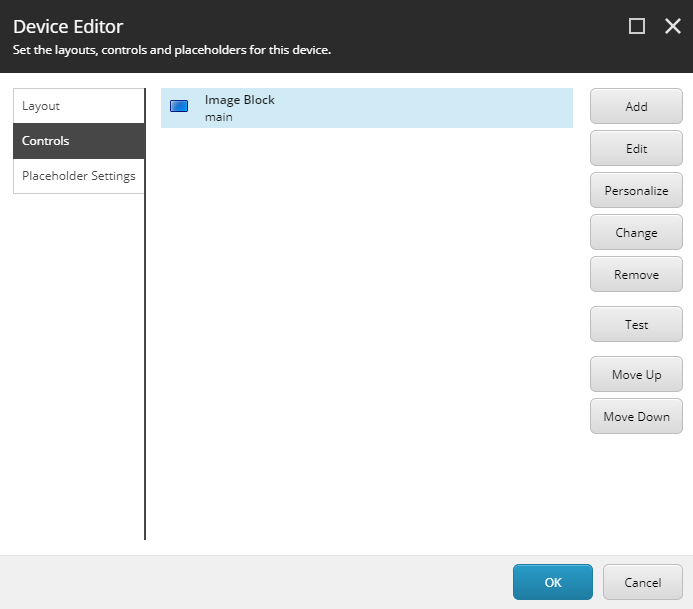
Add the rendering “Image Block” in the placeholder “main”
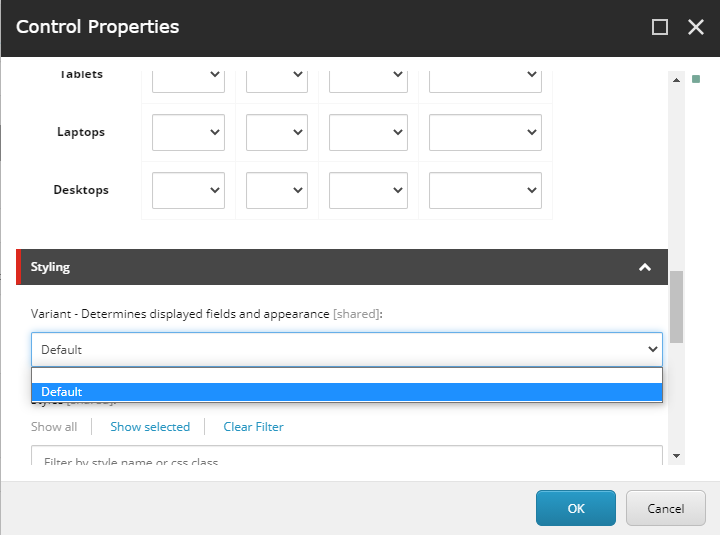
Edit the control and select the Variant “Default” in Styling section.
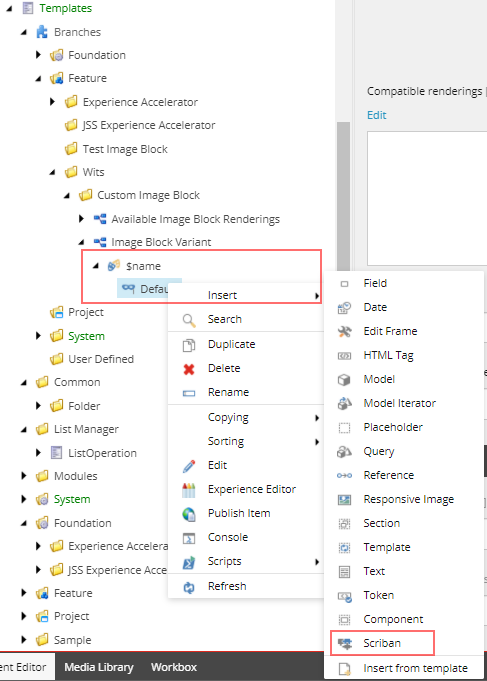
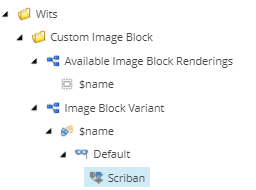
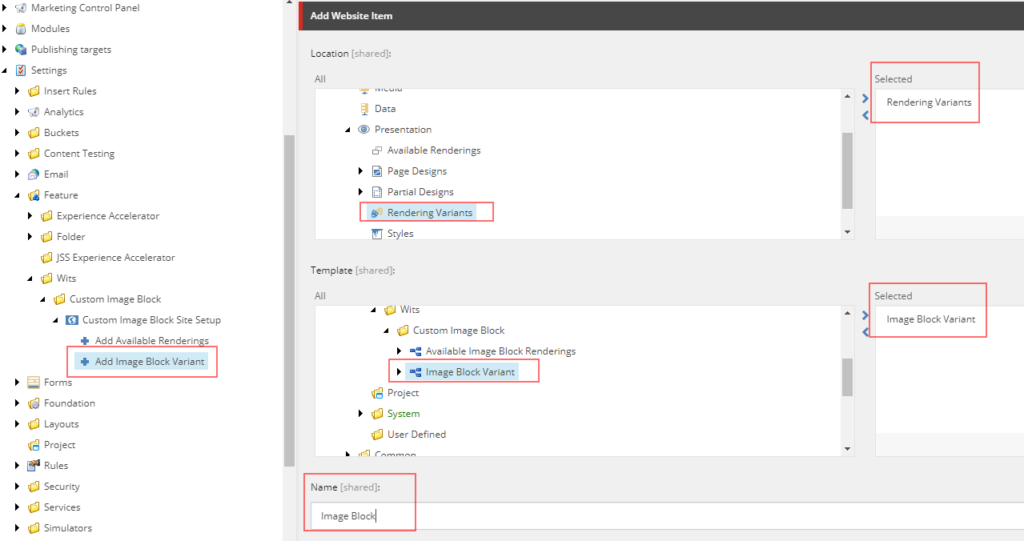
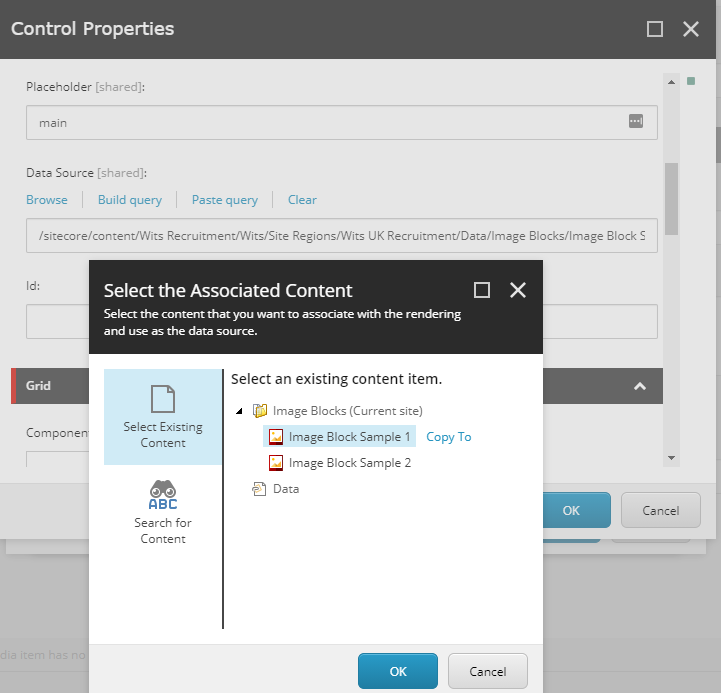
Remember we created a Rendering Variant “Image Block” in step Step 3 and the name of the variant was “Default”. This variant is listed in dropdown for selection. Also select the datasource
Select rendering variant-
Select the datasource-
Save and Publish and should be able to see the newly created component in Home page
Step 5- Update rendering variant to display content from Image Block item
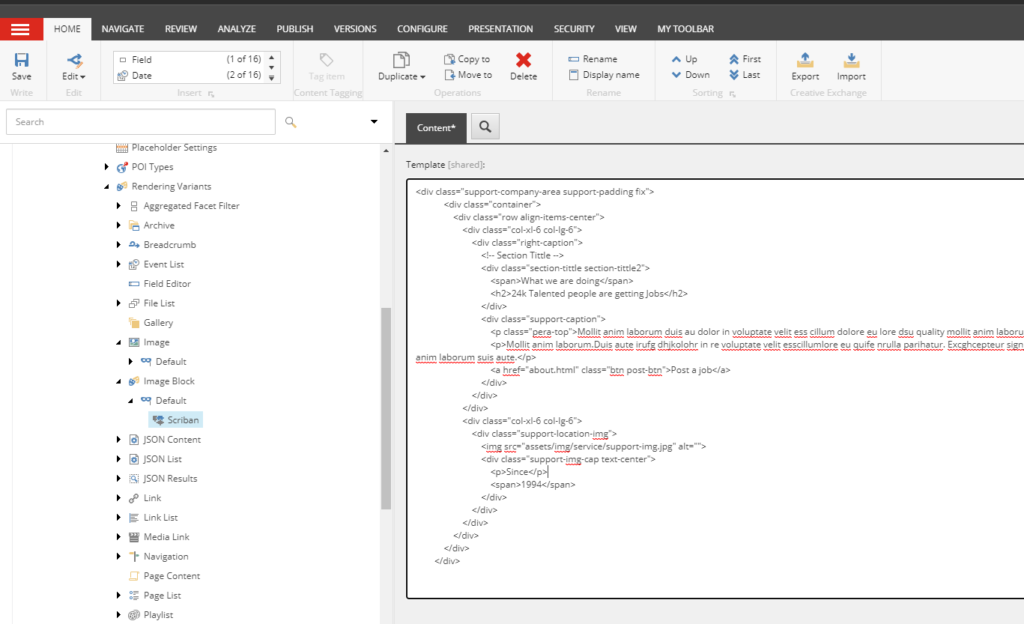
In step-3 we added a static markup in rendering variant.
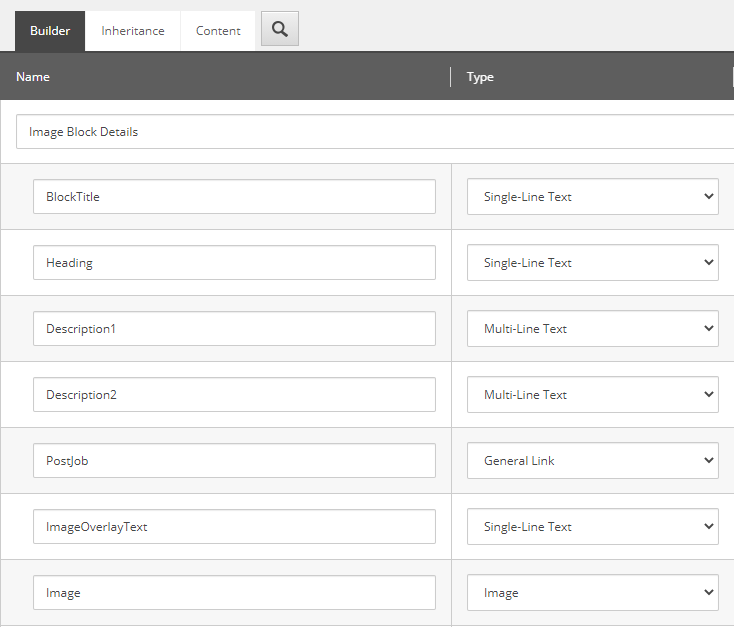
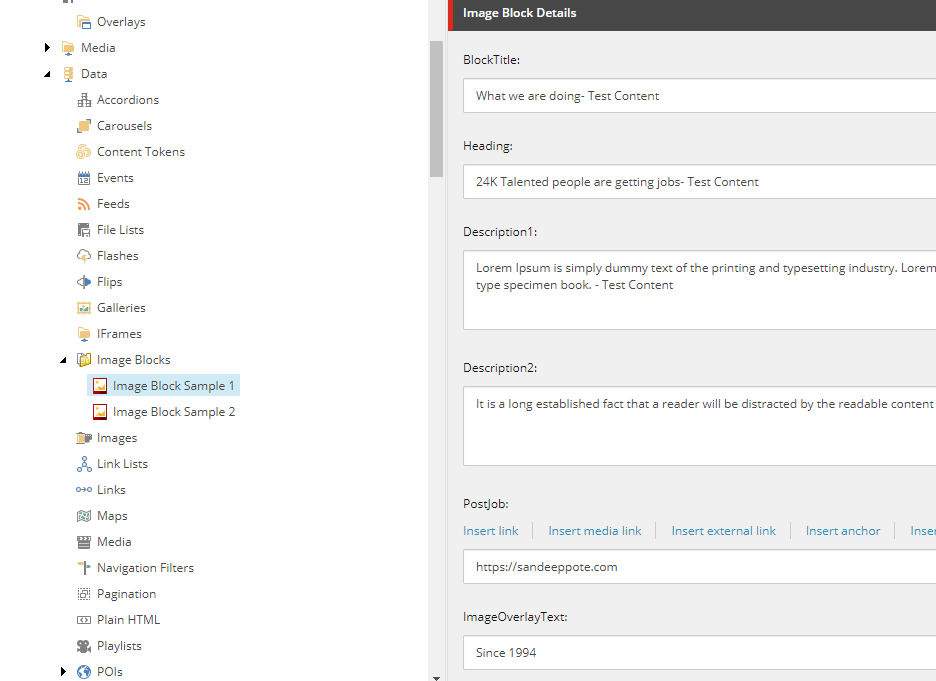
Use the following scriban changes to get the content from selected datasource. See BlockTitle, Heading and Description1 and Description2 to pull the content from item-
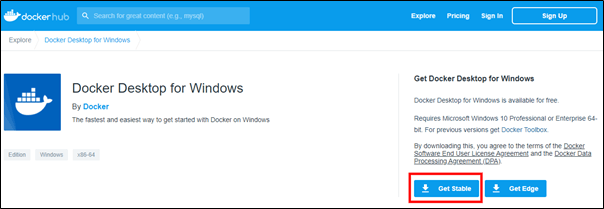
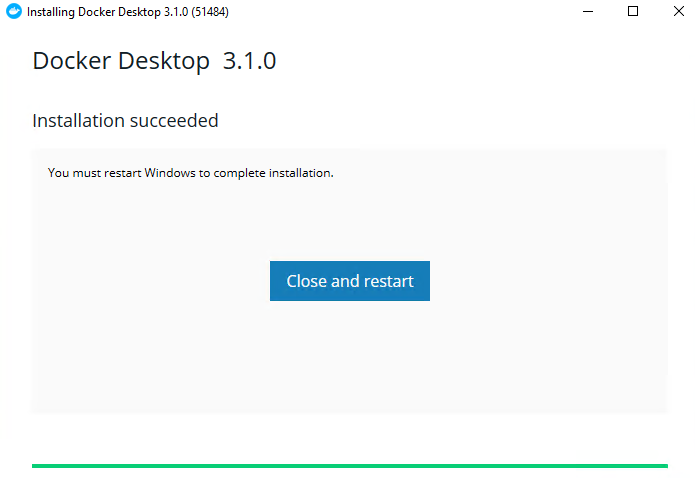
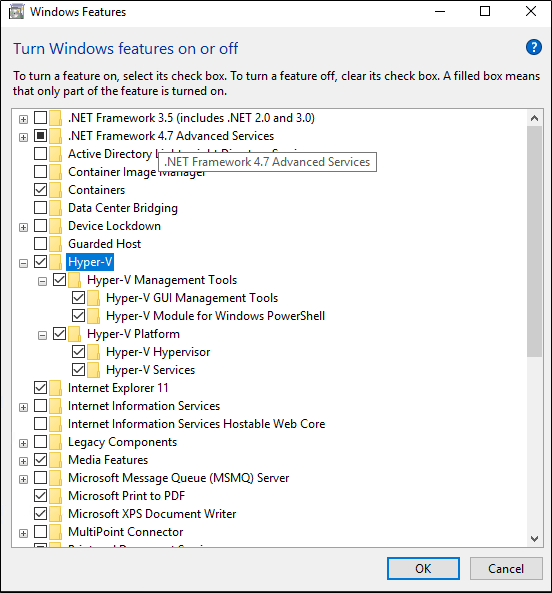
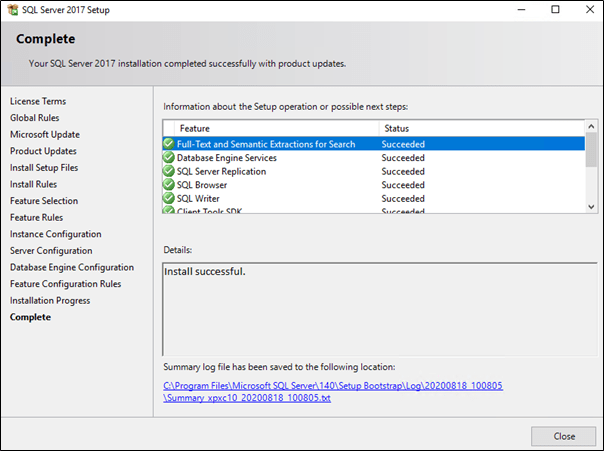
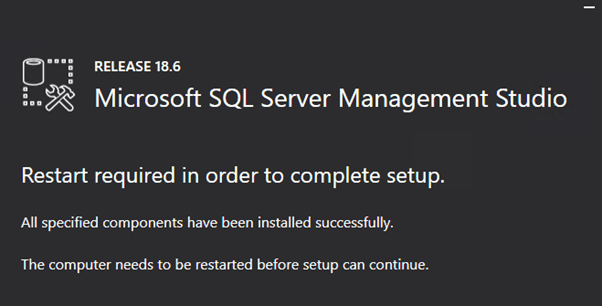
After installation Restart the machine, this should enable the Hyper-V feature
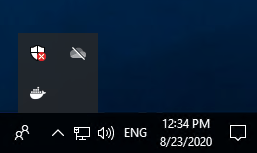
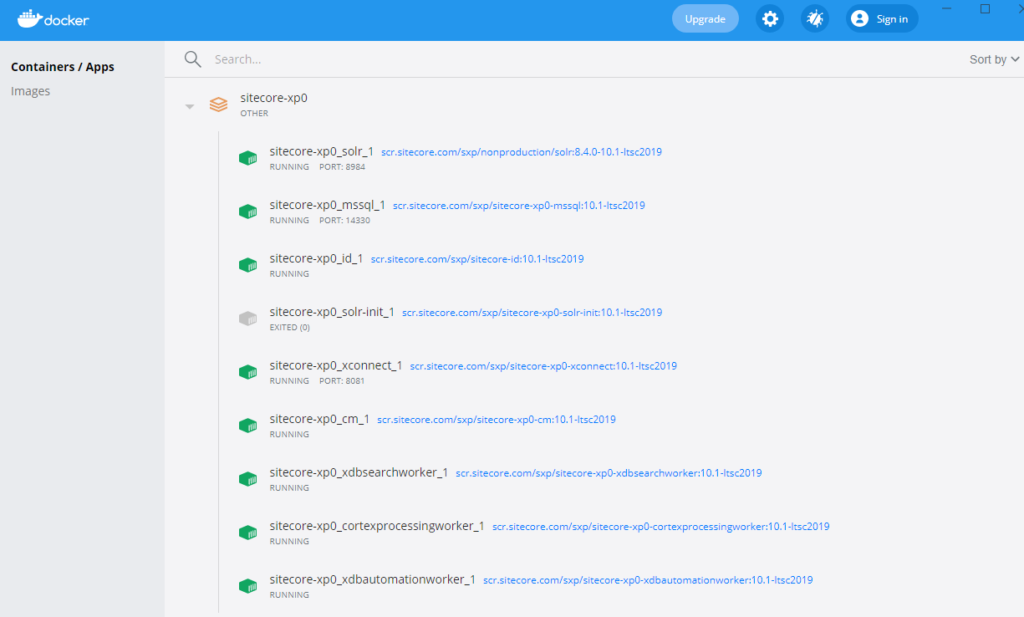
This should also have Docker running and should see the same in system tray
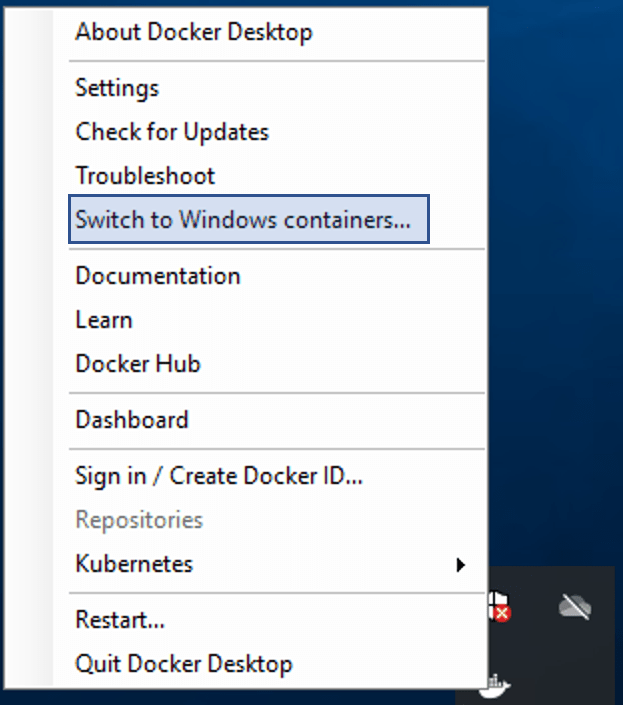
Switch to Windows containers
Right click on Docker icon and switch to Windows Container. See this link for more details as per guide
Download and Prepare for installation
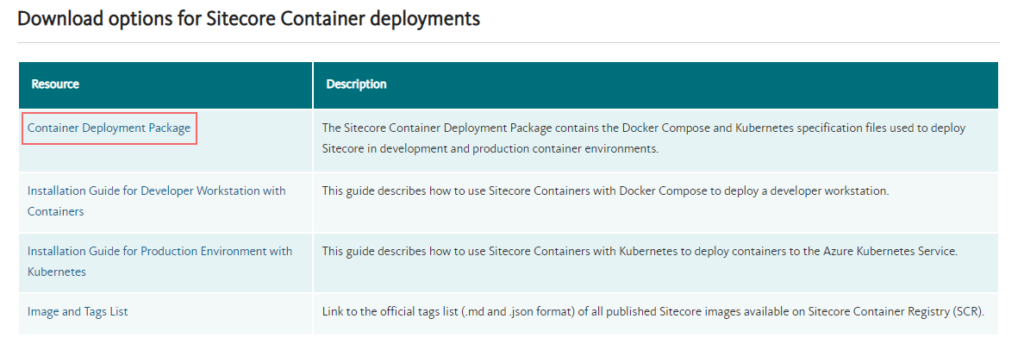
Download and extract the Sitecore Container Deployment Package from the Sitecore Developer Portal and store it on your local workstation or check releases here
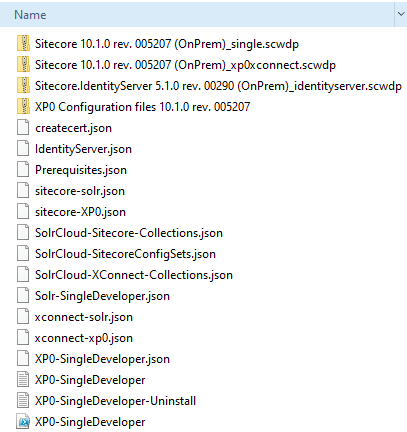
Copy and extract SitecoreContainerDeployment.10.1.0.005207.309.zip for e.g:- C:/sc101_install
Navigate to C:\sc101_install\compose\ltsc2019\xp0
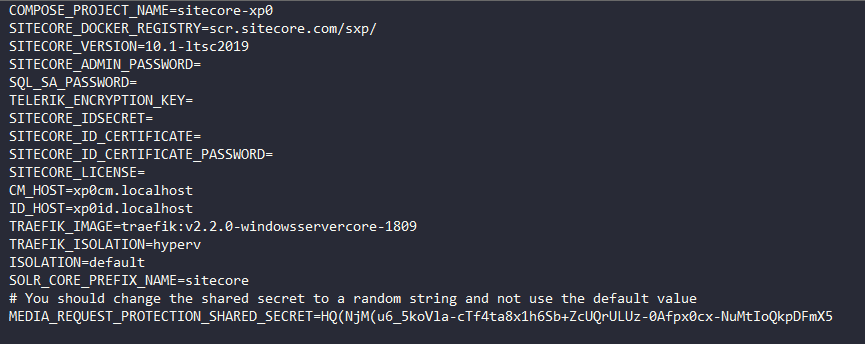
Open .env file, we need to fill in this parameters before starting installation. You can find more details in guide for each option.
Download PowerShell script to initialize (init.ps1) the parameters from docker-examples. Parameter values in .env can be populated manually by individually executing the commands for required for each parameter in guide(see Appendices) but I would recommend to use init.ps1 as this is provided by Sitecore and hence tried and tested.
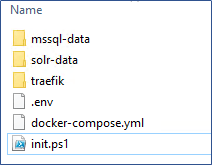
Folder structure should look like this-
Change parameter values in init.ps1 file.
Change the SitecoreAdminPassword, SqlSaPassword and host entries as per requirement. If you are changing host entries also ensure the same is updated in .env file for CM_HOST and ID_HOST parameters. Lets keep the default values.
Populate .env file using init command
Open PowerShell as a Administrator, navigate to the folder having init.ps1 file.
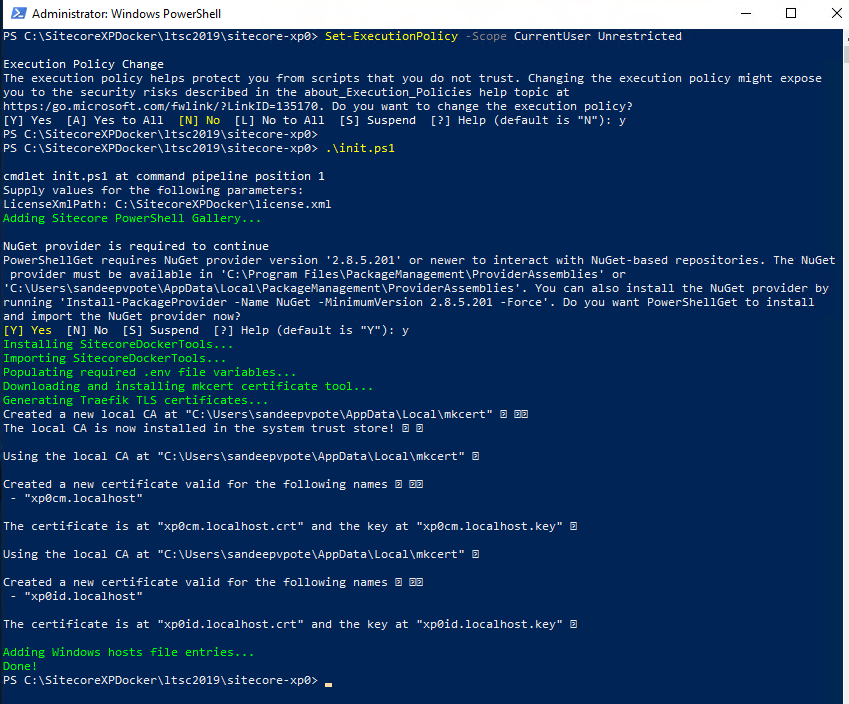
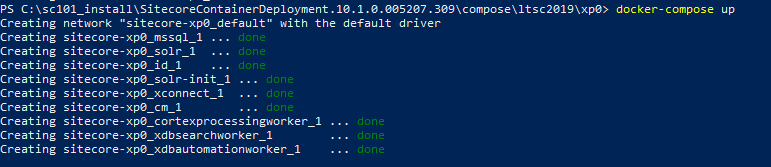
Execute init.ps1 script. You may have to set the execution rights to current user to execute the script-
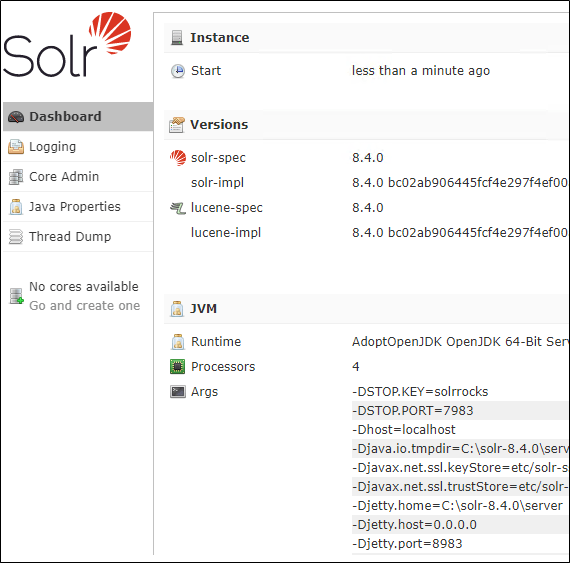
1. Switch to e.g.- sc101_install folder. Open Solr-SingleDeveloper.json file
2. Change the Install Root for SOLR – DefaultValue
 "SolrInstallRoot": {
            "Type": "String",
            "Description": "The file path to install Solr. This config will add the prefix and solr version e.g C:\Solr becomes C:\Solr\[SolrServicePrefix]Solr-8.4.0",
            "DefaultValue": "C:\SOLR"
        },
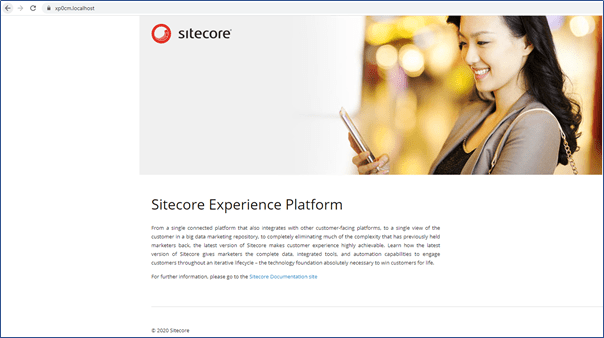
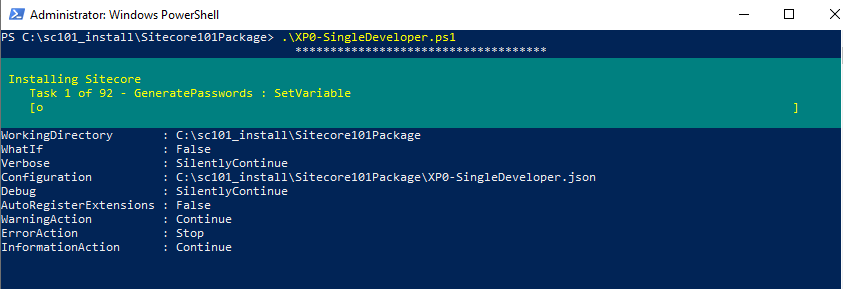
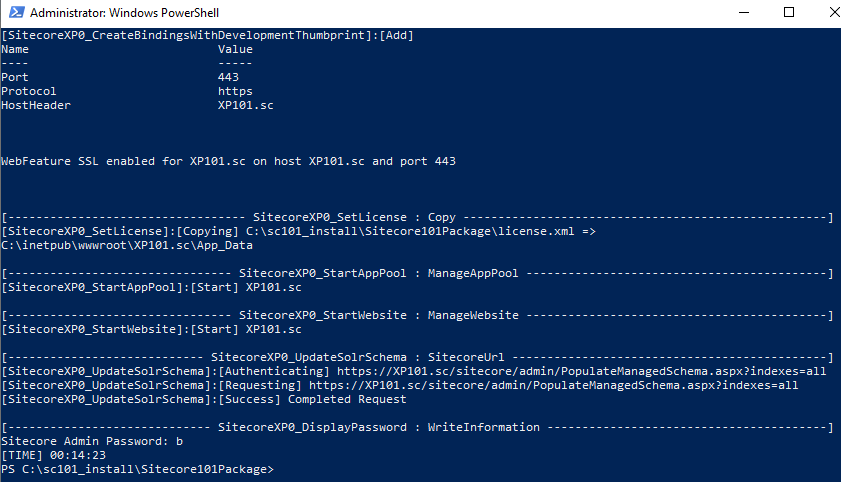
Hope the installation completes without any issues
Post Installation activities
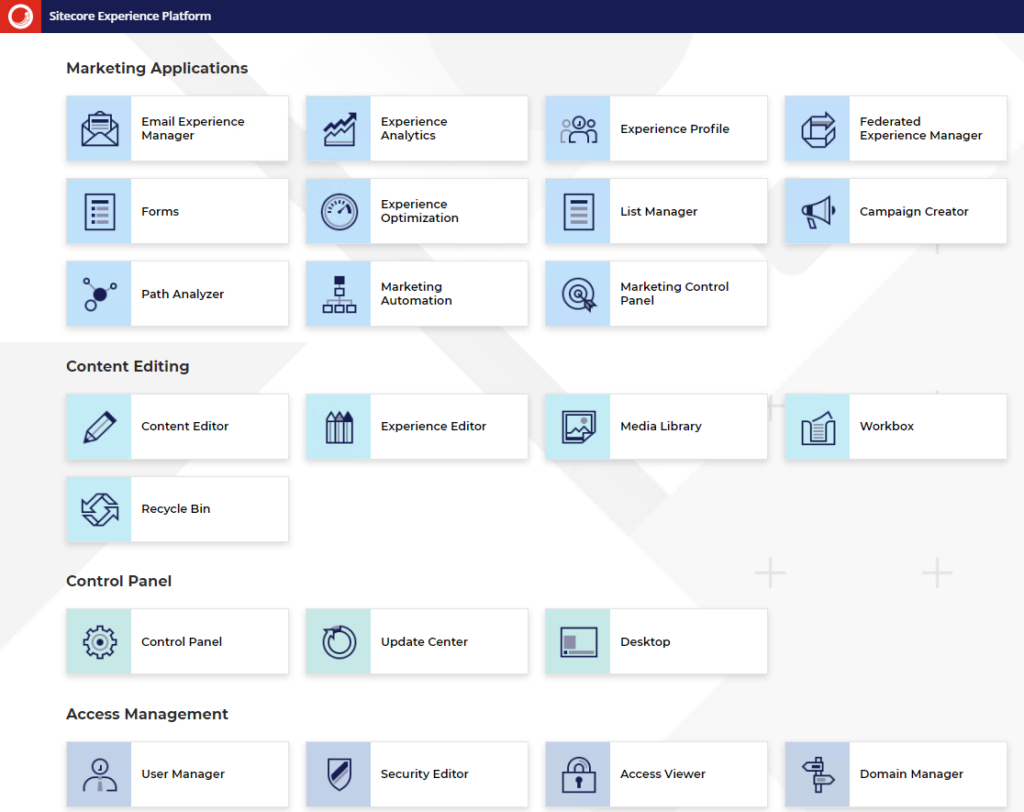
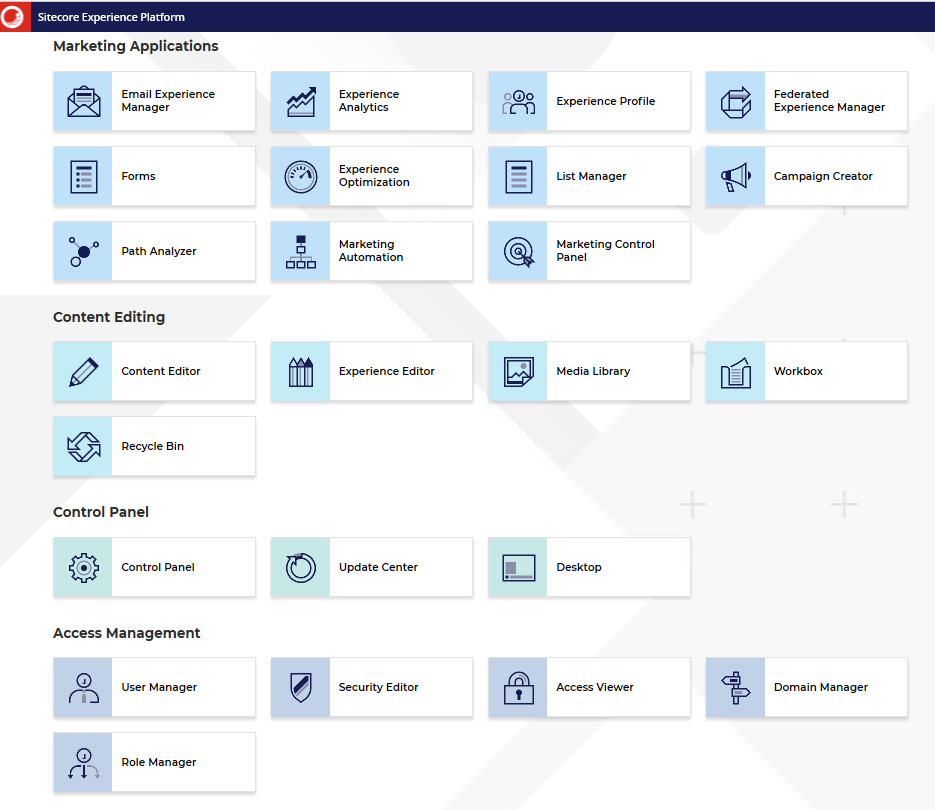
Rebuild the search indexes and the Link database After you install Sitecore Experience Platform, you must rebuild the search indexes and rebuild the Link databases.
To rebuild all the indexes:
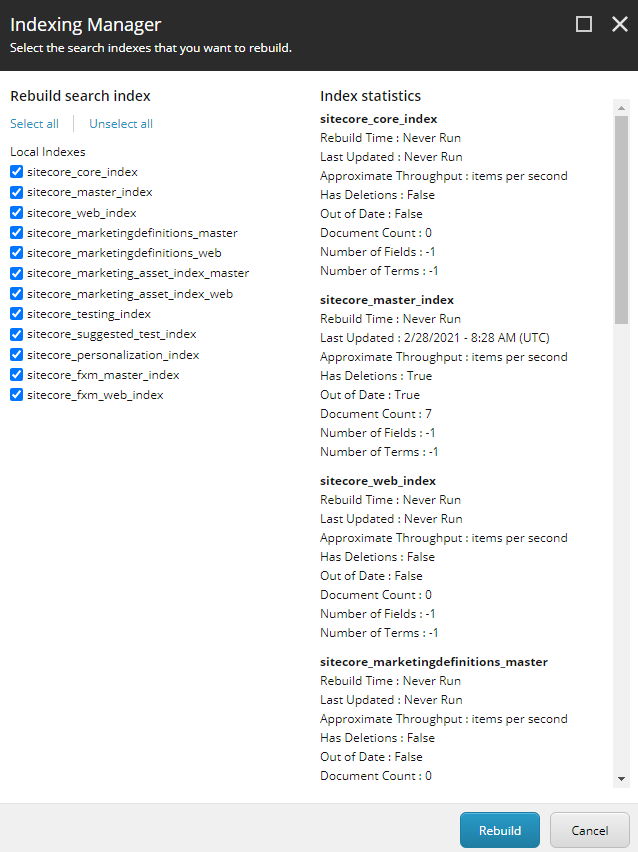
On the Sitecore Launchpad, click Control Panel, and in the Indexing section, click Indexing manager.
In the Indexing Manager dialog box, click Select all, and then click Rebuild.
To rebuild the Link databases for the Master and Core databases:
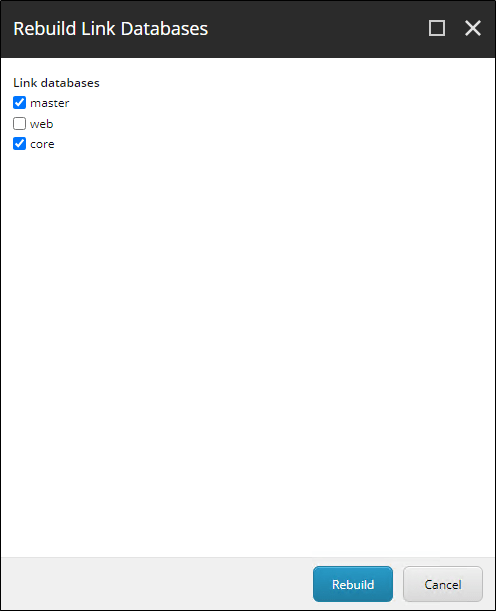
On the Sitecore Launchpad, click Control Panel, and in the Database section, click Rebuild Link Databases.
Select the Master and Core databases and then click Rebuild
Uninstall Sitecore Instance
To uninstall Sitecore instance uncomment the Uninstall command in XP0-SingleDeveloper.ps1 file. Comment the install command-
Once a tenant and site are created and/or a theme is manually created you may want to assign a theme to a site. A theme is automatically assigned when during a site creation but what if you want to assign a theme to already created site.
Select any Partial design and open experience editor select Experience Accelerator option.
Select Theme option. Change the theme.
This will also the change the theme in the selected site – /sitecore/content/<<tenant folder>>/<<tenant>>/<<site folder>>/<<site>>/Presentation/Page Designs
Content Editor
To change the theme for a specific site. Navigate to the site/Presentation/Page Designs
for e.g.:- /sitecore/content/<<tenant folder>>/<<tenant>>/<<site folder>>/<<site>>/Presentation/Page Designs
Themes define the look and feel of a site and makes it flexible to change the layout and design of the website.
Themes help to customize the appearance of the site which includes layout, typography, color and other design elements.
SXA come with two types of themes- Site and Base themes. To add own/custom classes and assets, such as styles, scripts, images and fonts use Site theme.
There are multiple ways site theme cane be created-
In this blog lets see what does the installation script adds to the SXA site.
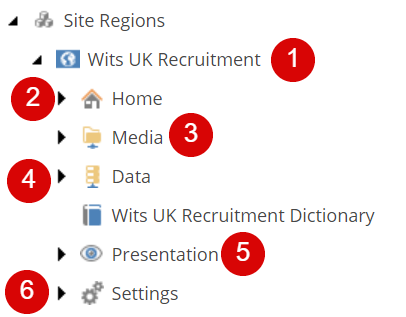
Following is the site content structure-
1. Site
SXA site is a container to the content that will be used as a output of the site. Site contains the settings to select the Site Media Library, Theme Folder and Modules.
2. Home Page
This is the home page of the site. All other pages in the site must be stored under the Home item.
3. Media Folder
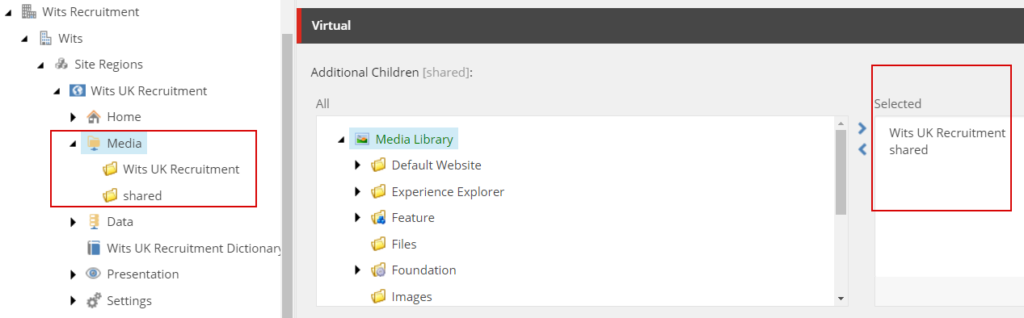
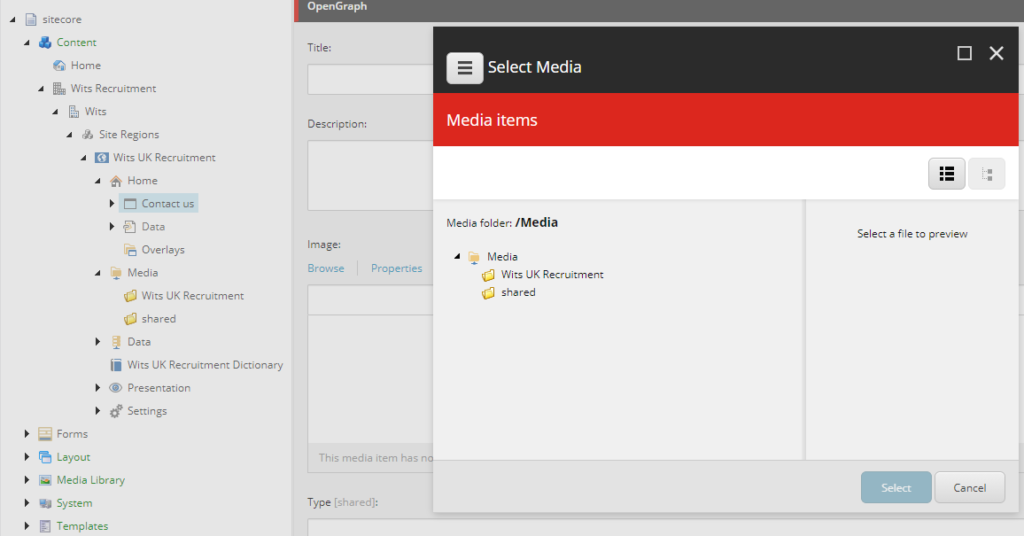
Media Folder helps scope the part of media library is available to content editors on the images selection dialog.
You can change the scope by adding or removing the folder in “Virtual” section “Additional Children” field.
Media Folder “Additional Children” fieldScoped item in media folder from Media LibraryScoped to the selected folders configured in “Additional Children” field
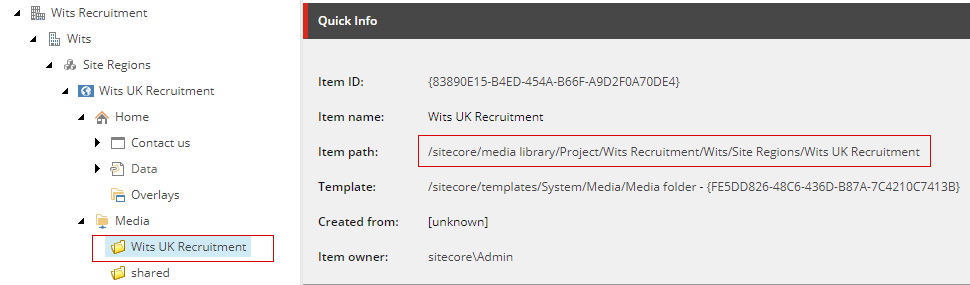
Best Practice – Do not put media items directly under the Media folder. Form SXA 1.7 and higher uploading items to media folder in the Site is not allowed.
4. Data Folder
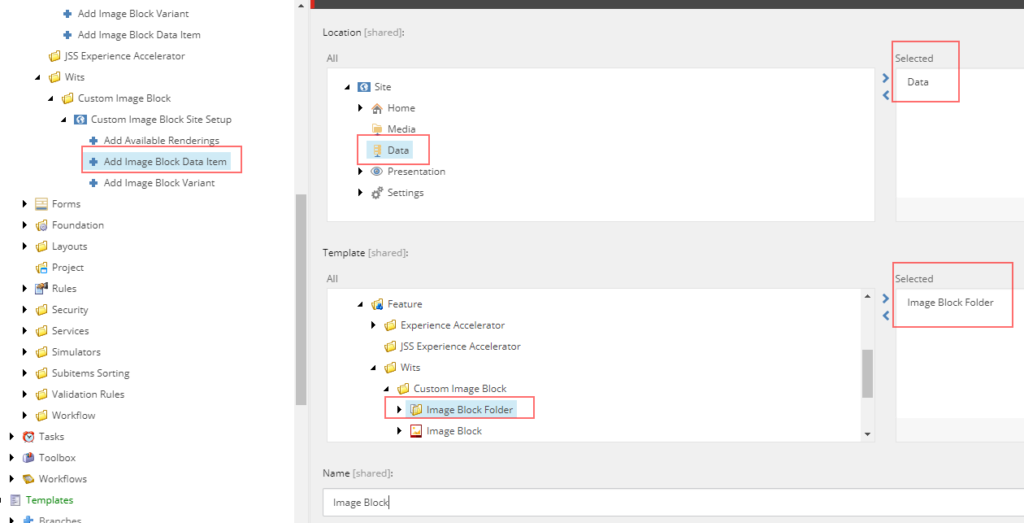
Data Folder is the repository for storing all the data sources. These data sources can be reused across many pages scoped inside the Site. Data folder had component type folder and can be created manually or when the module is installed.
Data for each component can be created manually from the content tree or from experience editor by using the “Associated Content” option. Data folder is used as a source configured in rendering’s Data Source field in a form of query or directly mapped to the component folder.
Best Practice – Clean up unused data sources
Best Practice – Give Site data sources meaningful names
Best Practice – Organize site data sources in folders
Best Practice –Run source field reports to help set the data source context
5. Presentation
The presentation folder contains all the presentation related details and settings for the components selected while creating the site.
Presentation folder has list of components based on the modules selected while creating the site.
Presentation folder contains Page and Partial Designs, Layout Service , Available Renderings, Rendering Variants and Styles.
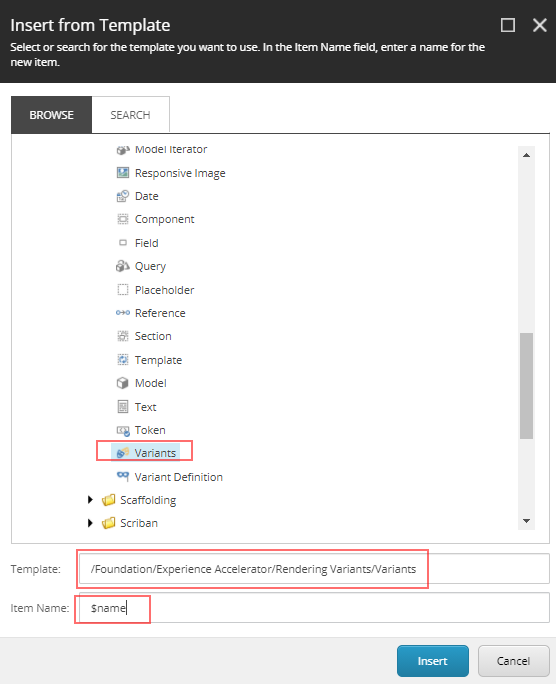
Rendering variant contains list of components on the site and can be customized using Variant Definition and Variant Fields. Also can use template based Variant like Scriban and Template
6. Settings
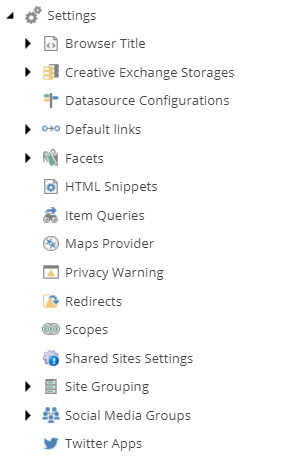
Settings folder contains site specific configuration. Site Grouping contains the Site Settings like site name, host name, database etc.
Settings also contains the Redirects, HTML snippets and Item Queries. Settings Folder contains options to select the Fav icon, error handling and other SEO related settings.
Sitecore supports multitenancy, which means you can have multiple sites running on a single Sitecore instance.
Tenant folder is just a container to hold multiple tenants you may have as a part of site structure. Inherited from _Base Tenant Folder. You may create a tenant folder to hold the multiple tenants of a Company.
A folder with provide tenant folder name is create here – /sitecore/templates/Project/<Tenant Folder Name>
Tenant is a top-level container for the Sites underneath. Site in same tenant are related, that means they are able to share data and layouts. Creation of tenants comes with optional modules.