Tag: Sitecore AI

Sitecore AI Content Migration – Create transfer and chunks from source environment

To understand the end to end flow for migrating the content between environments, please see this blog post – Link

Pre-requisite – Automation Client and JWT Token

Before starting you will need the JWT token for the request to be made to the Content Transfer API. You should be Sitecore Admin or owner.

To generate the Automation client and token see this blog post – Link

Step 1 – Create Transfer

Used in source environment

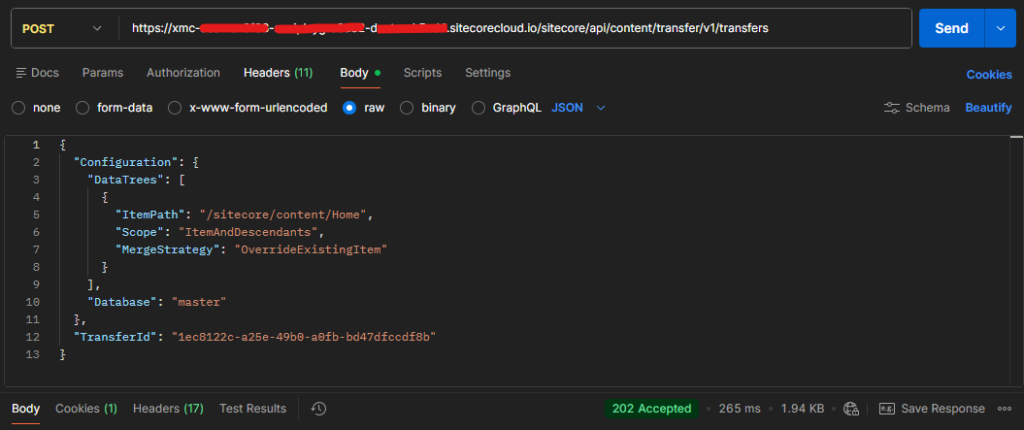
Request-

Http Method – POST

URL – https://your-xmc-instance.sitecorecloud.io/sitecore/api/content/transfer/v1/transfers

Headers

Authorization – Bearer token

Payload

{
  "Configuration": {
    "DataTrees": [
      {
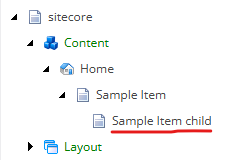
        "ItemPath": "/sitecore/content/Home",
        "Scope": "ItemAndDescendants",
        "MergeStrategy": "OverrideExistingItem"
      }
    ],
    "Database": "master"
  },
  "TransferId": "1ec8122c-a25e-49b0-a0fb-bd47dfccdf8b"
}

Response

202 – Accepted

Note the Transfer ID – 1ec8122c-a25e-49b0-a0fb-bd47dfccdf8b

Transfer ID will be used in next API request.

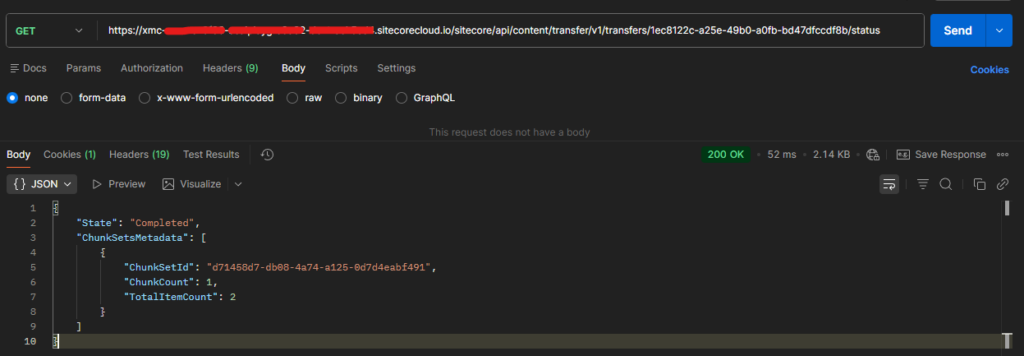
Step 2 – Get Content Transfer

Used in source environment

Get content transfer status or wait for the transfer to be ready

Request

Http Method – GET

Url- https://your-xmc-instance.sitecorecloud.io/sitecore/api/content/transfer/v1/transfers/{transferId}/status

Example – https://your-xmc-instance.sitecorecloud.io/sitecore/api/content/transfer/v1/transfers/1ec8122c-a25e-49b0-a0fb-bd47dfccdf8b/status

Headers

Authorization – token

Payload– Not Applicable

Response

{
    "State": "Completed",
    "ChunkSetsMetadata": [
        {
            "ChunkSetId": "d71458d7-db08-4a74-a125-0d7d4eabf491",
            "ChunkCount": 1,
            "TotalItemCount": 2
        }
    ]
}

Note the chunkSetId – d71458d7-db08-4a74-a125-0d7d4eabf491

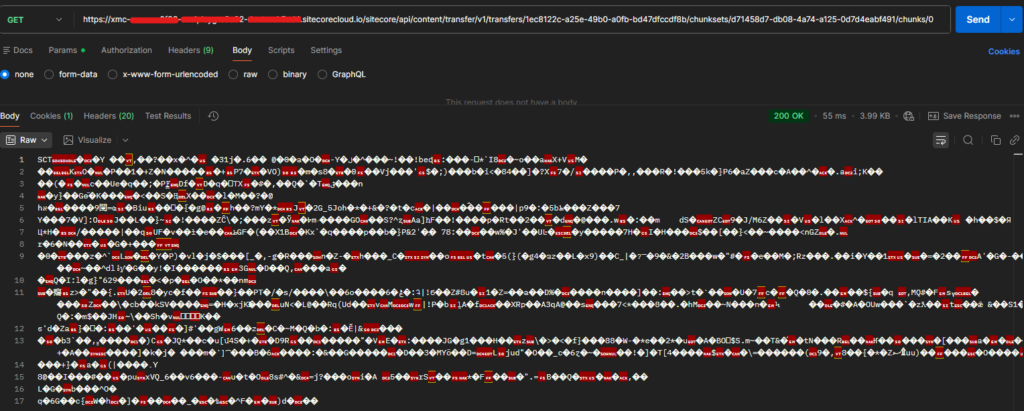
Step 3 – Retrieve a chunk

Used in source environment

Method- Get

Url – https://your-xmc-instance.sitecorecloud.io/sitecore/api/content/transfer/v1/transfers/{transferID}/chunksets/{chunksetID}/chunks/{chunkID}

Example – https://your-xmc-instance.sitecorecloud.io/sitecore/api/content/transfer/v1/transfers/1ec8122c-a25e-49b0-a0fb-bd47dfccdf8b/chunksets/d71458d7-db08-4a74-a125-0d7d4eabf491/chunks/0

Headers

Authorization – token

Payload – Not applicable

Response-

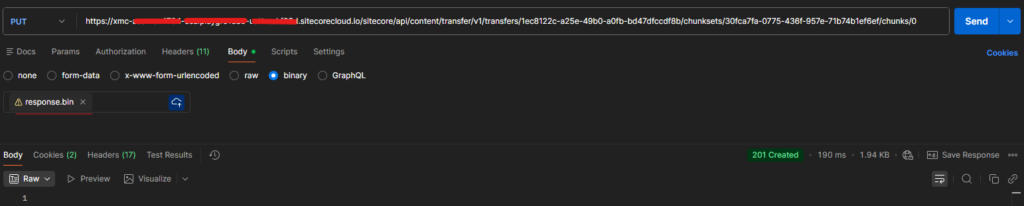
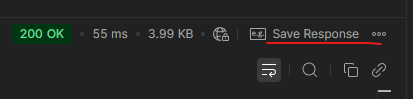
Save chunk –

Save response to file (response.bin)

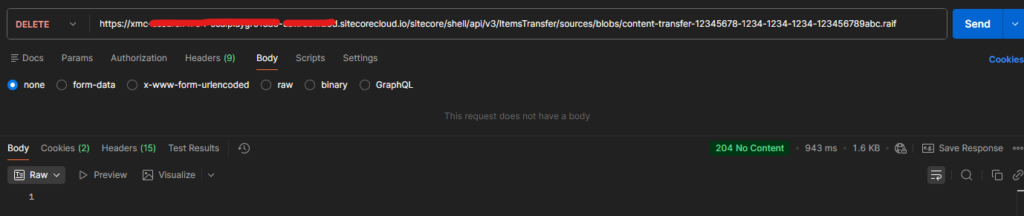
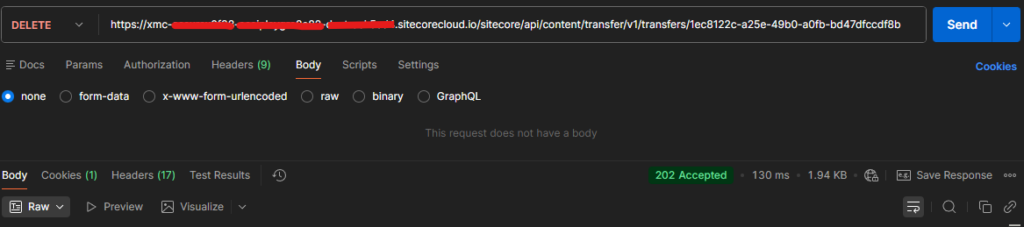
Delete the transfer

Used in source environment

Method – Delete

Url – https://your-xmc-instance.sitecorecloud.io/sitecore/api/content/transfer/v1/transfers/{transferID}

Example- https://your-xmc-instance.sitecorecloud.io/sitecore/api/content/transfer/v1/transfers/1ec8122c-a25e-49b0-a0fb-bd47dfccdf8b

Headers

Authorization – token

Payload – Not applicable

Response

202 Accepted

Summary of API’s

HTTP MethodAPI EndpointPurpose
POST/sitecore/api/content/transfer/v1/transfersCreate a new content transfer.
GET/sitecore/api/content/transfer/v1/transfers/{transferId}/statusRetrieve the status of a specific transfer.
GET/sitecore/api/content/transfer/v1/transfers/{transferId}/chunksets/{chunksetId}/chunks/{chunkId}Download or retrieve a specific chunk from a chunk set.
DELETE/sitecore/api/content/transfer/v1/transfers/{transferId}Delete or cancel a specific transfer.

References

https://developers.sitecore.com/changelog/sitecoreai/01072026/content-transfer-api-and-item-transfer-api-now-available

https://doc.sitecore.com/sai/en/developers/sitecoreai/deploying-sitecoreai/migrating-content-between-sitecoreai-environments.html#alternatives-to-other-package-designer-tasks

https://api-docs.sitecore.com/sai/content-transfer-api

https://api-docs.sitecore.com/sai/item-transfer-api

A Modern Approach to Sitecore Content Migration Using the Content Transfer API and Item Transfer API

Effective 7 July 2026, the Package Designer is no longer available in Sitecore AI. As a result, creating and installing Sitecore packages through the Sitecore Client is no longer supported.

For many years, the Package Designer was one of the most widely used, simplest, and most reliable methods for transferring content between Sitecore environments. However, Sitecore has long provided an alternative through the Sitecore CLI, which supports content serialization and deployment in a more modern, automation-friendly manner.

With the removal of the Package Designer, organizations are encouraged to adopt the Sitecore CLI and the newer Content Transfer and Item Transfer APIs for moving content between Sitecore AI environments.

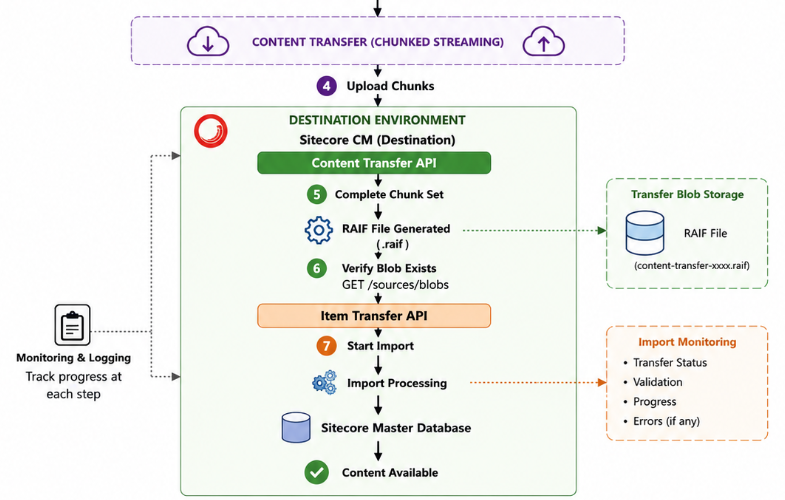
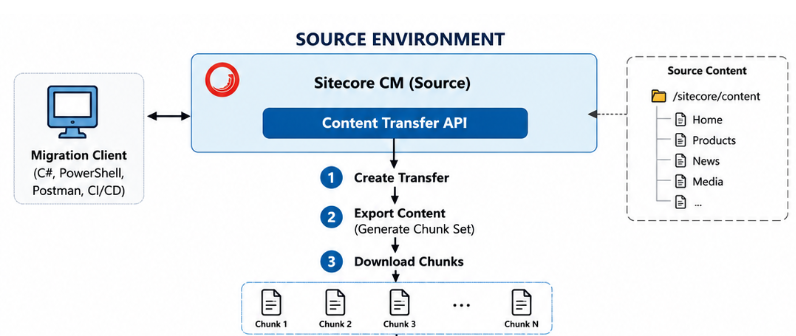
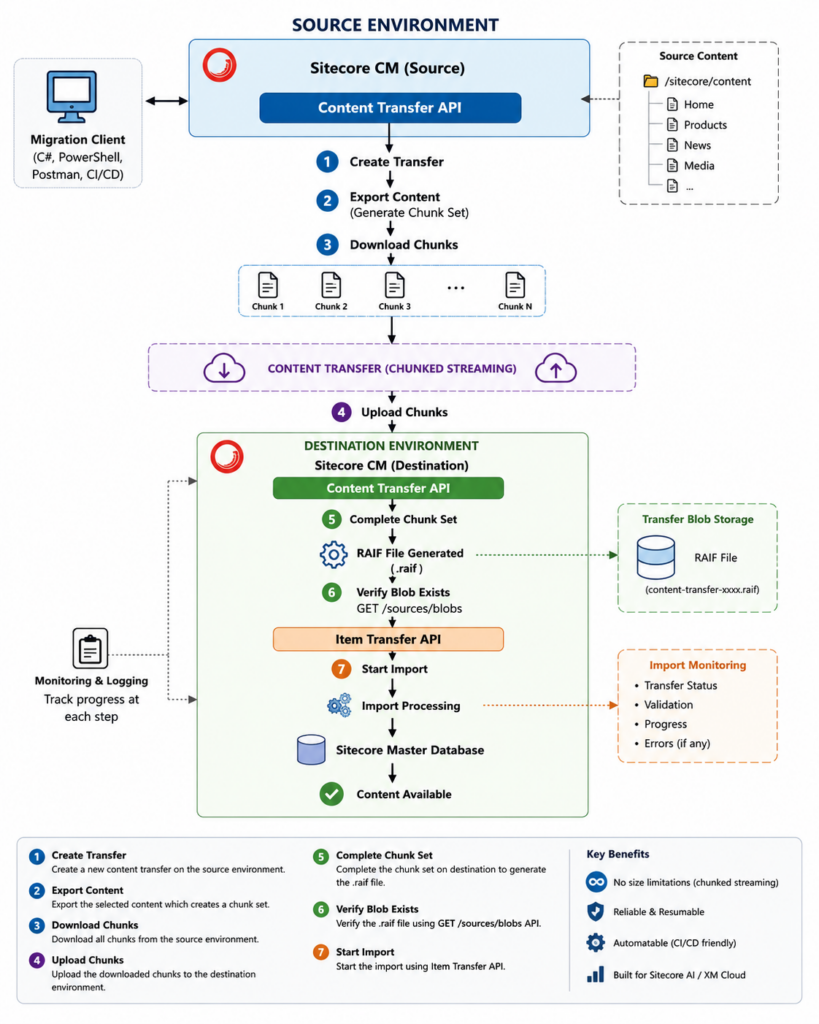
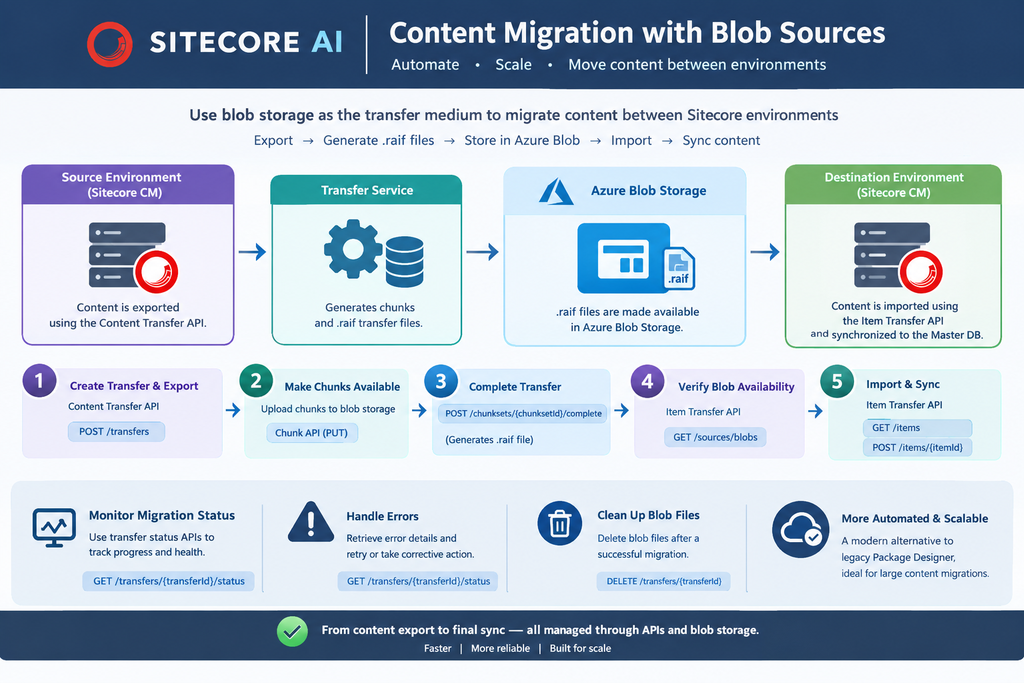
With the content transfer API uses chunked streaming there is no need to break large migrations into multiple smaller packages formelry we used to do this with the zip package. With the new approach a .raif file is created with the no manual file download or upload.

            SOURCE ENVIRONMENT
      +--------------------------------+
      |   Sitecore CM (Source)         |
      |                                |
      |  Content Transfer API          |
      +---------------+----------------+
                      |
            1. Create Transfer
                      |
                      ▼
              Transfer Service
                      |
            2. Export Content
                      |
                      ▼
             Chunk Set Created
                      |
            3. Download Chunks
                      |
                      ▼
           -----------------------
       Content Transfer (Chunked Streaming)
           -----------------------
            4. Upload Chunks
                      |
                      ▼
            DESTINATION ENVIRONMENT
      +--------------------------------+
      |  Content Transfer API          |
      +---------------+----------------+
                      |
           5. Complete Chunk Set
                      |
                      ▼
            RAIF File Generated
                      |
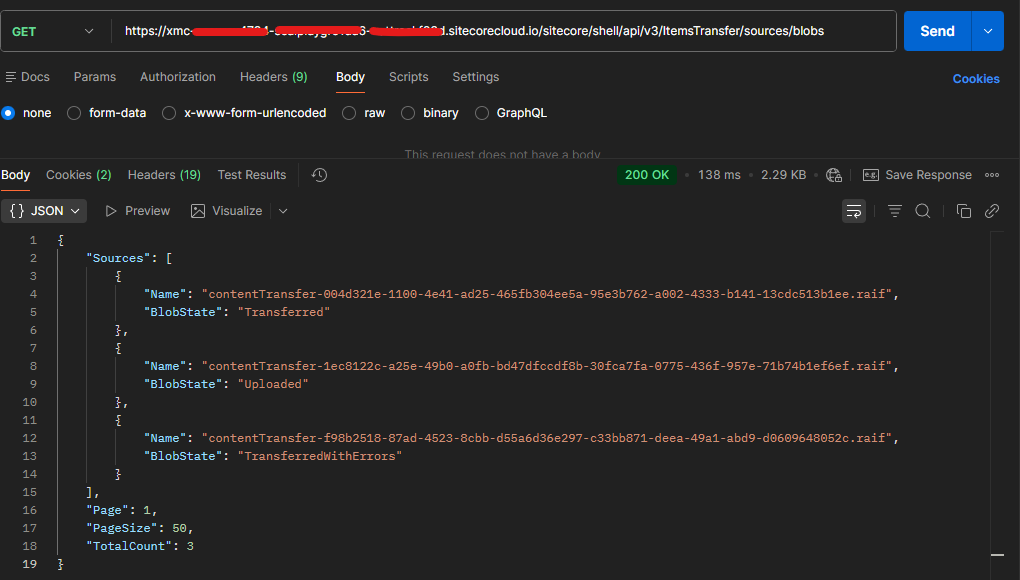
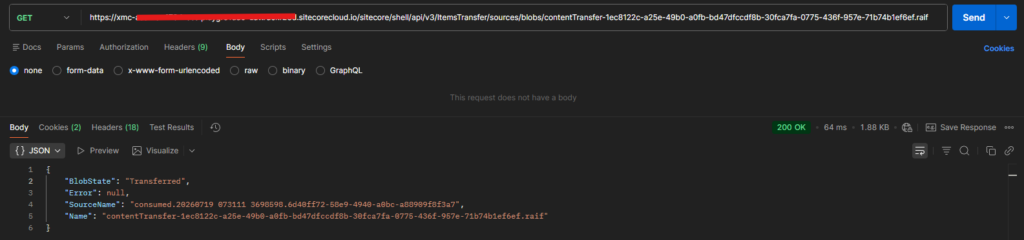
           6. Verify Blob Exists
             GET /sources/blobs
                      |
                      ▼
             Item Transfer API
                      |
           7. Start Import
                      |
                      ▼
           Import Processing
                      |
                      ▼
          Sitecore Master Database
                      |
                      ▼
           Content Available

Creating authorization for automation client in Sitecore AI

This guide explains how to create and configure authorization for an automation client in Sitecore AI. It covers the prerequisites, steps to register or configure the client, generating the required credentials, assigning appropriate permissions, and validating authentication. By following this guide, you will enable automation tools, scripts, or external applications to securely authenticate with Sitecore AI APIs while adhering to security best practices and the principle of least privilege.

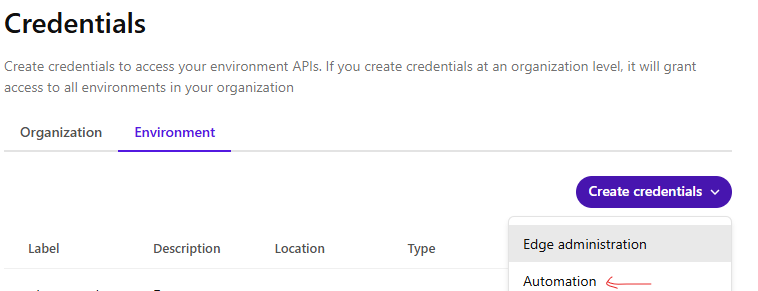
Create the Client credetntials

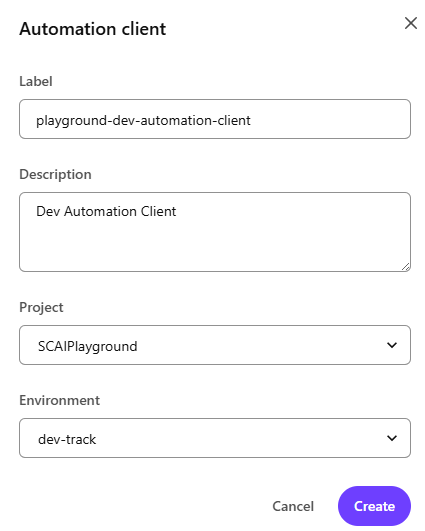
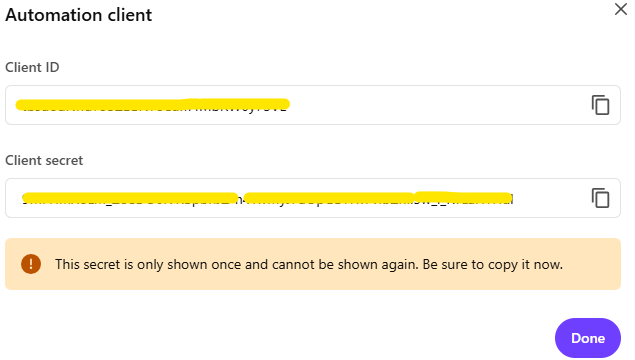
To generate the environment specific client credentitals select the project and the environment the Client ID and secret to be created for.

Client ID and secret is deplayed. Client secret cannot be shown again, so note this for future use.

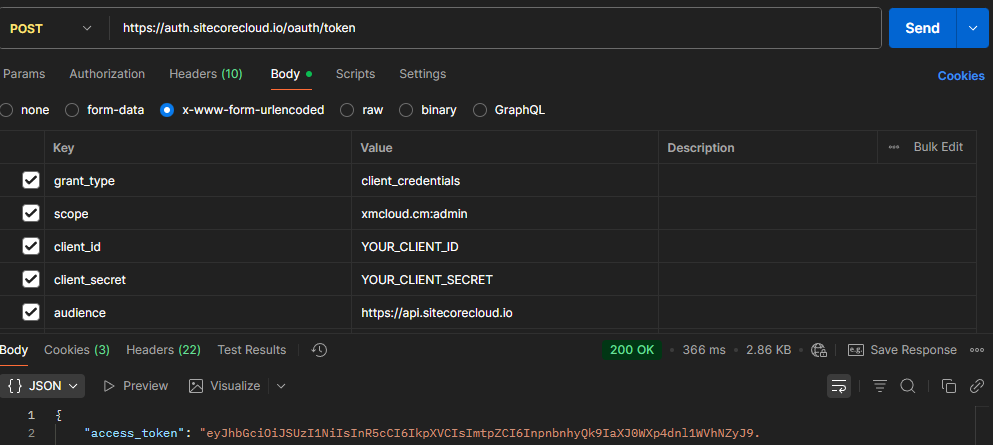
Generating JWT token for automation client

Url – https://auth.sitecorecloud.io/oauth/token

client_id – Use your client id

client_secret – use your client secret

audience – https://api.sitecorecloud.io

Use following cuRL command to run the get the token for this client-

curl --location 'https://auth.sitecorecloud.io/oauth/token' \
--header 'Content-Type: application/x-www-form-urlencoded' \
--header 'Cookie: __cf_bm=LMWhyHFoTdNlwF2MqFxH9AVUQ3FleNAC2Tc3dis4aE8-1784278799.3461177-1.0.1.1-dsinakNmEeHaipvn0cpRI9_Q9p7BQc6JpaI8UYtd24vUJibuJ5xg8GMigR12QLFPl4Sttk1A193_e4mqNdj_Y_23zXG5kHynOcDPJnkuTJu2e9Z.iRZnF5TDBaHSWHjw; did=s%3Av0%3Ae990257e-954d-4c0b-9885-648b225b8582.gnfIQeI146L5TXZF13lXJ%2FSKo%2BQ0L4PDj0xUdYVyqyo; did_compat=s%3Av0%3Ae990257e-954d-4c0b-9885-648b225b8582.gnfIQeI146L5TXZF13lXJ%2FSKo%2BQ0L4PDj0xUdYVyqyo' \
--data-urlencode 'grant_type=client_credentials' \
--data-urlencode 'scope=xmcloud.cm:admin' \
--data-urlencode 'client_id=YOUR_CLIENT_ID' \
--data-urlencode 'client_secret=YOUR_CLIENT_SECRET' \
--data-urlencode 'audience=https://api.sitecorecloud.io'

This should generate the JWT token for you to use this to perform automation-