
Page 6 of 23

Configure Sitecore XM Cloud webhook for Authorization using Auth0 by Okta

In previous blog post we saw how to create a Webhook and debug, inspect and test the Webhook handler using ngrok.

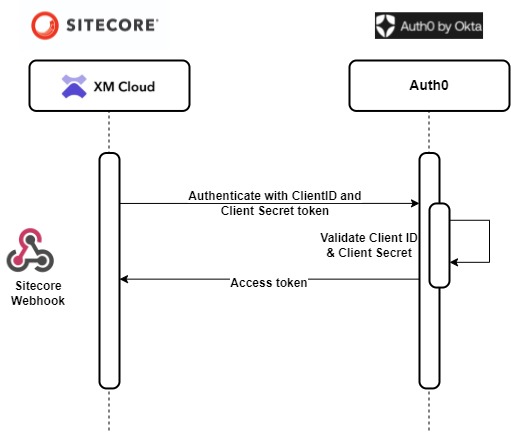
Continuation to the previous blog post lets see how to configure the Webhook to use Client Credential grant and secure the Webhook handler in this blog post with Auth0 by Okta.

Register and Login to Auth0

I used free (development) plan to register to Auth0 if you don’t have the account already. This should create a dev id based on the region you selected and should look like this – dev-your_dev_id

https://auth0.com/pricing

Create a API

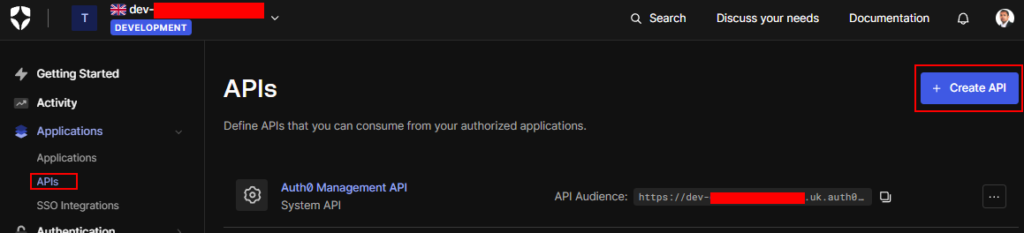
Navigate to Applications ==> APIs and Create a new API
Provide the name and identifier-
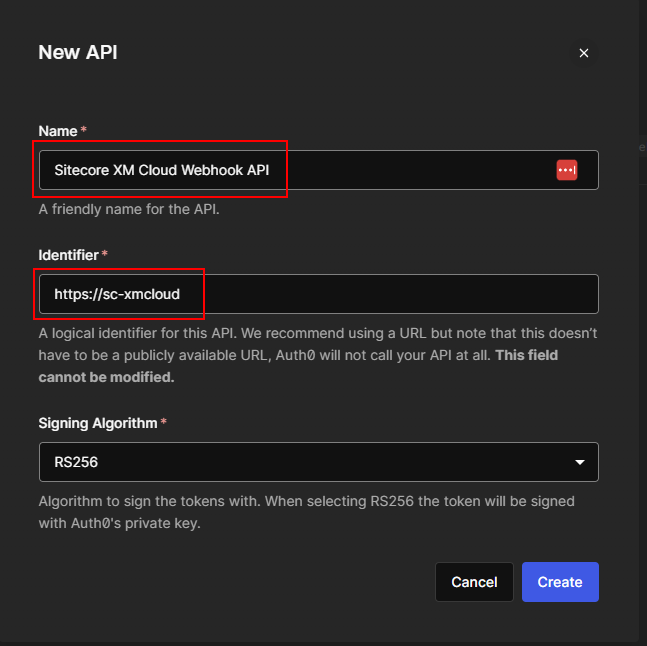
Once created note down the Identifier-
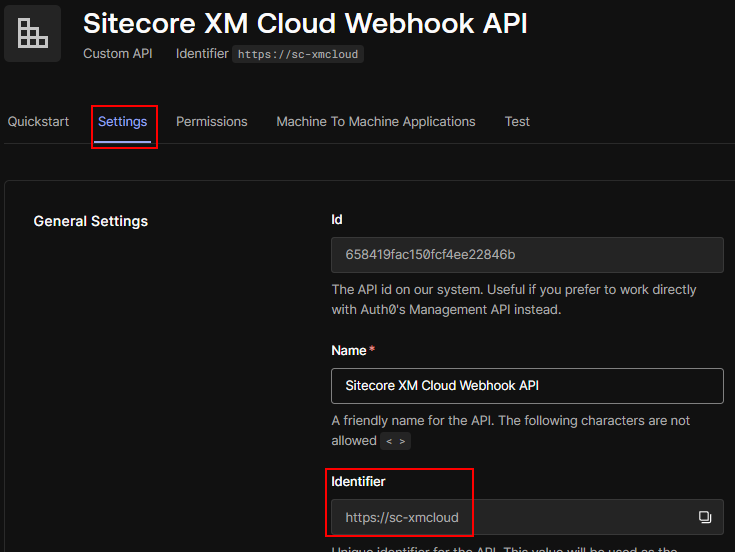
You will also notice that a new Machine To Machine (M2M) Application is created and is mapped and authorized in this API-
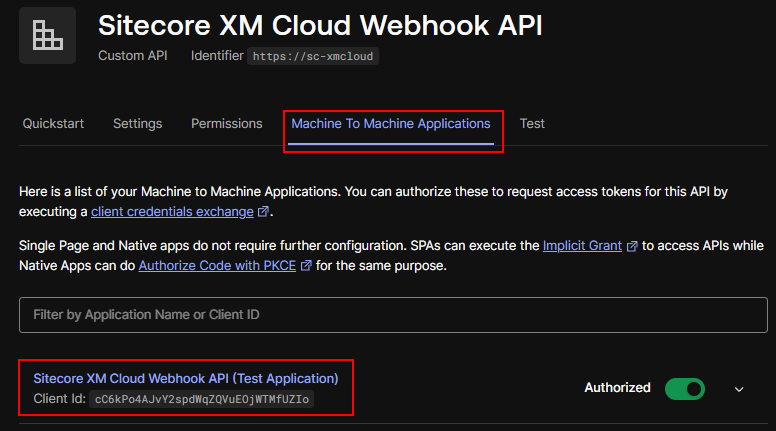
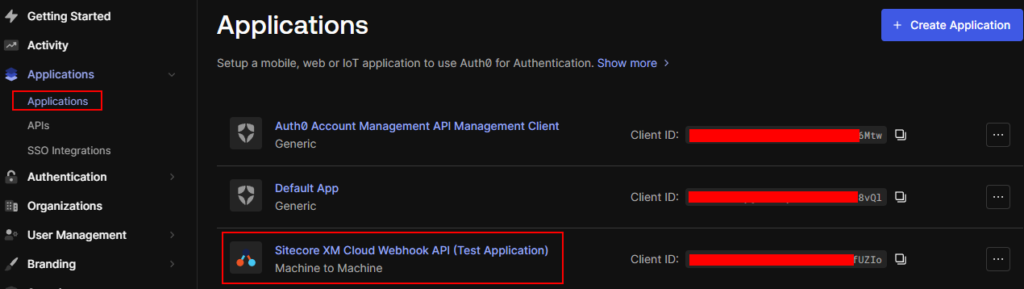
Navigate to Applications ==> Applications to see the M2M application-
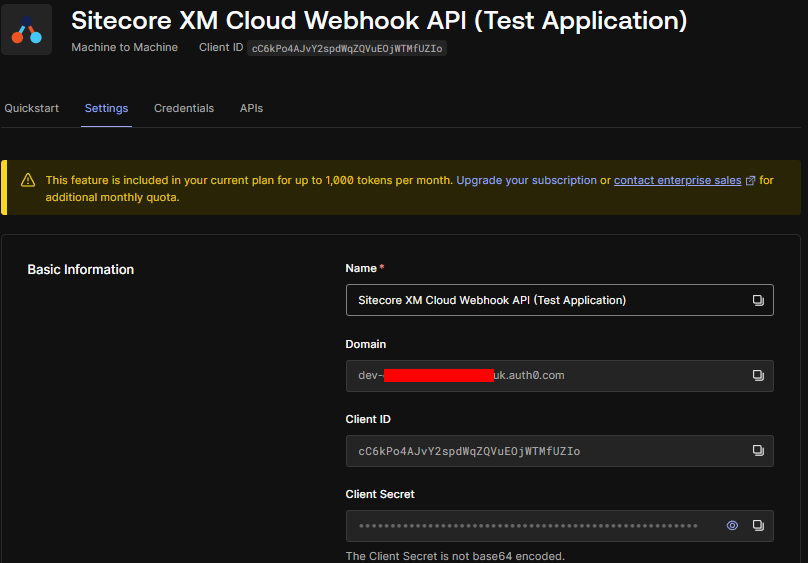
Note the Domain, Client ID and Client Secret in this application, as this will be required when configuring the Autjorization is Sitecore.
Generate token using postman

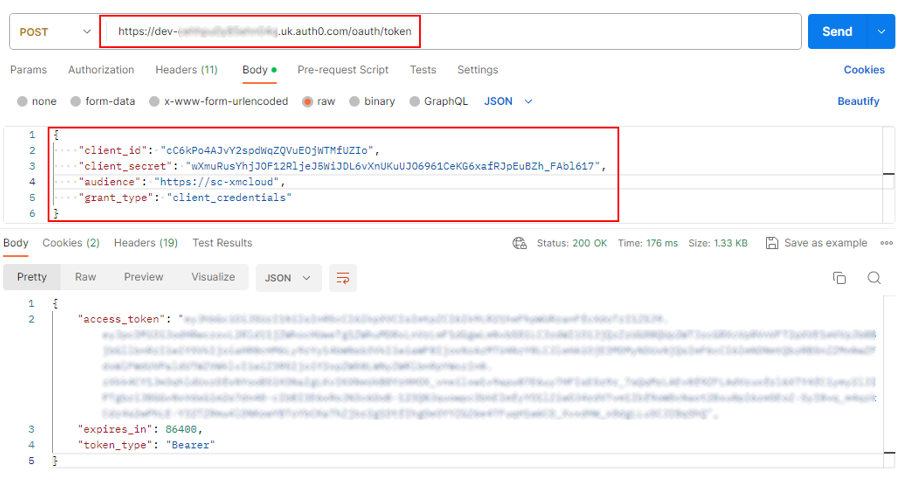
Lets test the API and application ocnfigured correctly by generating token using postman-

You will following from above-

Domain Name- dev-your_dev_id.uk.auth0.com

client_id – cC6kPo4AJvY2spdWqZQVuEOjWTMfUZIo

client_secret- wXmuRusYhjJOF12RljeJ5WiJDL6vXnUKuUJO6961CeKG6xafRJpEuBZh_FAbl617

identifier/audience – https://sc-xmcloud

Post request to generate token – https://dev-your_dev_id.uk.auth0.com/oauth/token
Create a Authorization in XM CLoud-

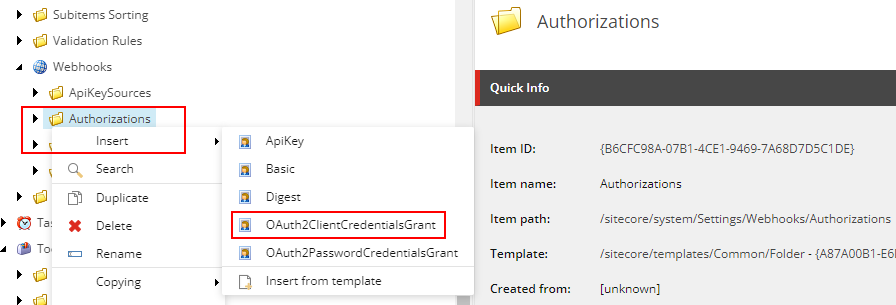
Craee a new OAuth2ClientCredentialsGrant in Authorization folder. This should be available in following path in Sitecore-

/sitecore/system/Settings/Webhooks/Authorizations
Setup the OAuth2ClientCredentialsGrant

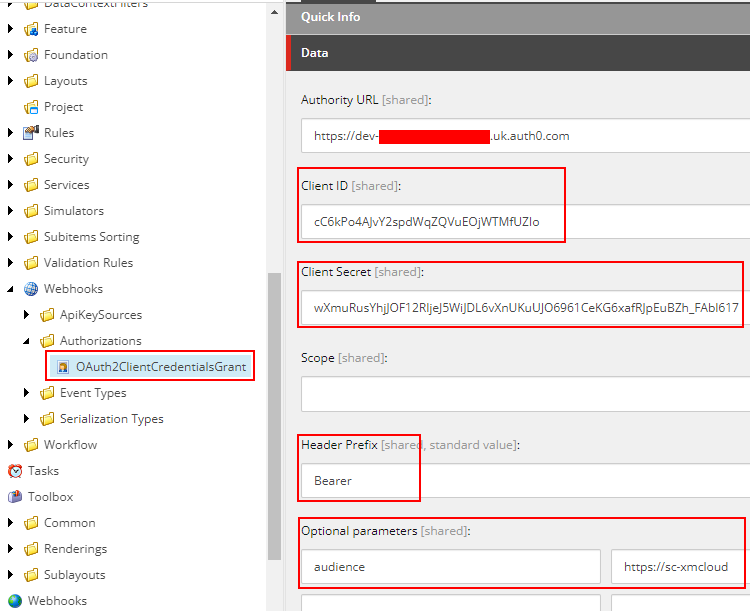
Setup the Authority URL, Client ID, Client Secret, Header Prefix and OptionalParameter as follows- This values we noted above whilst creating a API and Application in Auth0.
Setup Webhook Handler

Create a new Webhook handler and provide the newly created authorization –

For testing purpose I have set the

Event – item_saved, Rule – When the Home Item or its descendants are changed

Url – https://webhook.site/a4624c9e-7dda……

Webhook.site should listen to any calls from Sitecore for testing purpose. This can be your Webhook handler app.

Authorization – Select the newly created authorization to Auth0 which create a token
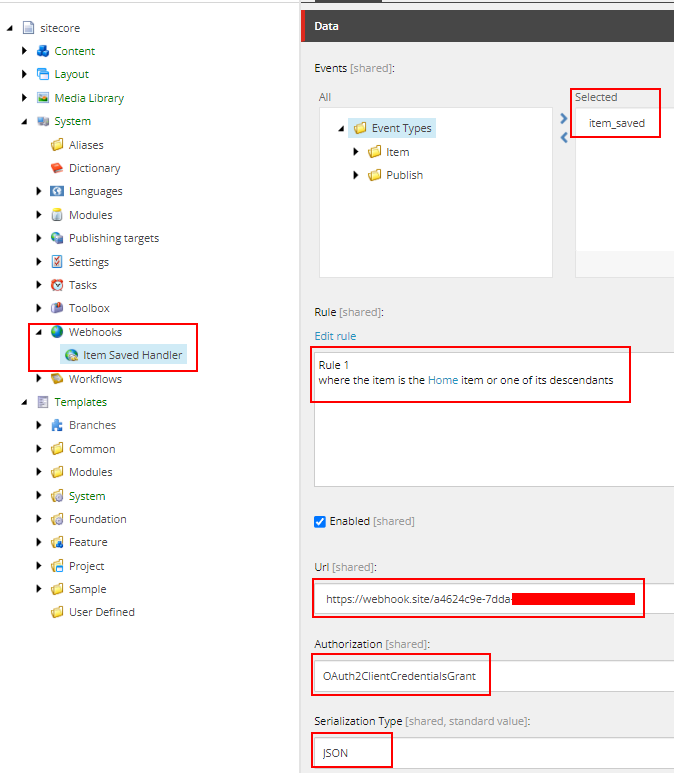
Serialization Type- JSON

Fire a webhook

Save a home or its descendants to fire a webhook
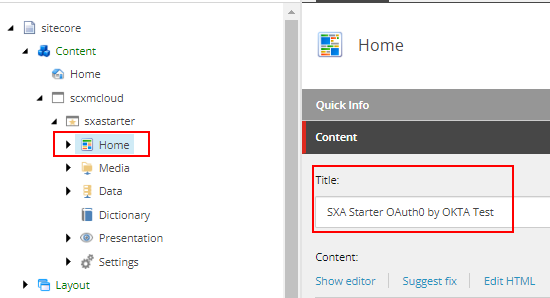
On save it should fire a webhook which can be seen in webhook.site which should also pass the newly created token.
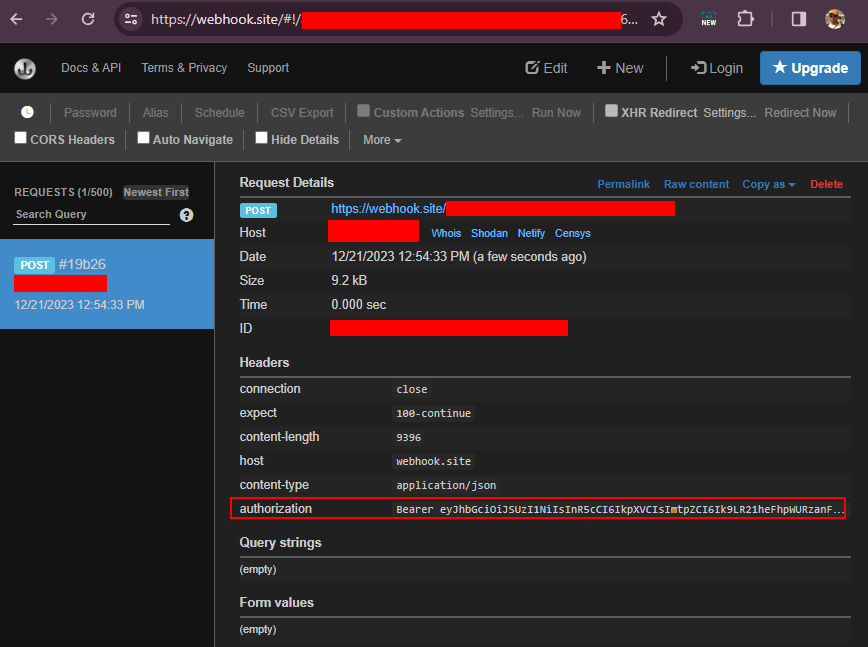
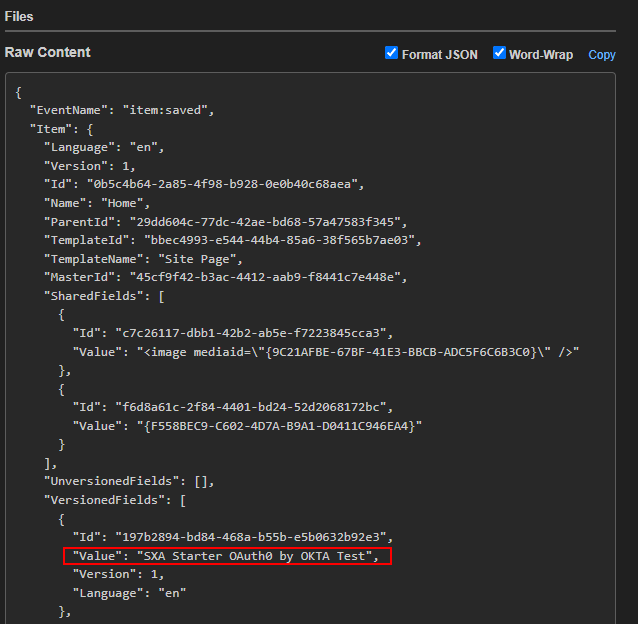
We can see the token was successfully created and a webhook was fired on saving a Home item as configured in Auntorization and Webhook Handler.

Errors-

If the request to Auth0 fails you should be able to see the same in logs- something like this due to configuration-

4016 12:37:00 INFO  AUDIT (sitecore\sandeep@): Save item: master:/sitecore/content/scxmcloud/sxastarter/Home, language: en, version: 1, id: {0B5C4B64-2A85-4F98-B928-0E0B40C68AEA}
1928 12:37:01 ERROR Webhooks: Token request failed with error: Unauthorized

I have tried this in my local instance but the same can also be done in XM Cloud.

Next we will create a Web Api which should be able to validate the token and executes any custom implementation. This will be in next blog.

Hope this helps.

Loading

Debug, inspect, test and run the request triggered by XM Cloud Webhook using ngrok

Sitecore Webhooks allows to receive real-time notification about events to the web api that can handle these requests.

In this blog post will see how to debug such handlers in local environment, events triggered by XM Cloud or from the local instance using ngrok.

What is ngrok?

ngrok allows to connect external netwroks in a consistent, secure and repeatable manner without changing any network configurations.

Pre-requisite-

Sitecore Instance-

Either have a local Sitecore instance or XM Cloud instance. See how to setup local XM Cloud instance

Create a Webhook Handler(Web Api)

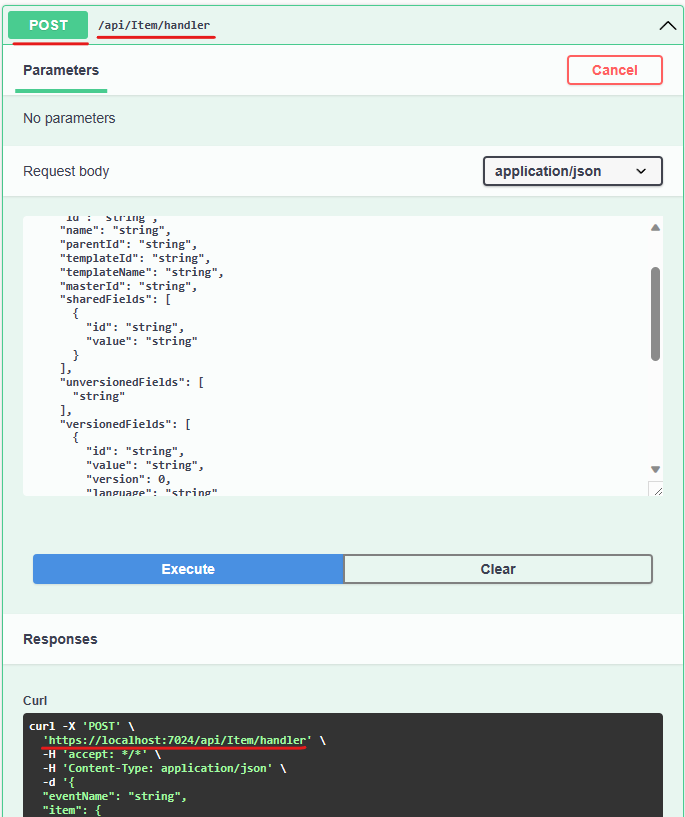
For this blog post I have created a simple Web Api with a endpoint /api/item/handler which receives POST requests with a Item payload and just return OK or Badrequest response.

We are going to create a Webhook with item:saved event in Sitecore.

using Microsoft.AspNetCore.Mvc;
using Sitecore.Webhook.Handler.Models;

namespace Sitecore.Webhook.Handler.Controllers;

[ApiController]
[Route("api/[controller]")]
public class ItemController : Controller
{
    [HttpPost("handler")]
    public async Task<IActionResult> ItemHandler(ItemPayload? payLoad, 
        CancellationToken cancellationToken)
    {
        if (payLoad == null)
        {
            return BadRequest();
        }

        // Process the item handler
        return Ok();
    }
}

When I run this from VS the endpoint listens on the port 7024 for me.

Host Name:- https://localhost:7024/

Endpoint: /api/item/handler

Install ngrok on dev machine

Use choclatey to install ngrok on local machine

choco install ngrok

Check the ngrok once installed

ngrok -v

IMP– Antivirus might block executing the ngrok. For me I had to turn off the real time scan. Do this at your own risk based on your antivirus software this might be different.

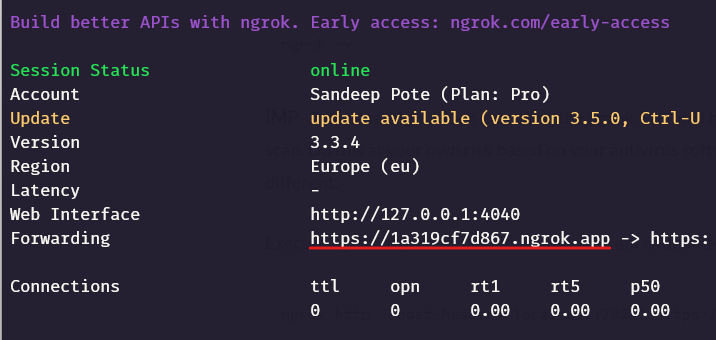
Execute ngrok http command to listen to the api endpoint-

ngrok http --host-header="localhost:7024" https://localhost:7024

In this example https://1a319cf7d867.ngrok.app should forward request’s to https://localhost:7024 where the Web Api is running on my local machine.

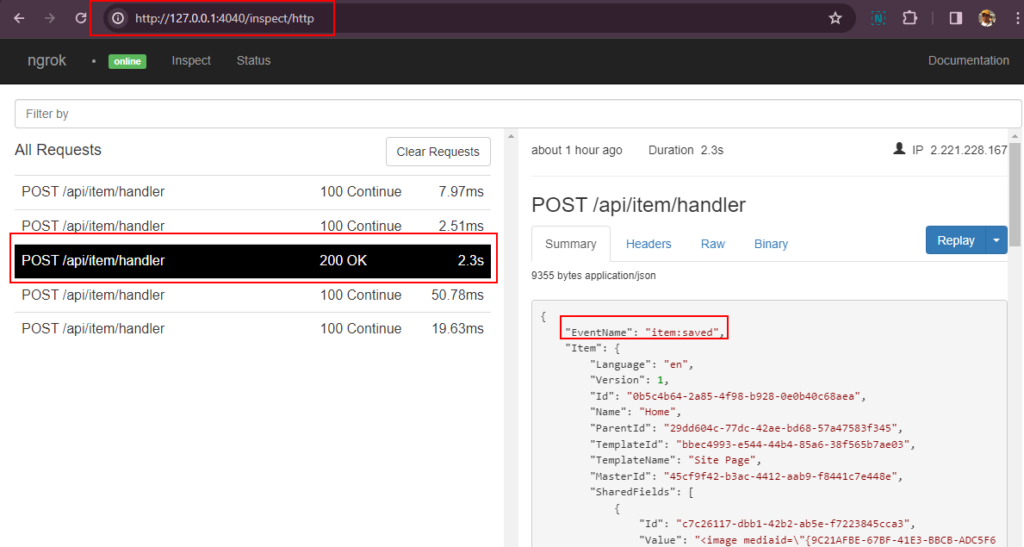
Also note the Web Interface – http://127.0.0.1:4040/

Create a Webhook Handler

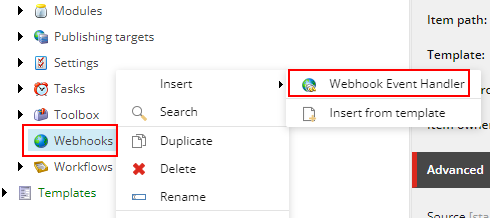
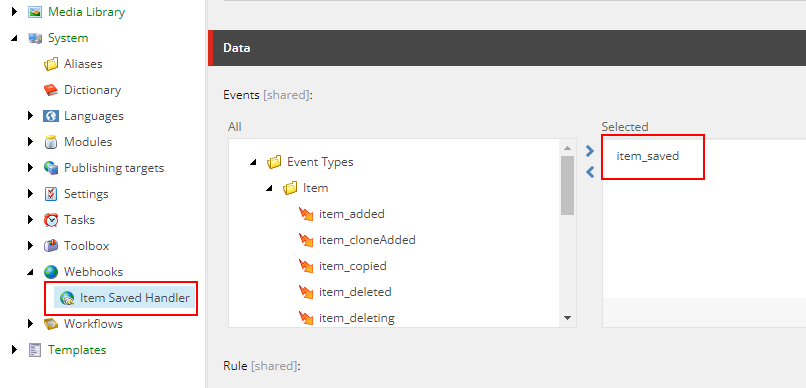
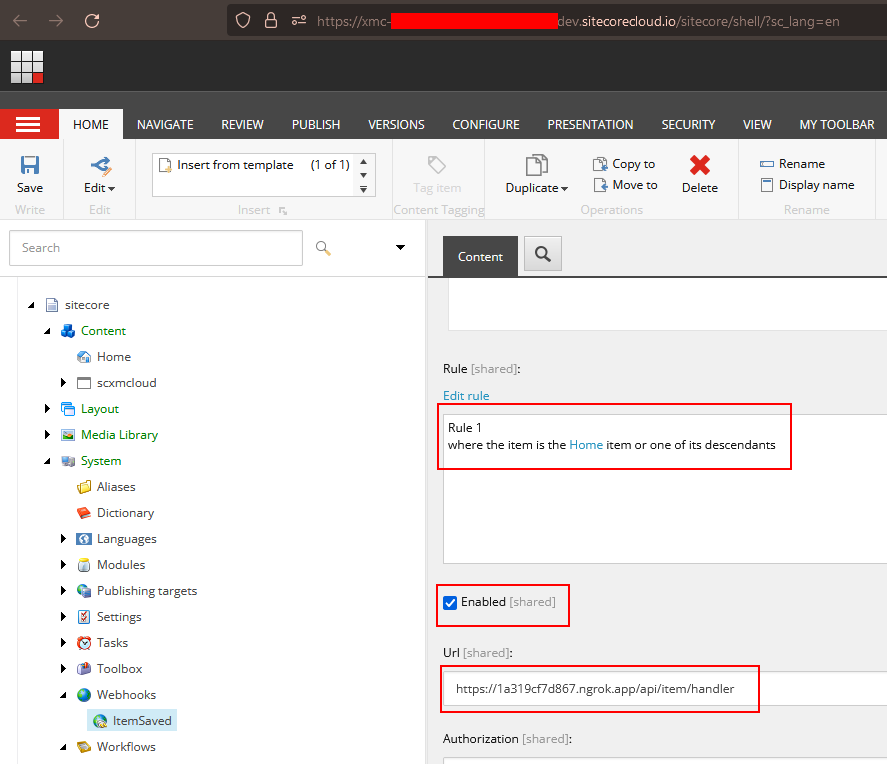
Navigate to /sitecore/system/Webhooks and create a webhook handler. In this case will create a item:saved handler.

In the newly created handler select the event the webhook should trigger and call the endpoint created by nrgok (i.e. web api)

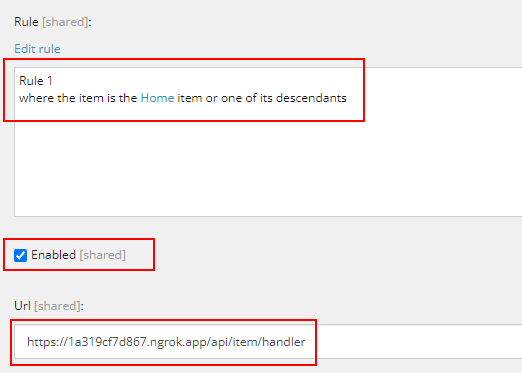
Setup the rule – “where the item is the Home item or onle of its descendants”

Means Home or any of its child items when saved this event will be triggered.

Also setup the Url the webhook should call when this event fires.

IMP – Ensure the handler is enabled or it won’t fire the event.

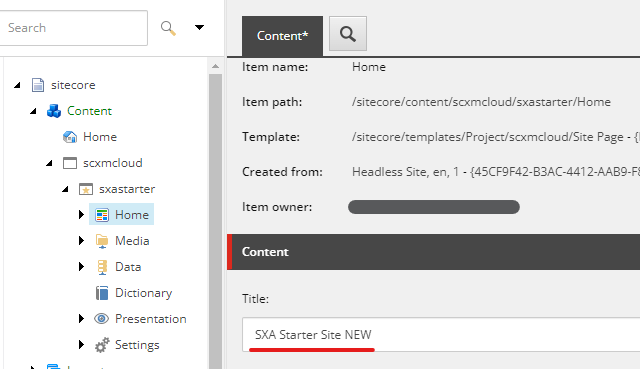
Save the Home or any of its child to fire the event

I changed a field in Home item and Saved the item-

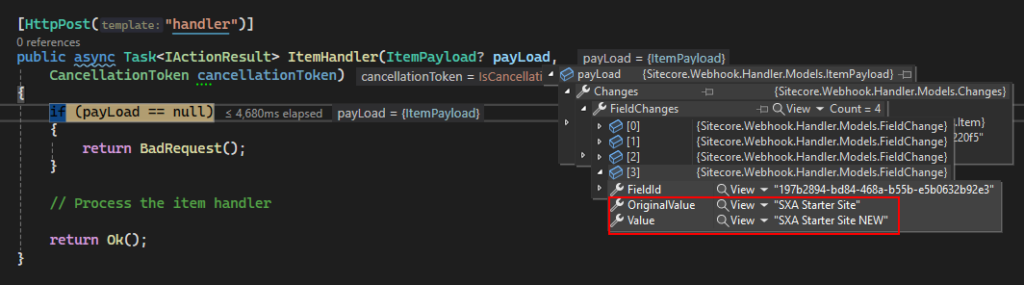
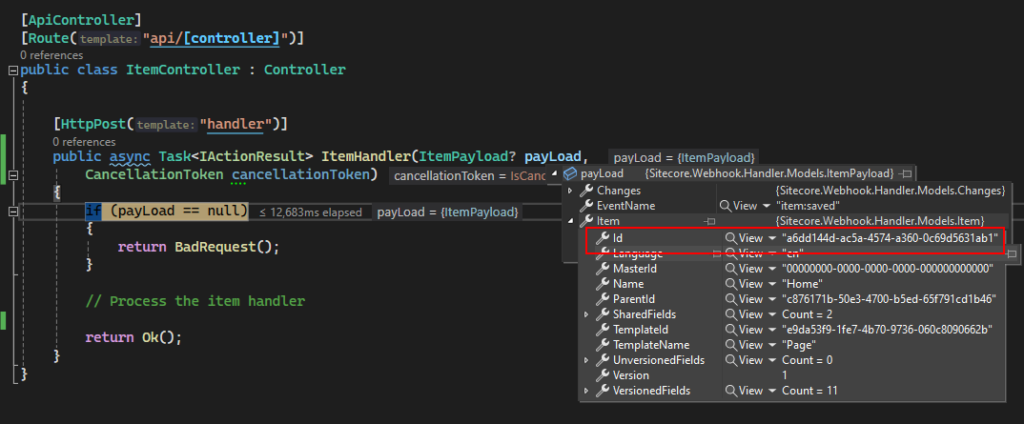
Ensure your Web Api solution is running in debug mode.

And now you should be able to debug, inspect and test the handler. This was done in local Sitecore instance but can also be done in XM Cloud.

ngrok helps to forward the requests to the localy hosted web api running in debug mode.

Now you can handle what should happen on item:saved event.

XM Cloud

I did the same process in XM Cloud-

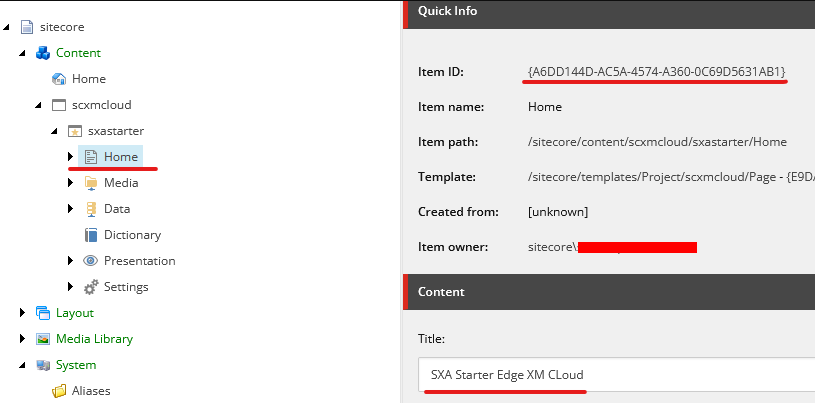
Updated the Home item and Saved. Note the item id

The event is fired and web api in my local machine is called-

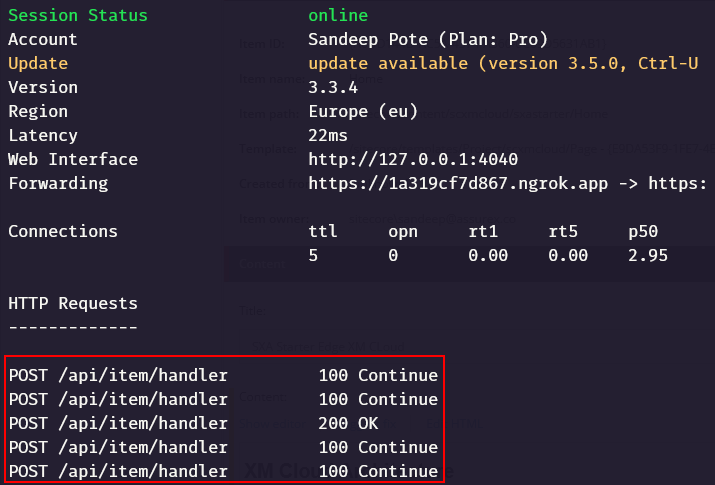
Also the ngrok also shows the calls it is listening.

Web interface should also show the request and payload details-

Hope this helps debuging your Webhook requests fired from Sitecore local or XM Cloud.

If you want to see the webhook payload and perform further actions, like sending mails etc there are online tools availabl e-

https://webhook.site/

https://zapier.com/

https://hookdeck.com/

https://ifttt.com/

Hope this helps.
Loading

XM Cloud local environment – Fork Foundation template

This is first part for setting up the XM Cloud local environment. As a part of this we will first fork the foundation template from reporsitory. This will help you setup sitecore local instance and head your own copy without affecting the Foundation head from Sitecore labs. Note this repo keeps updating and the steps below may differ after any updates.
This post refers following documentation is you want to do your own way-

https://doc.sitecore.com/xmc/en/developers/xm-cloud/walkthrough–setting-up-your-full-stack-xm-cloud-local-development-environment.html

Fork the XM Cloud Foundation Template source for initial deployment from following git repo-

To fork the same you need to have first have git account.

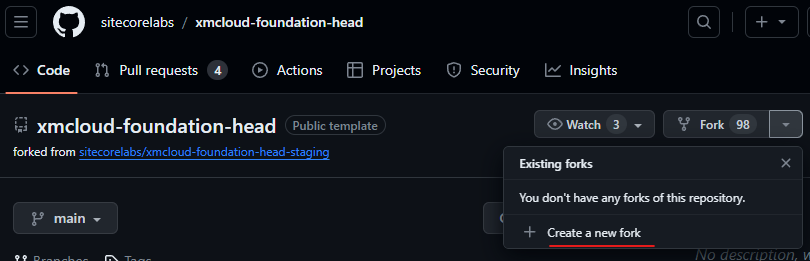
Follow the steps to fork the source code- https://github.com/sitecorelabs/xmcloud-foundation-head

Create a new fork –

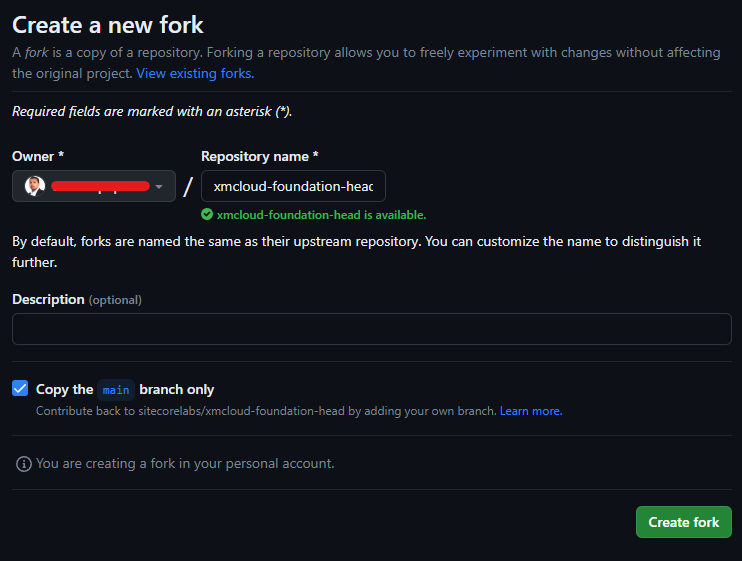
Provide a valid repo name and create fork-

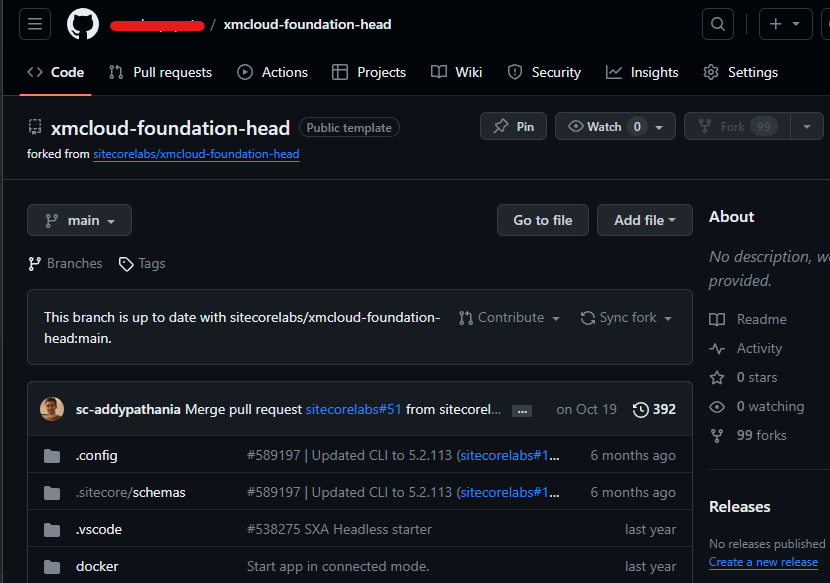
You should now a have a main branch forked in your account-

Sitecore Send Custom Automation – Email when user subscribes to specific mailing list

If you want to send welcome email to the user subscribed to the specific mailing list in this example to a Newsletter, you can do so using Sitecore Send Automation.

In this case there is no OOTB automation available. Will crate a custom automation instead

To see how to setup a Subscribe abd Unsubscribe using javascript see this blog

Setting up Custom Autmation to Thanks user for subscribing to the Newsletter

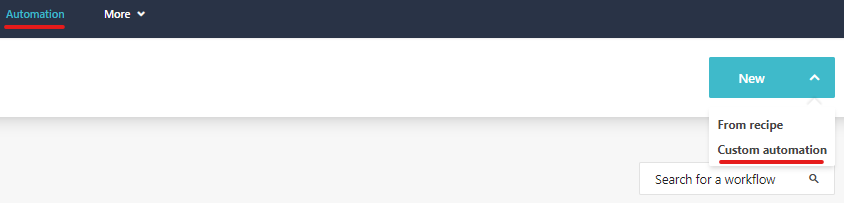
Navigate to Automation and New –> Custom automation

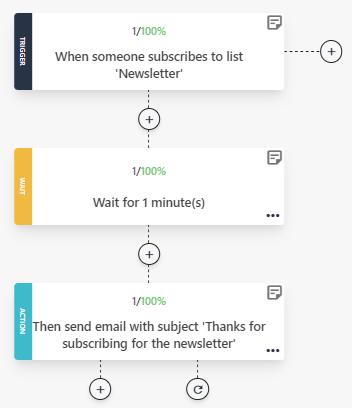
Setting up Automation for welcome email-

This is avaiable in automation recipe-

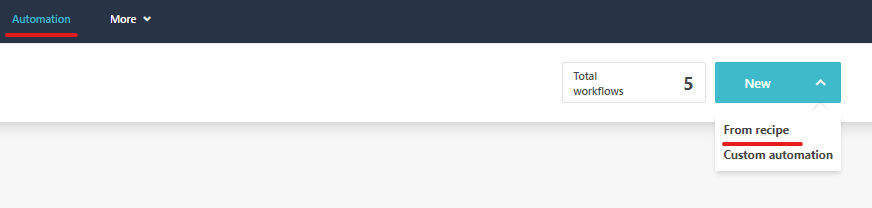
Navigate to Automation and New –> From recipe

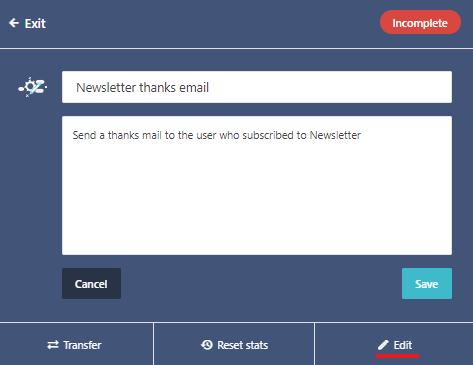
Update title and description of automation-

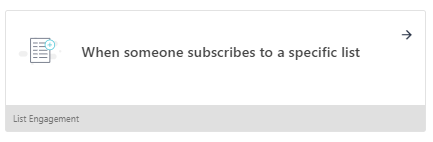
Select the trigger-

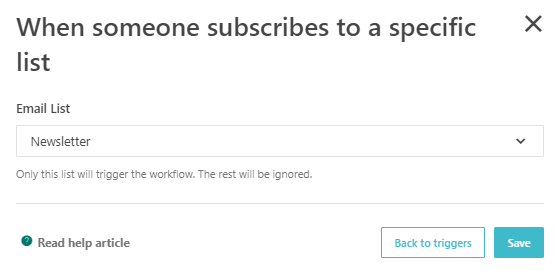
Choose the List Engagement option – When someone subscribes to a specific list

In this case I am choosing the Newsletter Email List- created in my other blog

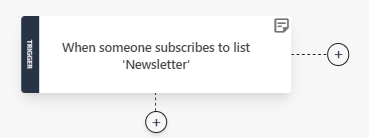
This should update the automation-

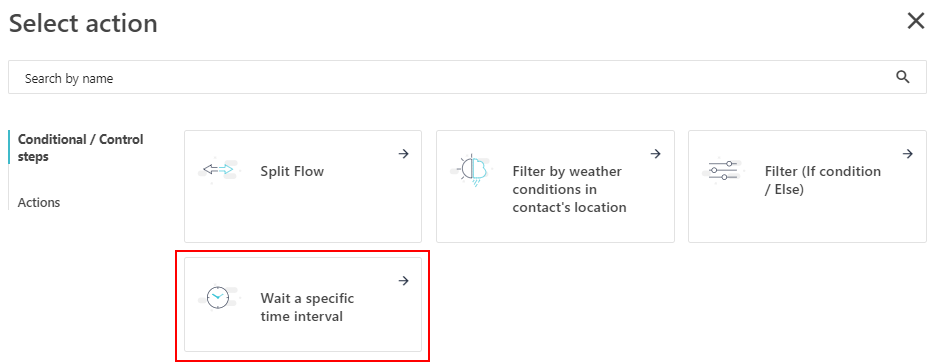
Next add the condition or control step

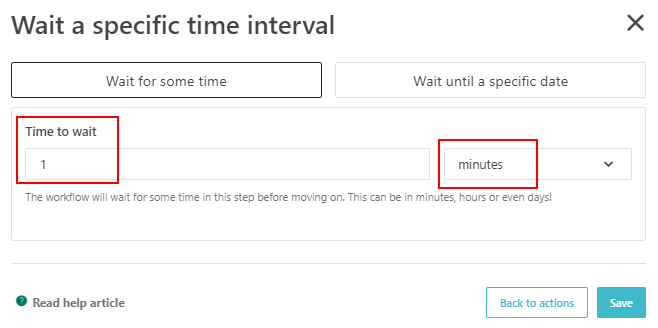
For this example will choose – Wait a specific time interval-

So after the user subscribes to Newsletter the wokflow will wait for 1 minute to perform further action.

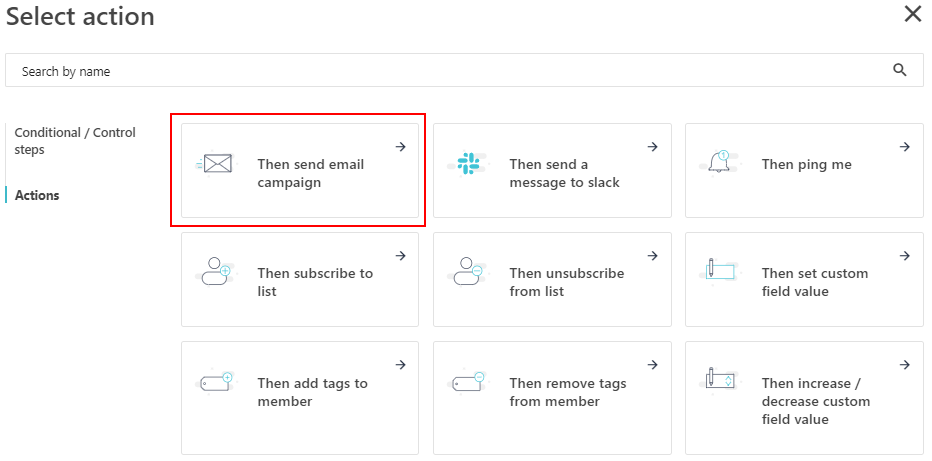
Select Send mail campaign action-

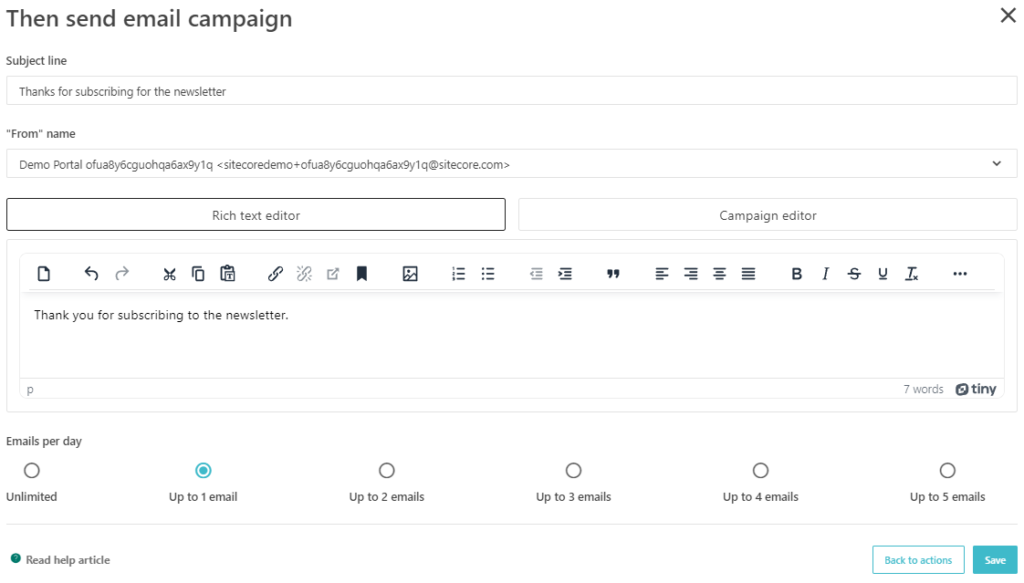
Fill in the appropriate fields and create action-

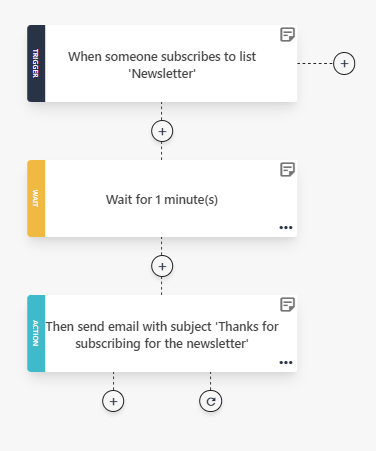
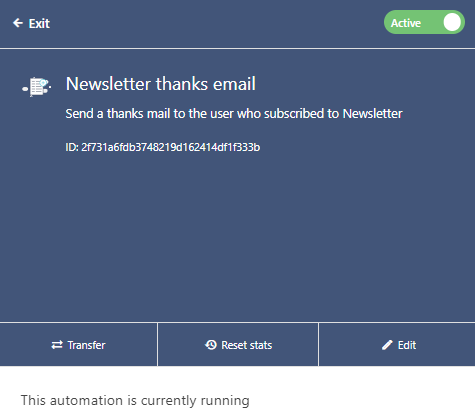
Automation Worflow should look like this-

Imp- do not forget to activate the automation workflow.

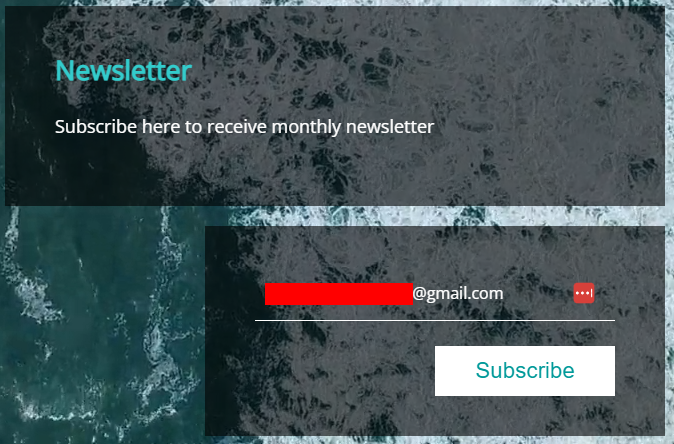
On subscribing to newsletter-

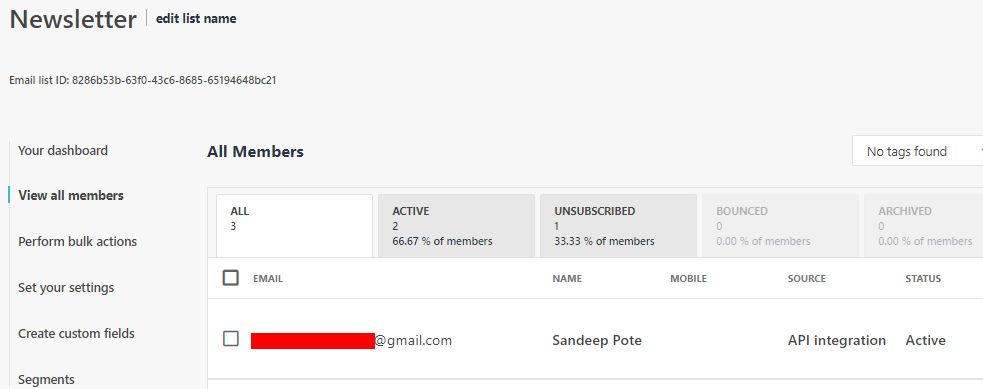
You should be able to see the user added to the Newsletter mailing list-

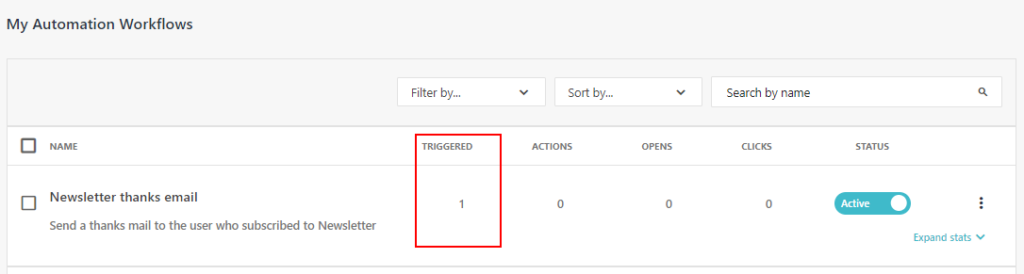
After a minute you should be able to see custom automation is triggered-

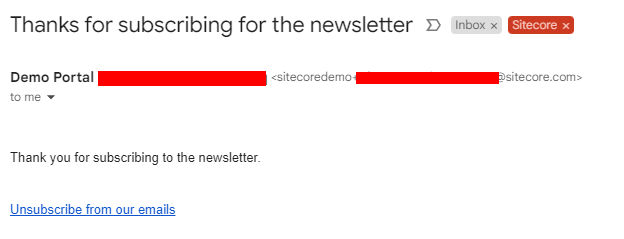
Result- Email been sent after subscription-

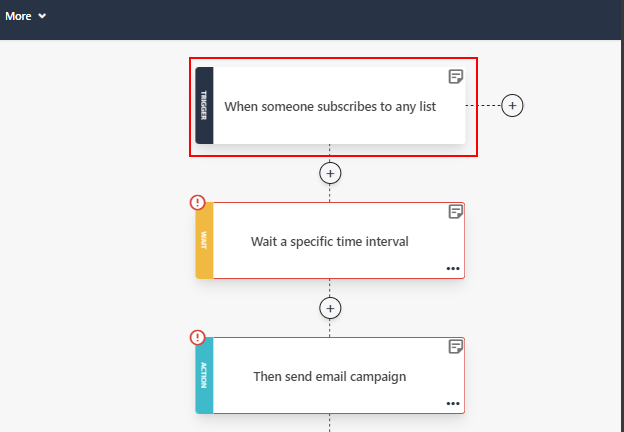
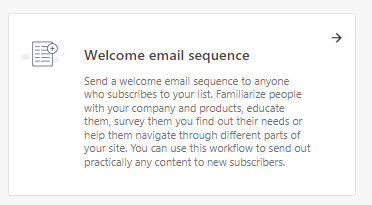
You can also choose the exisitng recipe but this has the trigger to send mail if the user subscribes to any list.

Choose Welcome email sequence option-

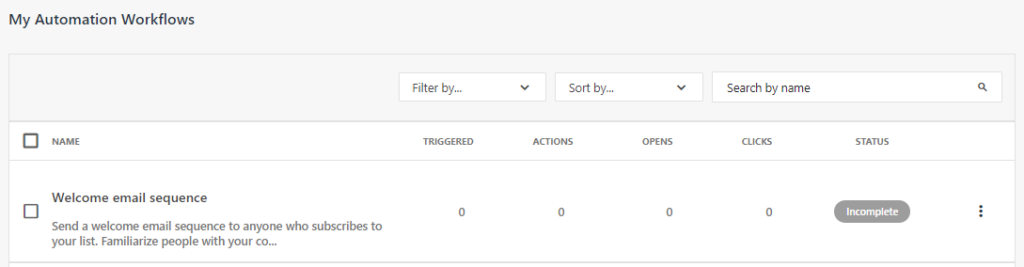
This should ne now available in Automation Workflows in an Incomplet state-

Should show up with the option to setup the Automation Workflow-

Might see mulitple such steps- update as per your requirements

Click on the Trigger – When someone subscribes to any list as highlighted

Loading

Siecore Send – Setup re-direction to a custom webpage after unsubscription

To setup subscription and un-subscription see this blog

In this case I am setting up the Newsletter mailing list if user un-subscribed redirects to the custom page.

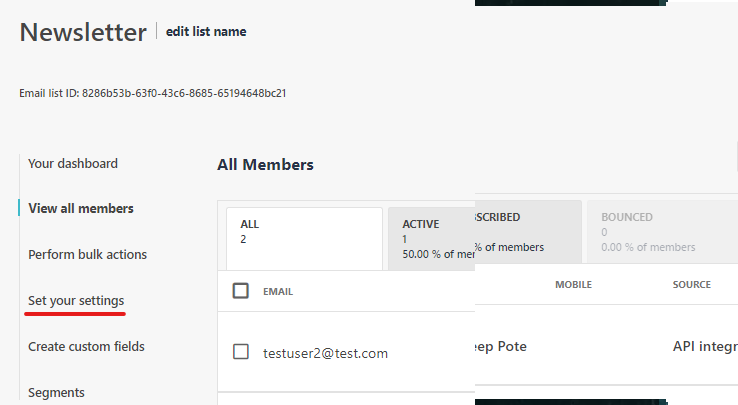
Navigate to the mailing list to setup the unsubscription redirect page-

Select Set your settings option

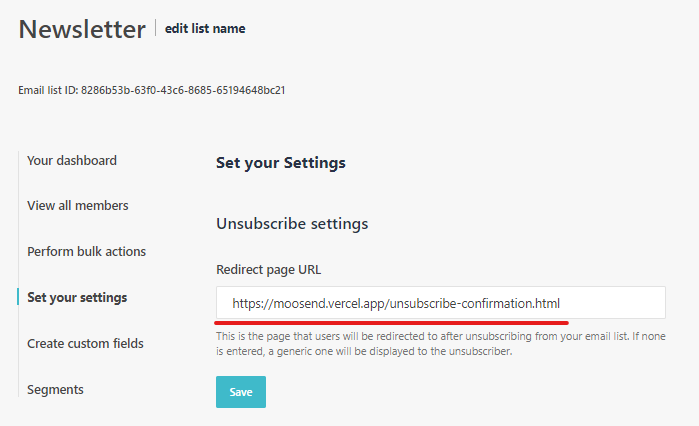
Enter the Redirect page URL –

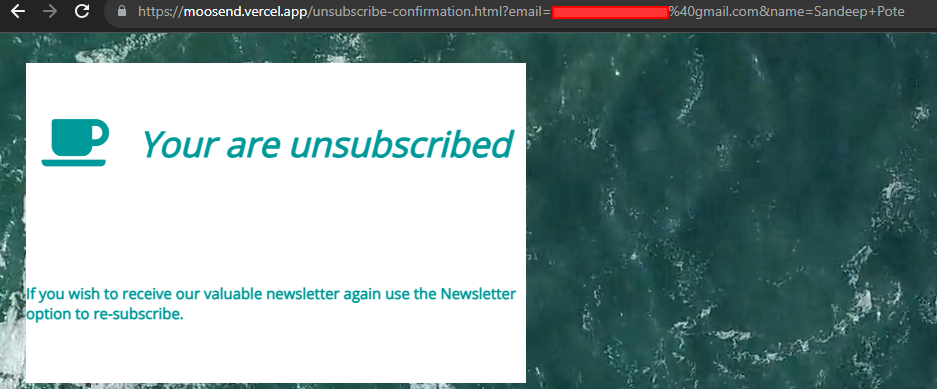
When the user unsubscribes to the email list, it will be re-drected to your custom page.

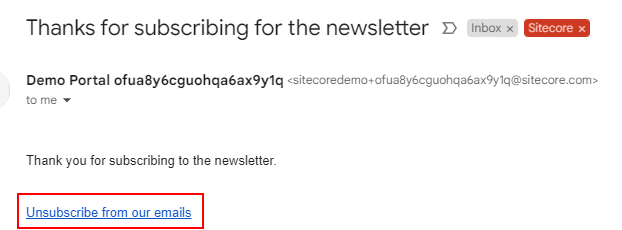
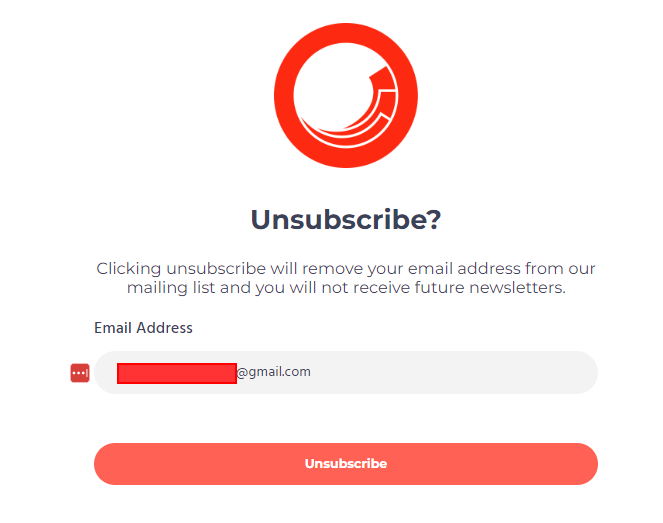
When the user unsubscribes to the mailing list-

Will be redirected to the configured custom page instead of standard Sitecore page.

Loading

Sitecore CDP – Send Checkout Event

The CHECKOUT event captures a guest’s action of checking out an order.

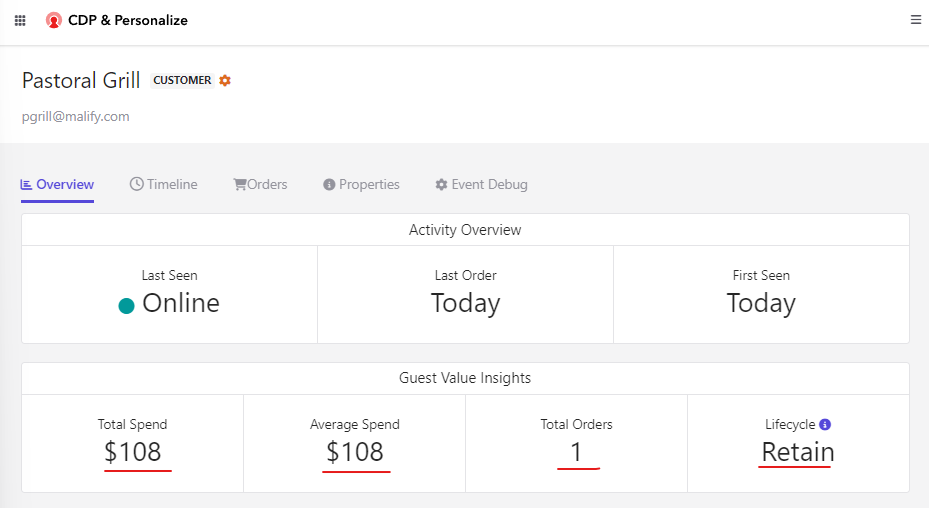
After you send this event, you can view the event in the guest profile.

API url for CHECKOUT event

https://{{apiEndpoint}}/{{apiVersion}}/event/create.json?client_key={{CLIENT_KEY}}&message={{message}}

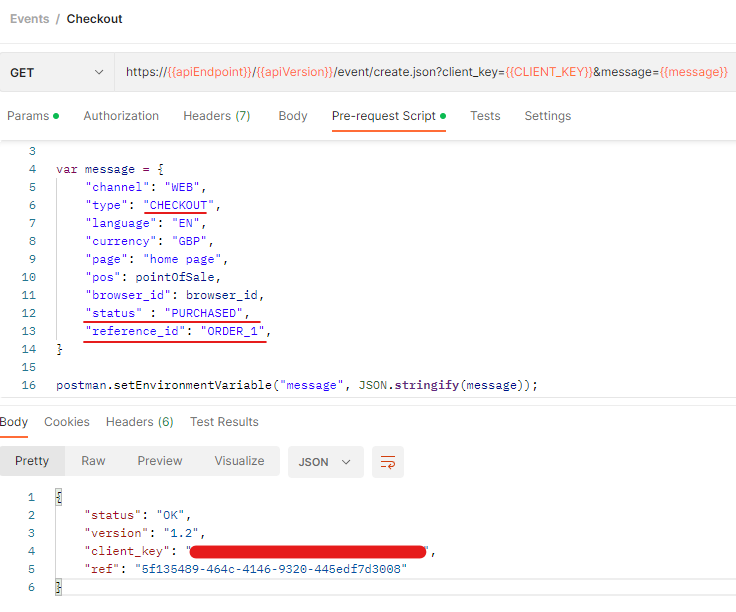
Request payload for CHECKOUT event

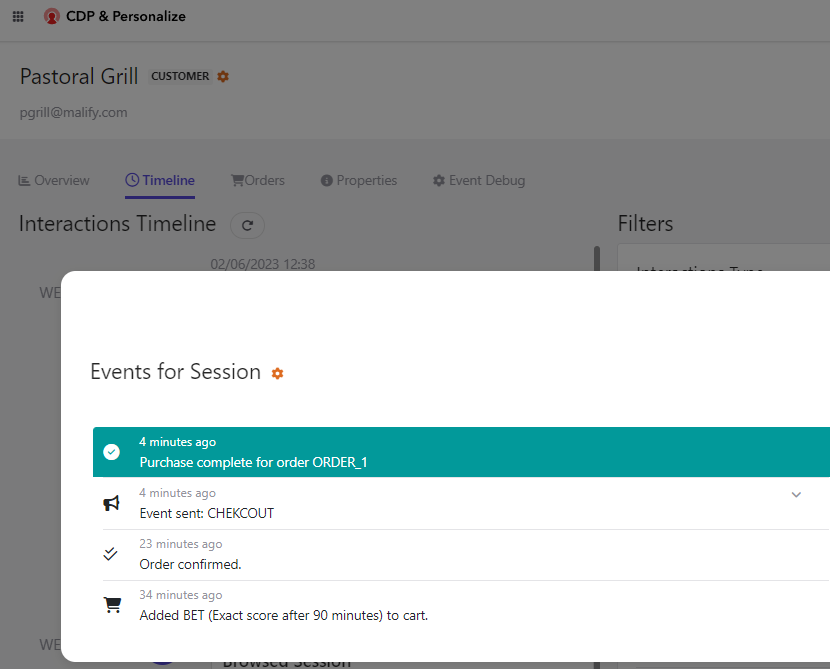
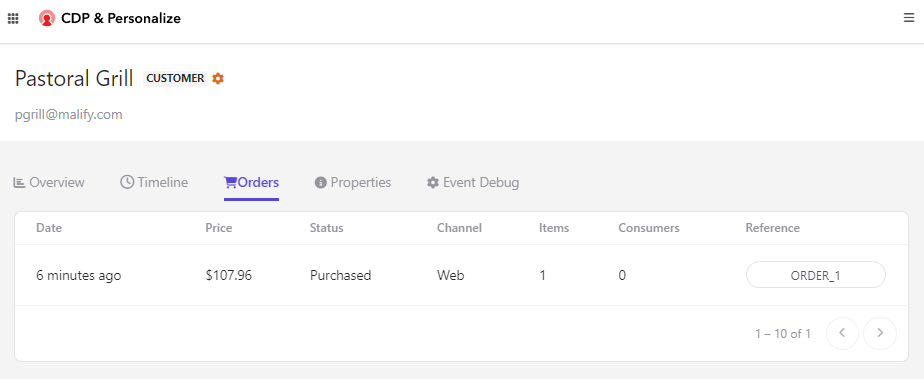
In the session event you should be able to see the Purchase Complete event with the Order Number where the customer completed the checkout.

This should help to get the revenue earned.

cURL code snippet-

curl --location -g --request GET 'https://api.boxever.com/v1.2/event/create.json?client_key=<<Client Key>>&message={"channel":"WEB","type":"CHECKOUT","language":"EN","currency":"GBP","page":"home page","pos":"pastoral-witty-grill","browser_id":"7ed103bd-08c2-47f4-8f69-91141ca3200d","status":"PURCHASED","reference_id":"ORDER_1"}'

C# code snippet-

var client = new RestClient("https://api.boxever.com/v1.2/event/create.json?client_key=<<Client Key>>&message={\"channel\":\"WEB\",\"type\":\"CHECKOUT\",\"language\":\"EN\",\"currency\":\"GBP\",\"page\":\"home page\",\"pos\":\"pastoral-witty-grill\",\"browser_id\":\"7ed103bd-08c2-47f4-8f69-91141ca3200d\",\"status\":\"PURCHASED\",\"reference_id\":\"ORDER_1\"}");
client.Timeout = -1;
var request = new RestRequest(Method.GET);
IRestResponse response = client.Execute(request);
Console.WriteLine(response.Content);

Python code snippet-

import http.client

conn = http.client.HTTPSConnection("api.boxever.com")
payload = ''
headers = {}
conn.request("GET", "/v1.2/event/create.json?client_key=<<Client Key>>&message=%7B%22channel%22:%22WEB%22,%22type%22:%22CHECKOUT%22,%22language%22:%22EN%22,%22currency%22:%22GBP%22,%22page%22:%22home%20page%22,%22pos%22:%22pastoral-witty-grill%22,%22browser_id%22:%227ed103bd-08c2-47f4-8f69-91141ca3200d%22,%22status%22:%22PURCHASED%22,%22reference_id%22:%22ORDER_1%22%7D", payload, headers)
res = conn.getresponse()
data = res.read()
print(data.decode("utf-8"))

Reference- https://doc.sitecore.com/cdp/en/developers/sitecore-customer-data-platform–data-model-2-1/send-a-checkout-event-to-sitecore-cdp.html

Loading

Sitecore CDP – Send Confirm Event

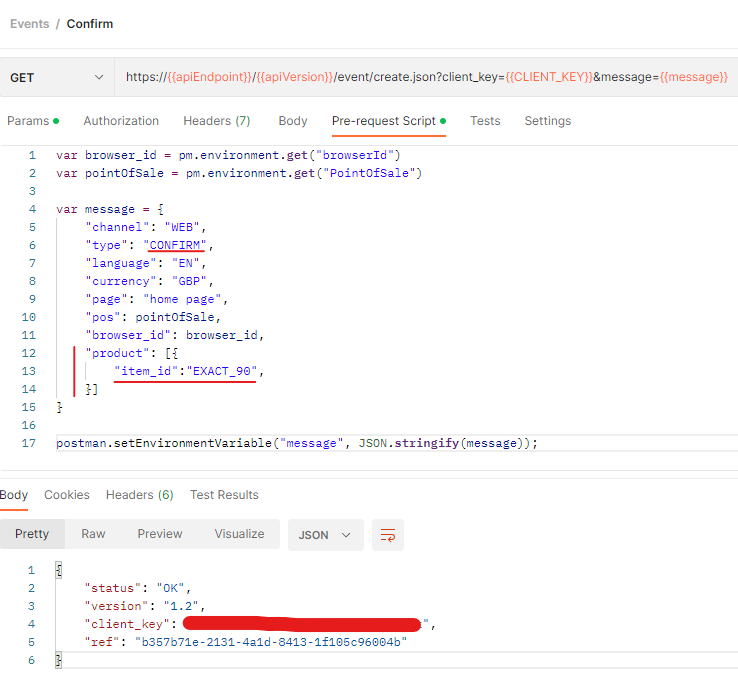
The CONFIRM event captures the confirmation of purchased products.

Use the following endpoint for sending the confirm event.

https://{{apiEndpoint}}/{{apiVersion}}/event/create.json?client_key={{CLIENT_KEY}}&message={{message}}

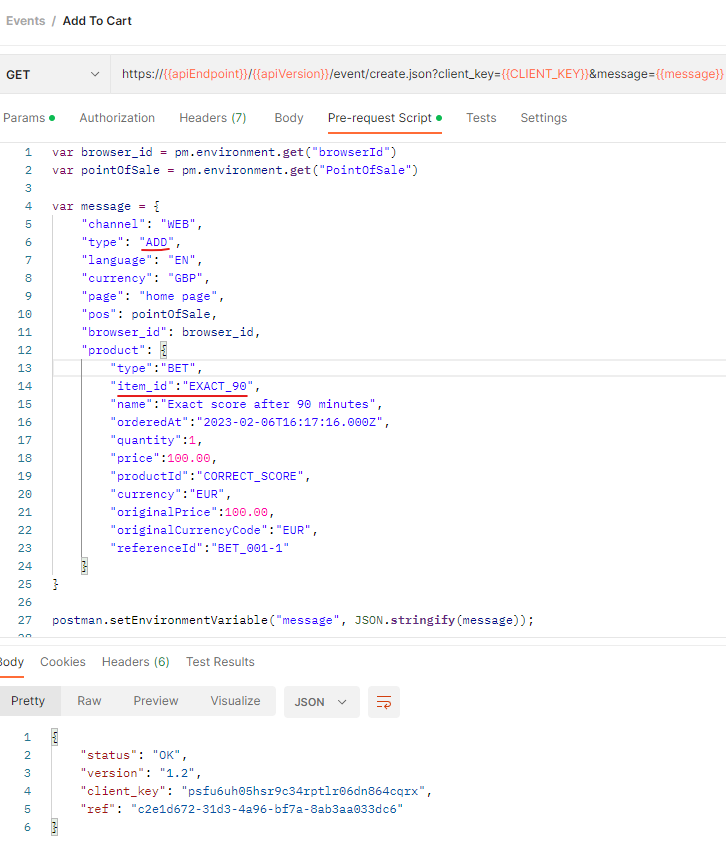
ADD event

See how to create a browser id and Add Event before a confirm event is sent.

CONFIRM Event

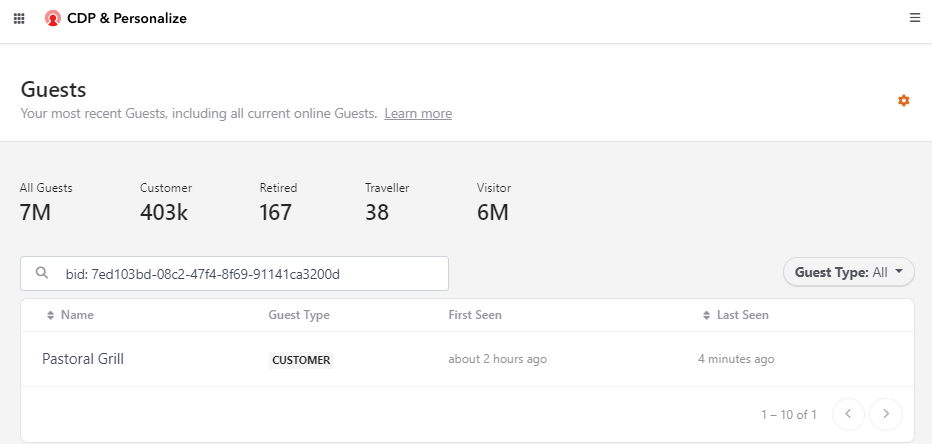
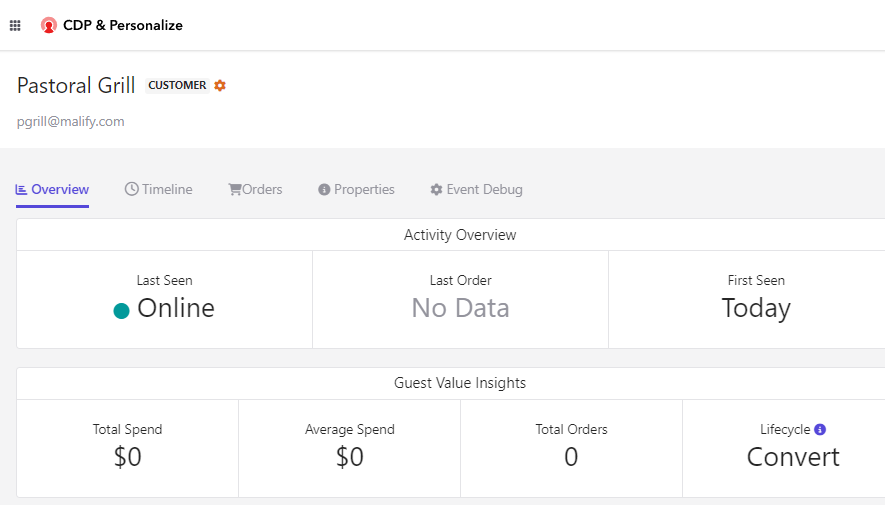
Search Customer by browserid or Name.

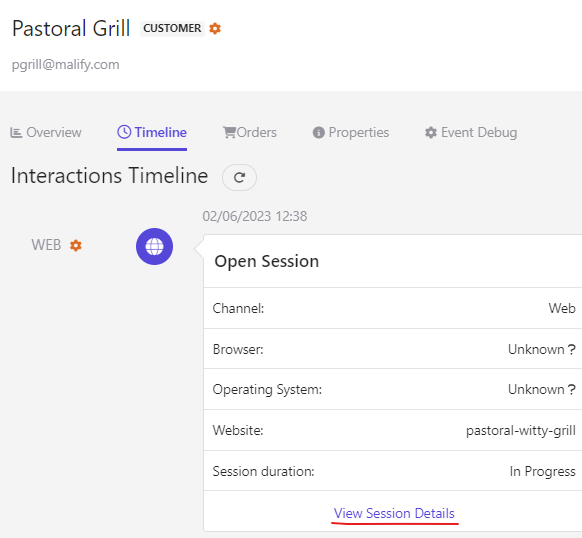
You should be able to see the customer Online at that point odf instance

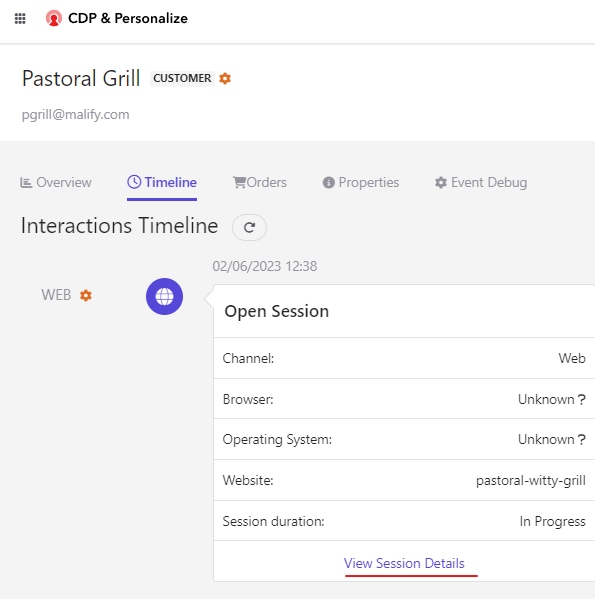
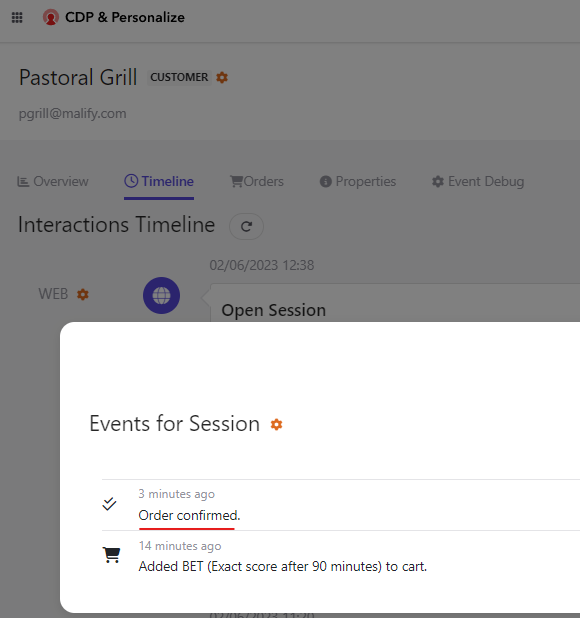
Click on Timeline and View Session details

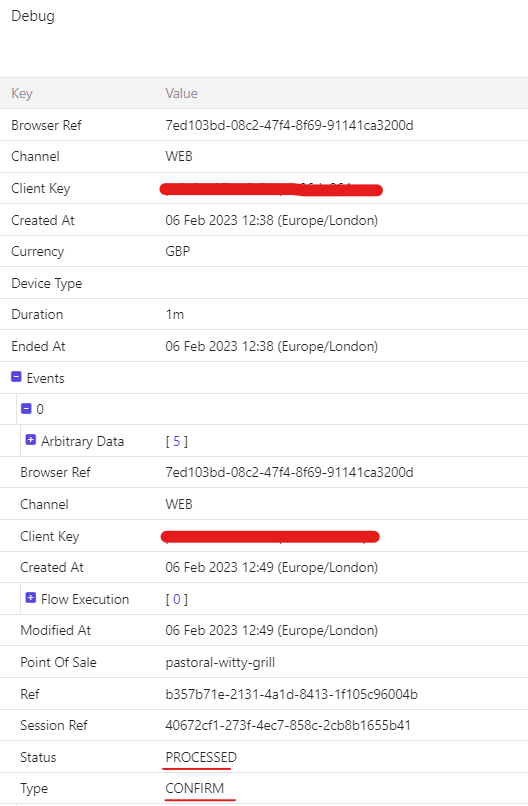
Get the session details and should see the Order Confirmed event

Clieck on the settings icon to see more details-

cURL code snippet-

curl --location -g --request GET 'https://api.boxever.com/v1.2/event/create.json?client_key=<<Client Key>>&message={"channel":"WEB","type":"CONFIRM","language":"EN","currency":"GBP","page":"home page","pos":"pastoral-witty-grill","browser_id":"7ed103bd-08c2-47f4-8f69-91141ca3200d","product":[{"item_id":"EXACT_90"}]}'

C# code snippet-

var client = new RestClient("https://api.boxever.com/v1.2/event/create.json?client_key=<<Client Key>>&message={\"channel\":\"WEB\",\"type\":\"CONFIRM\",\"language\":\"EN\",\"currency\":\"GBP\",\"page\":\"home page\",\"pos\":\"pastoral-witty-grill\",\"browser_id\":\"7ed103bd-08c2-47f4-8f69-91141ca3200d\",\"product\":[{\"item_id\":\"EXACT_90\"}]}");
client.Timeout = -1;
var request = new RestRequest(Method.GET);
IRestResponse response = client.Execute(request);
Console.WriteLine(response.Content);

Python code snippet-

import http.client

conn = http.client.HTTPSConnection("api.boxever.com")
payload = ''
headers = {}
conn.request("GET", "/v1.2/event/create.json?client_key=<<Client Key>>&message=%7B%22channel%22:%22WEB%22,%22type%22:%22CONFIRM%22,%22language%22:%22EN%22,%22currency%22:%22GBP%22,%22page%22:%22home%20page%22,%22pos%22:%22pastoral-witty-grill%22,%22browser_id%22:%227ed103bd-08c2-47f4-8f69-91141ca3200d%22,%22product%22:%5B%7B%22item_id%22:%22EXACT_90%22%7D%5D%7D", payload, headers)
res = conn.getresponse()
data = res.read()
print(data.decode("utf-8"))

Reference- https://doc.sitecore.com/cdp/en/developers/sitecore-customer-data-platform–data-model-2-1/send-a-confirm-event-to-sitecore-cdp.html

Loading

Sitecore CDP Intergration Series

Sitecore CDP and Personalize FAQs

How to get the Client Key and API Token?

How to create and get the point of sale?

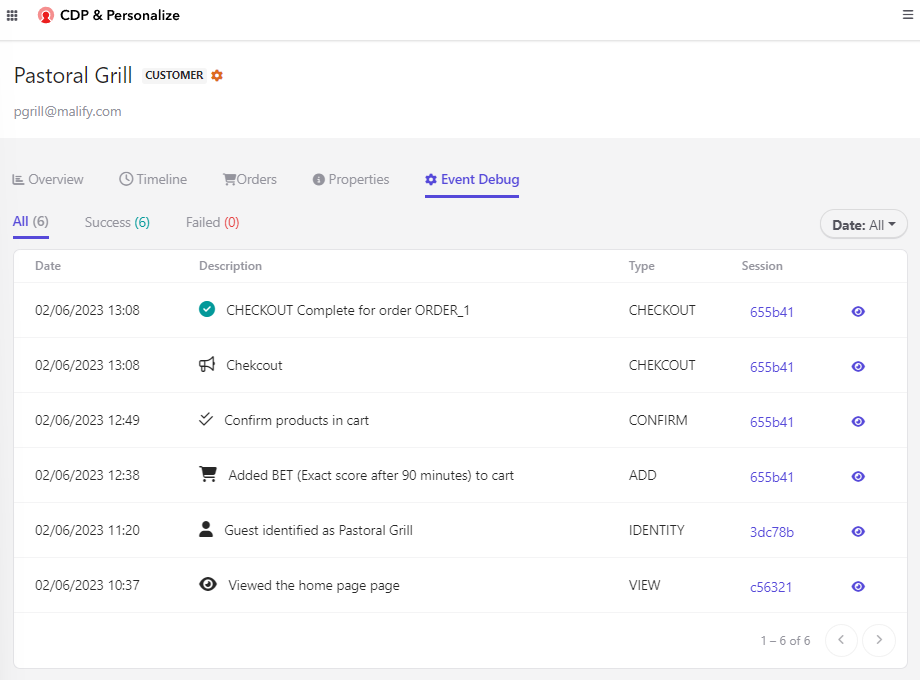
How to debug?

How to get the base URL for Sitecore CDP Rest API?

What is the latest version of Javascript Library?

How to get Fullstack Experience friendly id?

What if the size of the compressed batch file exceeds the max limit i.e. 50MB?

Why I recieve HTTP 400 response when uploading the batch file?

Why I recieve HTTP 409 response when uploading the batch file?

How to delete a guest profile without using Batch API?

What access do you need to setup the Point of sale for Sitecore CDP and Personalize?

How to generate the browser id using postman?

Integrate using direct HTTP requests

Sending VIEW Event using direct HTTP requests

Send IDENTITY Event using direct HTTP request

Send ADD Event using direct HTTP request

Send CONFIRM Event using direct HTTP request

Send CHECKOUT Event using direct HTTP request

Upload guest data

Abandon cart with force close event

Loading

Gracefully handle user subscription using Sitecore Send

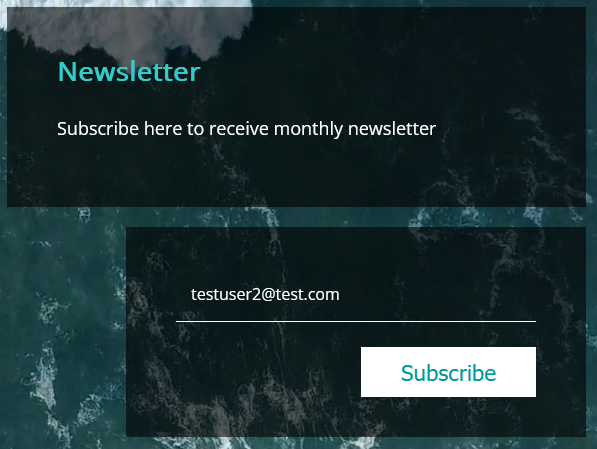
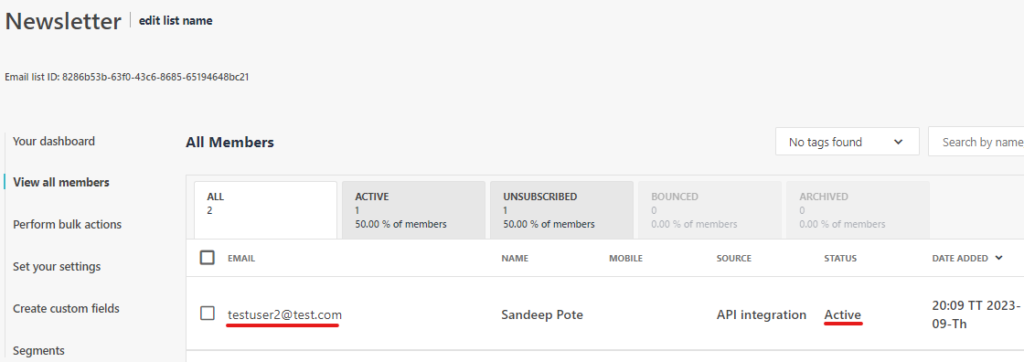
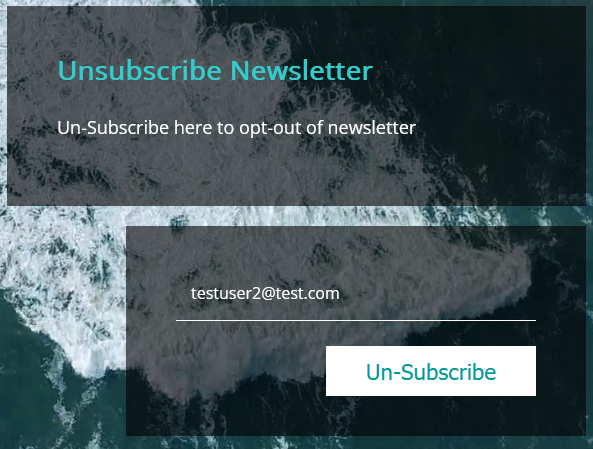
In this blog will walk you through on implementing subscribing and ubsubscribing user from the mail list using Sitecore Send

Use hostname- https://api.sitecoresend.io/v3

Subscribing a user to a mailing list

Api endpoint to subscribe a user to a mailing list

{hostname}/subscribers/{MailingListID}/subscribe.{Format}?apikey={apikey}

Subscribe Code

function SubscribeNewsletter(){

              let email = document.getElementById("newsletteremail");
              console.log(email)

              if (email.value == "") {
                alert("Ensure you input a value in both fields!");
              } else {
                // perform operation with form input
                
                var request = new XMLHttpRequest();
                request.open('POST', 'https://api.sitecoresend.io/v3/subscribers/{maillist}/subscribe.json?apikey={apikey}');
                request.setRequestHeader('Content-Type', 'application/json');
                request.setRequestHeader('Accept', 'application/json');
                request.onreadystatechange = function () {
                  if (this.readyState === 4) {
                    console.log('Status:', this.status);
                    console.log('Headers:', this.getAllResponseHeaders());
                    console.log('Body:', this.responseText);
                  }
                };
                var body = {
                  'Name': 'Sandeep Pote',
                  'Email': email.value,
                  'HasExternalDoubleOptIn': false
                };
                request.send(JSON.stringify(body));
                email.value = "";
                alert("User subscribed to newsletter")
              }
            };

Unsubscribe a user from a mailing list

Api endpoint to un-subscribe a user to a mailing list

{hostname}/subscribers/{MailingListID}/unsubscribe.{Format}?apikey={apikey}

Unsubscribe Code-

function UnSubscribeNewsletter(){

              let email = document.getElementById("optout-newsletteremail");
              console.log(email)

              if (email.value == "") {
                alert("Ensure you input a value in both fields!");
              } else {
                // perform operation with form input
                
                var request = new XMLHttpRequest();
                request.open('POST', 'https://api.sitecoresend.io/v3/subscribers/{maillist}/unsubscribe.json?apikey={apikey}');
                request.setRequestHeader('Content-Type', 'application/json');
                request.setRequestHeader('Accept', 'application/json');
                request.onreadystatechange = function () {
                  if (this.readyState === 4) {
                    console.log('Status:', this.status);
                    console.log('Headers:', this.getAllResponseHeaders());
                    console.log('Body:', this.responseText);
                  }
                };
                var body = {
                    'Email': email.value,                  
                };
                request.send(JSON.stringify(body));
                email.value = "";
                alert("User subscribed to newsletter")
              }
              };

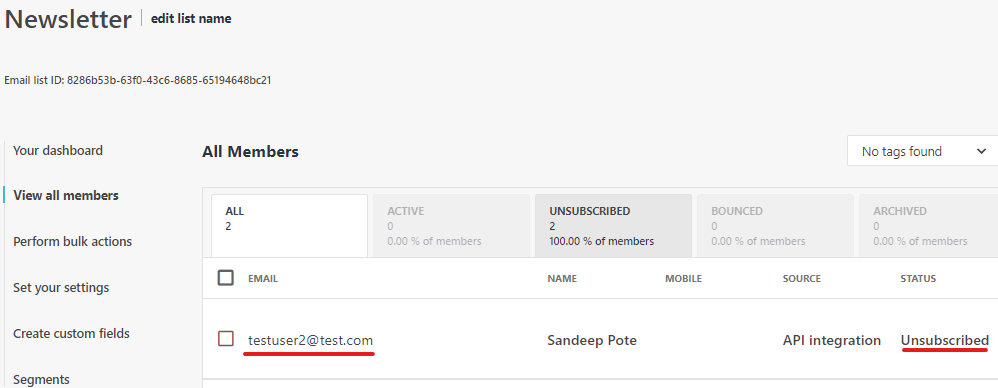
Looks simple, but you might see when the user un-subscribed from a mailing list the user is never sent a mail from other mailing list or any other transactional mail.

Set user to unsubscribe from a specific mailing list

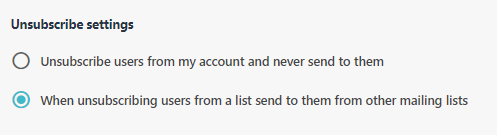
To allow only to unsubscribe from the a specific mailing list update a Unsubscribe setting-

For this goto Settings –> Set your account settings in Sitecore Send and check the Unsubscribe settings

Select option- When unsubscribing users from a list send to them from other mailing lists

Now the user will be only unsubscribed from the specific mailing list and sending mails from the Other mailing list of capaign should be possible.

This setting is very important whilst working with Sitecore send.

Reference-

https://doc.sitecore.com/send/en/developers/api-documentation/add-a-new-subscriber.html

https://doc.sitecore.com/send/en/developers/api-documentation/unsubscribe-a-subscriber-from-a-mailing-list.html

Loading